Requires: Charitable Pro 1.8.16+
Charitable Ambassadors 3.0.0+
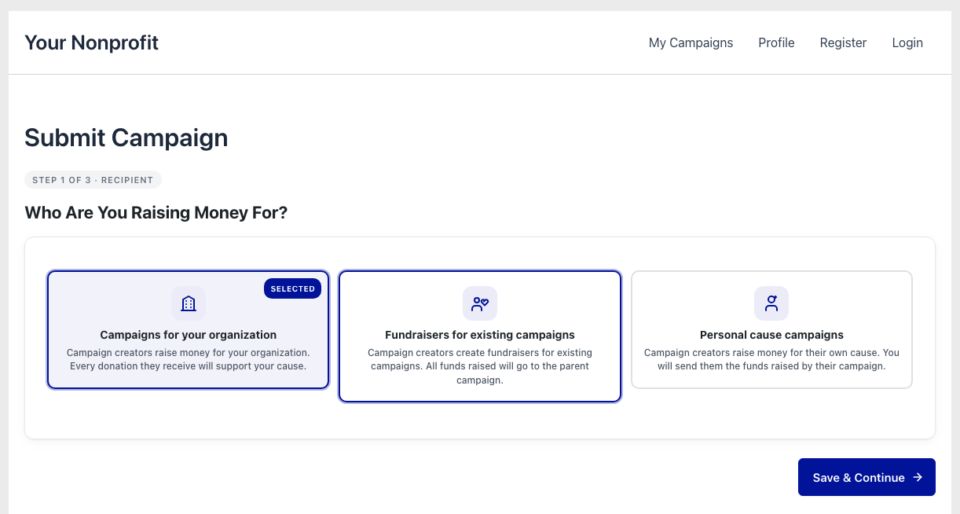
Submit Campaign is the form your ambassadors fill out to create a fundraiser. It lives behind the [charitable_submit_campaign] shortcode and walks them through three steps:
- Pick the recipient type (am I fundraising as an individual? a team? a team member?)
- Pick the parent cause they’re fundraising for
- Fill out the campaign details (title, story, goal, image)
The 3.0 release introduces a card-grid step 1 that replaces the legacy select-driven flow. Same data model, much friendlier UX – the recipient becomes a tactile card pick, the parent campaign becomes a rich picker with logos and progress bars instead of a long dropdown.
When You’d Use It
- Setup – the Setup Wizard creates a
/submit-campaign/page automatically with the shortcode in it. Visit it once to confirm. - Linking ambassadors directly to a specific cause – share
?cap_recipient=individual&cap_campaign=42and the form pre-selects those choices. - Theming – copy the template into your theme to make site-wide layout changes.
Finding The Page
/submit-campaign/ (or whatever slug you used). The page renders the form for logged-in ambassadors and either prompts for login or auto-redirects to login (configurable under General » Require Account Before Submission).
If you also need to find the settings that govern the form:
WordPress Admin > Charitable > Ambassadors > General
The General sub-tab houses Campaign Types Available, Default Selection, Fundraiser URL Slug, Require Account Before Submission, Require Email Verification, Auto-Approve Campaigns, Min/Max Campaign Length, and the payout method.
How to Use Submit Campaign in Ambassadors
Step 1 – Pick your recipient
The first step asks: who is this fundraiser for? The card grid shows whichever recipient types you have enabled in General » Campaign Types Available:
| Card | Picks if |
|---|---|
| Individual | The ambassador is fundraising alone. The most common case. |
| Team | The ambassador is creating a new team that other ambassadors will join. |
| Team Member | The ambassador is joining an existing team as a member. |
The card grid is gated on the UI Version being enhanced or visual. Sites still on legacy see the original select-driven step. The site setting Default Selection controls which card is pre-selected when the form first loads – the first enabled type, a specific type, or “Require user to pick” (no pre-selection, Continue button disabled).
When only one card is enabled site-wide, the form auto-advances past step 1 – no point asking the question.
Step 2 – Pick a parent campaign
If your site has multiple peer-to-peer-enabled parent campaigns, step 2 is the parent picker:
The picker shows a card per available parent campaign with the thumbnail, title, current raised vs goal, and a Pick This One button. There’s a search input above the grid for sites with many parents.
The picker is AJAX-driven – it queries an endpoint that returns only the campaigns the current ambassador is eligible to fundraise for. That’s important: it excludes inactive campaigns, expired campaigns, and any campaign restricted by charitable_ambassadors_user_can_invite or similar gates.
Continue is disabled until a parent is picked.
If the recipient on step 1 was Team Member, this step is replaced by a Team picker that shows existing teams as compact “Join Team” cards.
Step 3 – Fill in campaign details
Step 3 is the long form: title, story, goal, end date, suggested donation amounts, featured image. This step is whatever Charitable Pro’s standard campaign-submit form generates. It honors all the Field Settings configured in Charitable’s broader settings.
Submit, and:
- A new campaign post is created as
draft(orpendingif Auto-Approve Campaigns is off). - The
charitable_campaign_submission_saveaction fires, which the Invitations attribution handler listens to. - If Auto-Approve is on, the fundraiser publishes immediately.
- If Auto-Approve is off, the fundraiser lands in Moderation for your team to review.
Deep-linking with cap_recipient and cap_campaign
You can pre-fill steps 1 and 2 by appending query args to the submit URL:
/submit-campaign/?cap_recipient=individual&cap_campaign=42
| Arg | What it pre-selects |
|---|---|
cap_recipient | individual / team / team-member – the recipient type. |
cap_campaign | A parent campaign ID. If valid, the picker is skipped and the parent is locked. |
The query arg names are filterable via charitable_ambassadors_submit_form_query_arg_names if you need to use different names (for legacy URL compatibility).
The “Recruit for this campaign” popover on My Campaigns generates URLs in exactly this shape, so when a recruit clicks an invite link the form starts pre-filled to the right parent.
The shortcode
[charitable_submit_campaign]
Optional attribute:
[charitable_submit_campaign parent_id="42"]
When parent_id is set, the shortcode locks the parent campaign at render time (identical to passing cap_campaign=42 in the URL).
Template files
| Path | Used when |
|---|---|
templates/shortcodes/submit-campaign.php | Legacy UI version. |
templates/shortcodes/submit-campaign-enhanced.php | Enhanced + Visual UI versions, when the card-grid path is active. |
templates/shortcodes/submit-campaign/<partial>.php | Per-step partials referenced by the enhanced shell. |
Theme override path: your-theme/charitable-pro/charitable-ambassadors/submit-campaign-enhanced.php (and the per-step partials).
Eligibility and access
| Setting | Default | Effect |
|---|---|---|
| Require Account Before Submission | On | Ambassadors must be logged in. Logged-out visitors see a login prompt with a redirect back to the submit page. |
| Require Email Verification | On | Ambassadors who haven’t verified their email see a verify-prompt instead of the form. |
| Auto-Approve Campaigns | Off | Whether new submissions publish immediately or land in Moderation. |
If your site is more open (“anyone can submit, we’ll worry about it later”), turn both Require flags off. If you’re stricter (“only verified accounts can submit”), turn both on.
Per-recipient cap
You can cap how many fundraisers a single ambassador can have at once via the charitable_ambassadors_user_max_fundraisers filter. When exceeded, step 3’s submit button shows a friendly “you’ve hit your fundraiser limit” notice instead of submitting.
Tips
- Use deep-linked URLs in your invite emails. Don’t make ambassadors hunt through a parent picker – if you already know which cause they’re recruiting for, pass
cap_campaign=IDin the link. - Default Selection matters. “First enabled type” feels welcoming; “Require user to pick” feels deliberate. Pick to match the personality of your program.
- Auto-Approve for trusted teams, manual for the public. A gala for your existing donors? Auto-approve. A public p2p? Manual moderation.
- Read your form data via the Directory profile. When you need to know what an ambassador filled out, the Form Data tab on their profile shows everything without you logging in as them.
Developer reference
The rest of this page is for developers customizing the submit form.
Shortcode
[charitable_submit_campaign]
[charitable_submit_campaign parent_id="42"]
Class: Charitable_Ambassadors_Submit_Campaign_Shortcode. The shortcode delegates to a Charitable_Ambassadors_Campaign_Form form instance and its processor.
Filters
| Filter | Default | Purpose |
|---|---|---|
charitable_submit_campaign_shortcode | rendered HTML | Filter the entire shortcode output. |
charitable_ambassadors_use_card_submit_form | computed | Force the card-grid path on/off. Returns true when UI version is enhanced/visual and not legacy. |
charitable_ambassadors_submit_form_query_arg_names | [ 'recipient'=>'cap_recipient', 'campaign'=>'cap_campaign' ] | Rename the query args used for deep linking. |
charitable_ambassadors_step1_expected_total | computed | Override the total step count shown in the “Step 1 of N” pill (the form’s get_pages() can’t see conditional pages registered downstream). |
charitable_ambassadors_submit_form_recipient_card_help_url | '' | URL for an optional “Learn more” link in the recipient card help text. |
charitable_ambassadors_user_max_fundraisers | unlimited | Maximum number of publish + pending fundraisers a single ambassador can own. |
charitable_campaign_submission_user_fields | computed | Fields shown on the user-fields section of step 3. Shared with the Directory’s Add Ambassador form. |
Actions
| Action | Args | Fires when |
|---|---|---|
charitable_ambassadors_before_submit_form_step1 | – | Just before the step-1 container renders. |
charitable_ambassadors_after_submit_form_step1 | – | Just after step 1. |
charitable_submit_campaign_shortcode_hidden | $form_args | Logged-out / no-permission state was rendered instead of the form. |
charitable_campaign_submission_save | $data, $campaign_id, $user_id, $form | Fired by Pro after the form successfully creates/updates a campaign. The Invitations attribution handler listens to this. |
AJAX endpoints
| Action | Purpose |
|---|---|
charitable_ambassadors_submit_picker_query | The parent-campaign picker autocomplete. Nonce action charitable_ambassadors_submit_picker, no capability gate (must be logged in). |
URL detection helper
charitable_ambassadors_get_submit_form_query_args() // ['recipient' => 'individual'|'team'|..., 'campaign' => 0|int]
Use this to inspect the active deep-link state from your own custom UI.
Capability checks
The form uses Charitable_Ambassadors_Campaign_Form::current_user_can_edit_campaign() to decide whether to render the form. Returns false for:
- Not-logged-in users.
- Users whose accounts require email verification and haven’t completed it.
- Users without the post-edit capability when editing an existing campaign.
Per-step partials
templates/shortcodes/submit-campaign/recipient-cards.php   # Step 1 cards
templates/shortcodes/submit-campaign/parent-picker.php     # Step 2 picker
templates/shortcodes/submit-campaign/team-picker.php       # Step 2 team variant
templates/shortcodes/submit-campaign/campaign-details.php  # Step 3 wrap
Each can be theme-overridden via the same your-theme/charitable-pro/charitable-ambassadors/<partial>.php path.
Customization examples
Force the legacy submit form for all users (e.g. during a regression debug):
add_filter( 'charitable_ambassadors_use_card_submit_form', '__return_false' );
Limit each ambassador to a single concurrent fundraiser:
add_filter( 'charitable_ambassadors_user_max_fundraisers', function () {
    return 1;
} );
Add a “Welcome back” banner above step 1 for returning ambassadors:
add_action( 'charitable_ambassadors_before_submit_form_step1', function () {
    $user = wp_get_current_user();
    if ( $user && get_user_meta( $user->ID, '_charitable_ambassadors_submitted_before', true ) ) {
        echo '<div class="notice notice-info"><p>Welcome back, ' . esc_html( $user->display_name ) . '!</p></div>';
    }
} );
Rename the query args (e.g. for backward compatibility with an existing campaign):
add_filter( 'charitable_ambassadors_submit_form_query_arg_names', function () {
    return [ 'recipient' => 'team_type', 'campaign' => 'parent' ];
} );
Stamp the submitted fundraiser with the referring URL on save:
add_action( 'charitable_campaign_submission_save', function ( $data, $campaign_id, $user_id, $form ) {
    $ref = wp_get_referer();
    if ( $ref ) {
        update_post_meta( $campaign_id, '_referer_at_submit', esc_url_raw( $ref ) );
    }
}, 10, 4 );
Related
- My Campaigns – where ambassadors land after submitting.
- Moderation – where submissions go for review.
- Invitations – Attribution – how recruit-link clicks tie back to submissions.
- Setup Wizard – the wizard creates the submit page for you.
- Hooks & filters in Ambassadors – full reference.
Helpful Links
🤝 Get help when you need it
Connect with Customer Support →
📑 Find the guide you need
Browse the Documentation Hub →
⬇️ Download proven strategies, campaign ideas, and expert tools
🔗 Let your AI Assistant do the fundraising work for you.
Connect Charitable to your AI assistant →
💸 Get Free Fundraising Resources
Head to the Charitable Fundraising Hub →
🤔 Got questions about Charitable?
Charitable FAQs →
Need help understanding non-profit terms and jargon?
See our Non-Profit Glossary →