Requires: Charitable Pro 1.8.16+ Charitable Ambassadors 3.6.0+
This page is about Charitable Ambassadors, the addon that turns a Charitable campaign into a peer-to-peer one, where your supporters make their own fundraiser pages and raise money on your behalf. Organizers, and the dashboard that access unlocks, are new in Ambassadors 3.6.0 and exist in no earlier version, so if there is no Organizers tab in your Ambassadors menu, update the addon first.
An organizer is somebody who can see the fundraising dashboard for a campaign without having created that campaign. A teacher who needs to watch their own class. A team captain who wants to see who on their team has started. A chapter lead who reports upward on one branch of a larger appeal.
The Organizers tab is where you grant that access, take it back, and see who currently has it.
If you are looking for what the dashboard itself shows once somebody can see it, that is the Owner Dashboard page.
The words on this page
- Campaign. The appeal being raised for. Access is granted one campaign at a time, and it reaches everything nested beneath that campaign, so handing somebody one class does not hand them the school.
- Participant. One person’s own fundraiser page beneath the campaign, which is what a supporter creates when they sign up to raise money. An organizer sees these as names and totals, never as editable pages.
- Organizer. Somebody on a campaign’s access list. Not a WordPress role, not a capability, and not the campaign’s author, which is what makes it possible to give one teacher one class.
- Dashboard. The read-only front-end page an organizer lands on. What it shows is documented on Owner Dashboard.
Peer-to-Peer Concepts covers the wider campaign, fundraiser and team vocabulary.
When you’d use it
- A school runs one parent campaign and each teacher needs to see only their own class, not the whole school.
- A charity runs a marathon appeal and each team captain wants their team’s numbers without seeing everyone else’s.
- A staff member has to pull a weekly figure for one program and you would rather not give them access to the WordPress admin to get it.
- Somebody has left and their access needs to come off today.
Why this is separate from being a campaign author
Access here is explicit. It is deliberately not “whoever created the campaign.”
On most platform setups, one administrator account creates every parent campaign and the families or team members create the pages underneath. If access followed authorship, that administrator would get everything and the people actually running each group would get nothing. That is exactly backwards, so you name the people instead.
An organizer is never given access to the WordPress admin by being made an organizer. They see one front-end page, read only.
Finding it
Go to Charitable > Ambassadors > Directory > Organizers. It sits just after Teams.
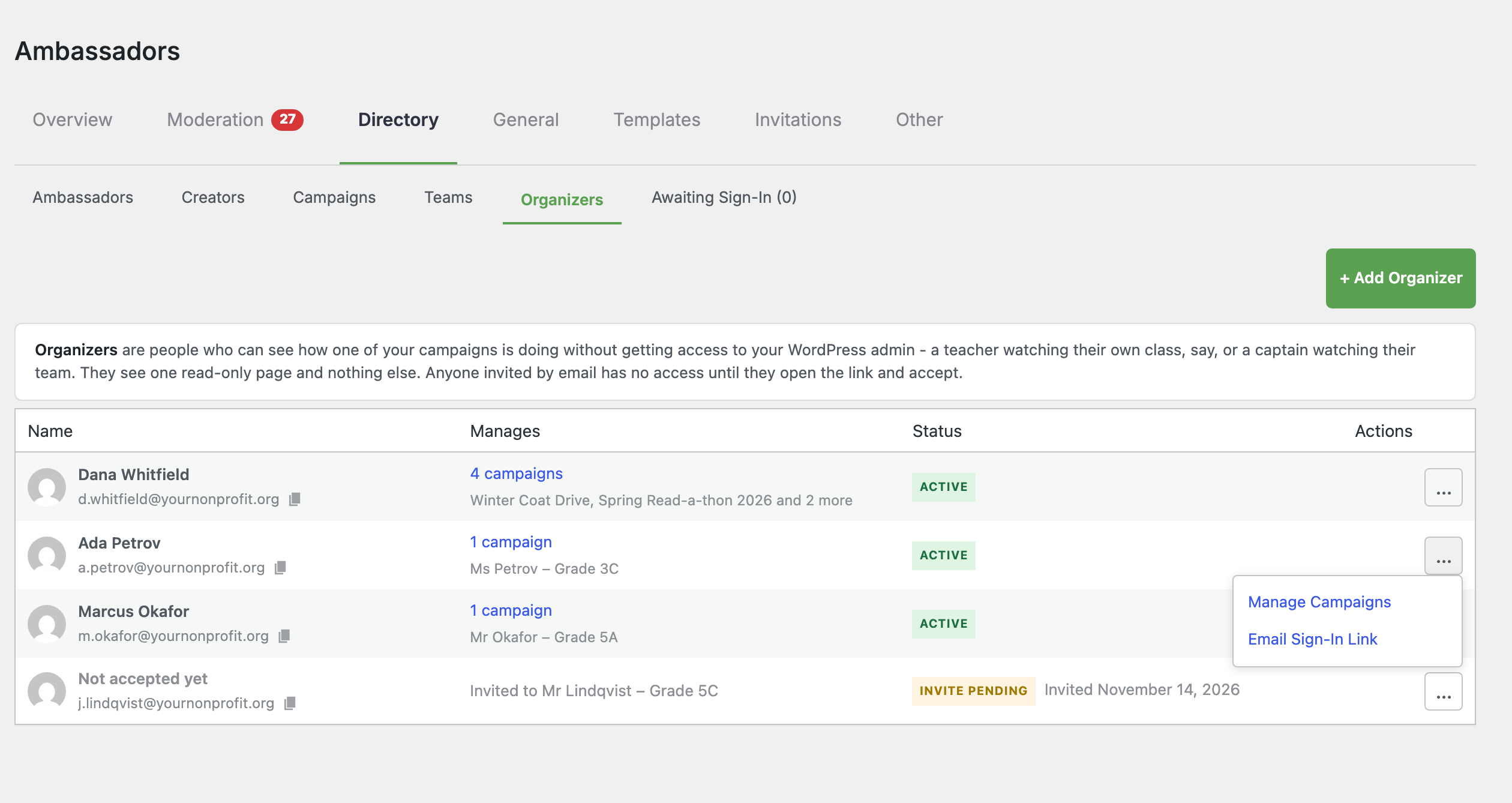
The tab is always present. It does not need switching on.
Before you start: the dashboard page
Organizers need somewhere to sign in and look. Create a page and put the dashboard shortcode on it:
[charitable_owner_dashboard]
You only need one page for the whole site. Everyone who has access to anything uses the same page, and each person sees only their own campaigns on it.
If you have not made that page yet, the Dashboard Settings box on any campaign will tell you so.
Adding somebody who already has an account
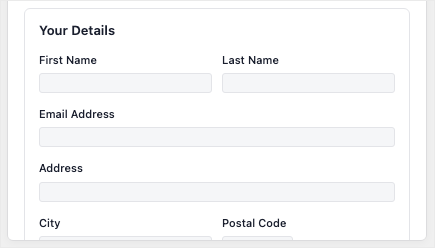
- Click + Add Organizer, top right.
- Start typing a name or email address in Name or Email. Matches appear under the field as you type.
- Click the person you meant. Their address fills the field.
- Choose the campaign in Campaign.
- Click Add Organizer.
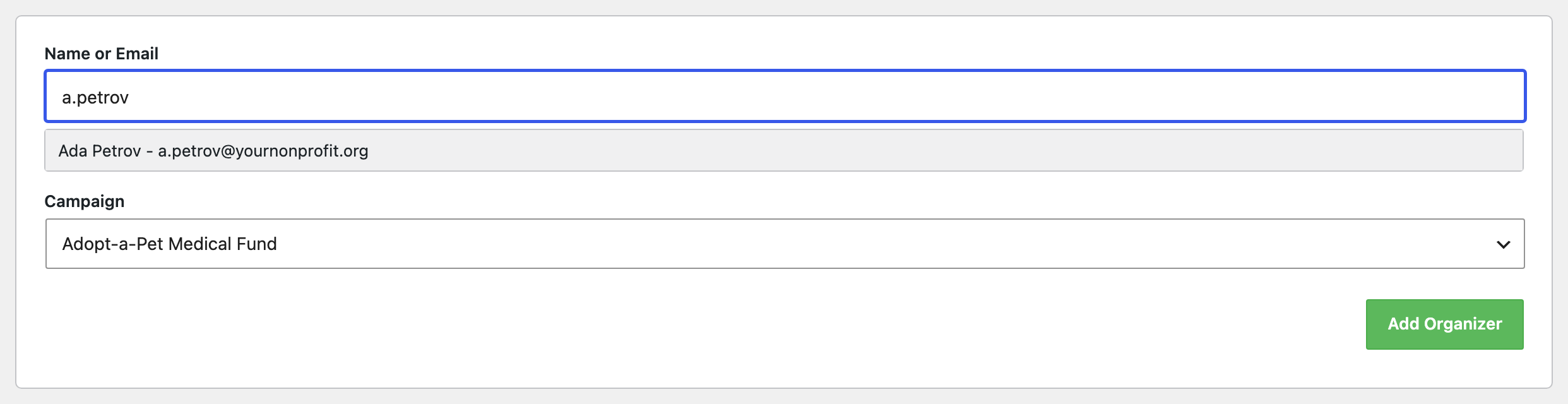
They have access immediately. There is no email and nothing for them to accept, because the account already exists and already belongs to them.
Search looks at display names, usernames and email addresses. Type at least two real characters: punctuation on its own will not start a search.
Inviting somebody who has no account yet
Type the full email address. If nobody on the site uses it, the button changes to Send Invitation and a line appears telling you what is about to happen.
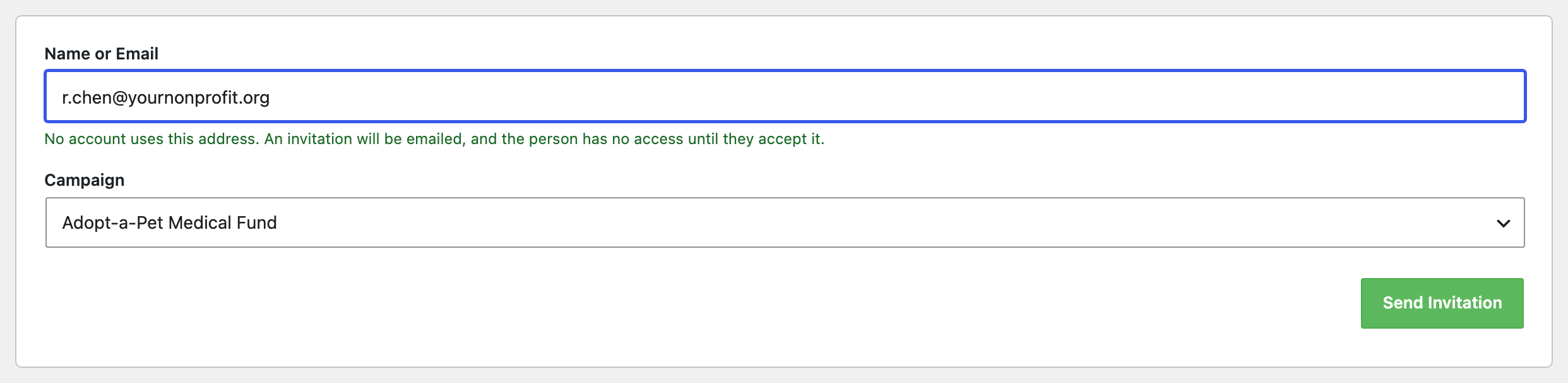
Click Send Invitation and they get one email with one link.
An invitation is not access. Nothing is granted until they open the link and accept. Until then they show in the list as pending, and the campaign’s owner list does not include them.
What the person receives
The email names the campaign, names you as the person who invited them, and carries a single link. The link is good for seven days.
When they open it they see a confirmation page naming the campaign and the person who owns it, and two buttons: Accept Access and Decline.
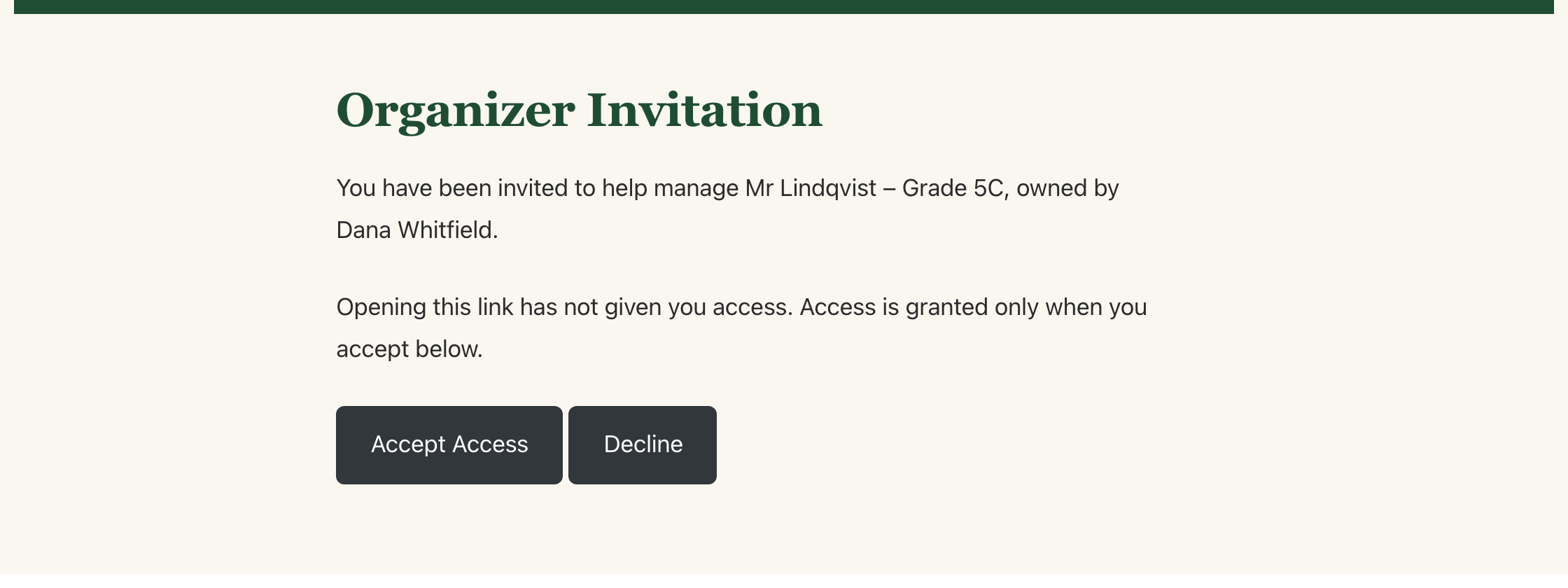
Opening the link does not accept anything. That matters because mail scanners and link previewers follow links in email before a person ever clicks. Access is granted only by pressing the button.
When they accept:
- If they had no account, one is created for them and they are signed in and taken straight to the dashboard. They never choose a password.
- If they already had an account, access is granted and they are asked to sign in as themselves.
If they decline, no access is granted and the invitation is removed. Nothing is sent to you, so check the list if you want to know.
Reading the list
| Column | What it tells you |
|---|---|
| Name | The person’s name above their email address. Somebody who has not accepted yet has no account and so no name, and the cell says “Not accepted yet” instead |
| Manages | How many campaigns. Click the count to see them all. A pending row reads “Invited to” and names the one campaign |
| Status | Active, or Invite Pending with the date the invitation was sent |
| Actions | The … menu |
Addresses are shown in full here, deliberately. This is the screen where a typo in an address means somebody never gets access, so you need to be able to read it. The small icon beside each address copies it to your clipboard.
There are no separate first and last name columns. An organizer invited by email has no account until they accept, so those columns would be empty for most of the people on this screen.
What you can do to a row
Open the … menu at the end of the row.
For somebody with access:
- Manage Campaigns opens a window listing every campaign they manage, with a Remove beside each one and a picker at the bottom for adding another. Removing one leaves the rest untouched.
- Email Sign-In Link sends them a fresh link straight into the dashboard. See below.
For a pending invitation:
- Resend Invitation sends it again. The earlier link stops working.
- Revoke Invitation withdraws it. The link stops working and the row disappears.
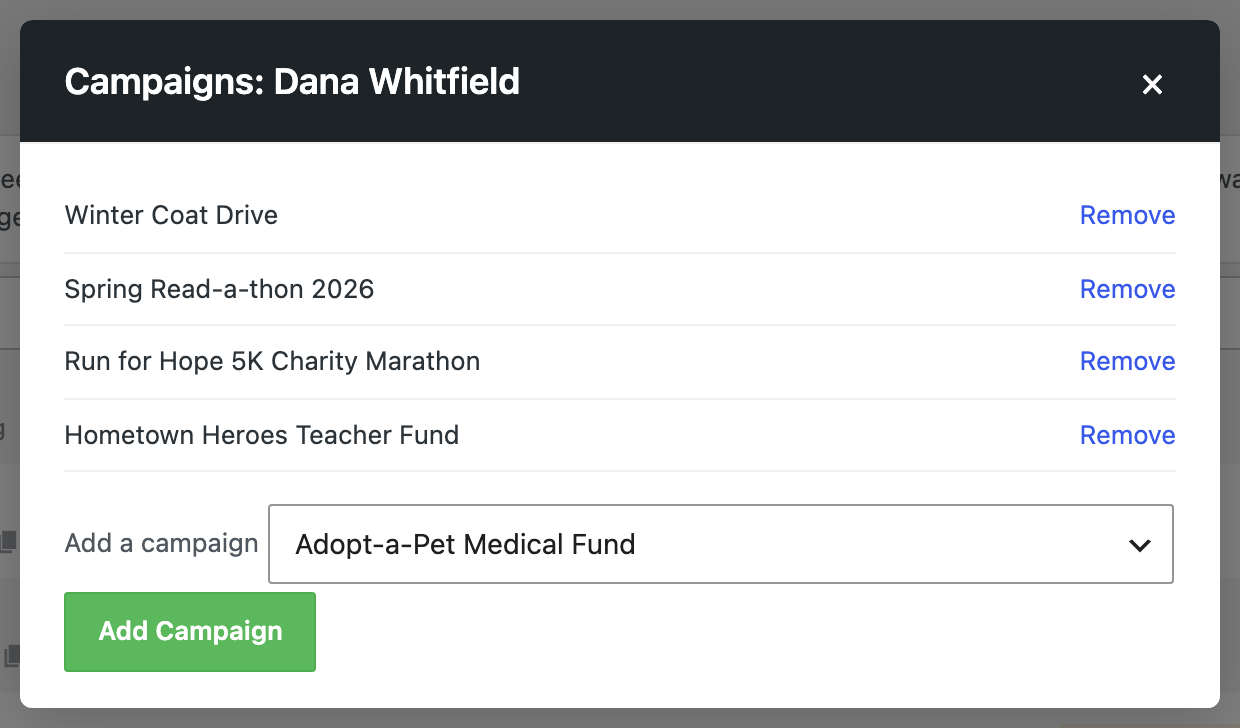
You can also reach that same window by clicking the campaign count in the Manages column.
Removing access does not delete the person’s WordPress account. It only stops them seeing that campaign.
Sending a sign-in link
An organizer whose account was created by accepting an invitation has no password, because one was never chosen and never sent. The first visit works because accepting signs them in, but sessions end.
When they need to get back in, click Email sign-in link on their row. They get a one-time link that takes them to the dashboard.
That link:
- can be used once
- expires one hour after you send it
- stops working if their access is removed before they use it
Send a fresh one whenever they ask. There is no limit on how many you send, and sending a new one does not break anything they have not used yet.
What an organizer can and cannot do
Can:
- see the dashboard for campaigns they have been given
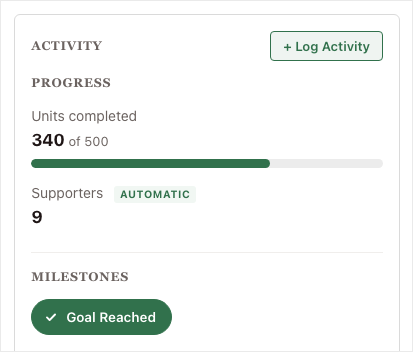
- see totals, participant counts, top participants and recent donations for those campaigns and everything beneath them
- switch between their own campaigns if they have more than one
Cannot:
- see any campaign they have not been given
- see the WordPress admin
- edit campaigns, approve fundraisers, or see donor records
- add or remove other organizers
Changing the word “Organizer”
The word is used throughout the tab, the emails and the confirmation page. Schools often prefer “Teacher”, teams prefer “Captain”, and chapter-based charities prefer “Lead”.
This is changed with a small code snippet, not a setting. Your developer will find both filters in the developer reference below.
Tips
- Give one person one campaign first and look at the dashboard yourself before sending invitations widely. It is much easier to answer “what will they see” once you have seen it.
- Check the address before you invite. An invitation to a wrong address is a link somebody else can accept.
- If a campaign has two people who should see it, add them both to the same campaign rather than making a second campaign.
- When somebody leaves, remove them the same day. Their access does not expire on its own.
Developer reference
Everything below describes the code surface. None of it is required to use the feature.
Where access is stored
There is no new table. An organizer is a user id in post meta on the campaign:
| Key | Holds |
|---|---|
_charitable_ambassadors_dashboard_owners |
Array of user ids with access to this campaign |
A pending invitation is an unredeemed row in the passwordless tokens table,
with the purpose dashboard_access. That table and its lifecycle are
documented on
How Sign-In Link Data Is Stored.
Token purposes and lifetimes
| Purpose | Default lifetime | Filter |
|---|---|---|
dashboard_access (invitation) |
7 days | charitable_ambassadors_dashboard_access_token_lifetime |
dashboard_signin (sign-in link) |
1 hour | charitable_ambassadors_dashboard_signin_token_lifetime |
Both filters take seconds and are clamped to between one minute and one week after they run, so an out-of-range value cannot mint a link that is already expired or one that never expires.
Neither purpose is accepted by the fundraiser sign-in flow. A dashboard invitation cannot be redeemed as a fundraiser signup, and a fundraiser link cannot be redeemed as dashboard access.
Filters
| Filter | Purpose |
|---|---|
charitable_ambassadors_organizer_label |
The singular noun. Default Organizer |
charitable_ambassadors_organizer_label_plural |
The plural noun. Default Organizers |
charitable_ambassadors_dashboard_owner_ids |
The resolved owner ids for a campaign. Receives ( $ids, $campaign_id ) |
charitable_ambassadors_admin_directory_sub_tabs |
The Directory sub-tab map, if you want to reorder or relabel |
charitable_ambassadors_dashboard_access_token_lifetime |
Invitation lifetime in seconds |
charitable_ambassadors_dashboard_signin_token_lifetime |
Sign-in link lifetime in seconds |
charitable_ambassadors_dashboard_owner_ids affects what is read, including
the access gate. Returning extra ids from it grants those people access.
Writing never passes through it, so an id added by this filter is never
persisted to post meta.
Classes
| Class | Responsibility |
|---|---|
Charitable_Ambassadors_Owners |
Reads and writes the owner list. get_owner_ids(), user_owns(), add_owner(), remove_owner(), get_owned_campaign_ids() |
Charitable_Ambassadors_Directory_Organizers |
The tab, the Add form, and the row actions |
Charitable_Ambassadors_Directory_Organizers_Data |
Builds the rows. Reads only |
Charitable_Ambassadors_Directory_Organizers_Search |
The people-search AJAX endpoint |
Charitable_Ambassadors_Organizer_Accept_Endpoint |
The public accept and sign-in pages |
Charitable_Ambassadors_Email_Organizer_Invite |
The invitation email |
Charitable_Ambassadors_Email_Organizer_Signin |
The sign-in link email |
Admin-post actions
All six require the manage_charitable_settings capability and a nonce whose
action incorporates the row’s own ids, so a nonce minted for one row cannot
act on another.
| Action | Does |
|---|---|
charitable_ambassadors_add_organizer |
Adds or invites from the form |
charitable_ambassadors_organizer_add_campaign |
Adds one campaign to one organizer |
charitable_ambassadors_organizer_remove_campaign |
Removes one campaign from one organizer |
charitable_ambassadors_organizer_resend |
Resends a pending invitation |
charitable_ambassadors_organizer_revoke |
Withdraws a pending invitation |
charitable_ambassadors_organizer_signin_link |
Emails a sign-in link |
AJAX endpoint
charitable_ambassadors_organizer_search powers the Add form’s search. It is
registered for logged-in requests only and checks manage_charitable_settings
after the nonce. It returns display name and email for matches, capped, and
searches user_login, display_name and user_email.
On multisite it is scoped to the current site, so a user who belongs to another site on the network will not be found.
The public endpoint
Both the invitation and the sign-in link resolve at:
https://example.org/organizer-invite/<token>/
The query-arg form ?charitable_ambassadors_organizer_accept=<token> also
works, for sites without pretty permalinks. The page is excluded from page
caches, carries noindex and no-referrer, and sets no cookie on the GET.
Emails
| Email ID | Sent when |
|---|---|
organizer_invite |
You invite an address with no account |
organizer_signin |
You click Email sign-in link |
organizer_invite is force-enabled, because it carries the only link that can
complete an invitation and an operator switching it off would make invitations
silently useless. organizer_signin follows the normal enable toggle.
Both have their own merge tags, and each link tag is restricted to its own
email. Pasting [charitable_email show=organizer_signin_link] into a donation
receipt yields nothing, rather than mailing that receipt’s recipient a working
sign-in link.
Customization examples
Call them Teachers
add_filter( 'charitable_ambassadors_organizer_label', function () {
    return 'Teacher';
} );

add_filter( 'charitable_ambassadors_organizer_label_plural', function () {
    return 'Teachers';
} );
Make invitations expire in 48 hours instead of a week
add_filter( 'charitable_ambassadors_dashboard_access_token_lifetime', function () {
    return 2 * DAY_IN_SECONDS;
} );
Give a reporting account read access to every campaign
add_filter(
    'charitable_ambassadors_dashboard_owner_ids',
    function ( $ids, $campaign_id ) {
        $ids[] = 42; // The reporting user's id.
        return $ids;
    },
    10,
    2
);
This grants access on read without writing anything to the database, so the Organizers list will not show that account. Remove the snippet and the access goes with it.
Related
- Owner Dashboard – what an organizer sees once they have access
- How Sign-In Link Data Is Stored – the table pending invitations live in
- Directory – the other Directory tabs
- Permissions – who can do what across the addon