Charitable Documentation

Learn how to make the most of Charitable with clear, step-by-step instructions.

How to Use the Donor Dashboard

The Donor Dashboard provides a personalized and secure space for your donors to manage their information, view donation history, and access important documents, making it easy for them to stay connected with your organization.

To access the Donor Dashboard settings, navigate to Charitable » Settings » Donors » Donor Dashboard in your WordPress admin. Here, you can enable the dashboard and customize the fields you want to appear.

First, let’s explore what your donors see when they login to the Donor Dashboard.

Viewing the Donor Dashboard as a Donor

This section shows you the front end of the dashboard that donors will see. You can customize this dashboard and we’ll show you how to do that in the next section.

Overview
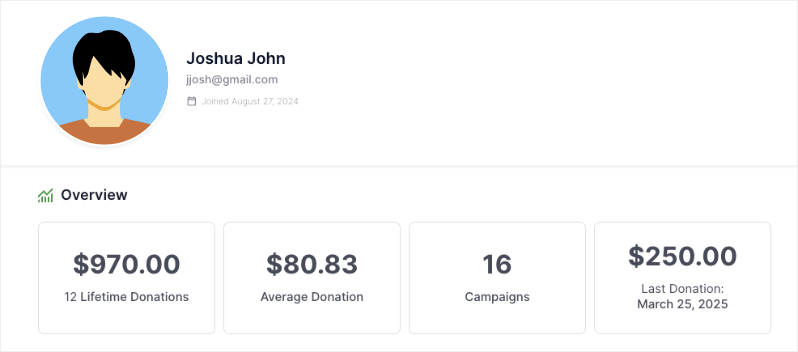
Donor dashboard overview

First, they will see an overview of their donation metrics that include:

  • Lifetime donations
  • Average donations
  • Number of campaigns they’ve contributed to
  • The last donation they made

Personal & Donation Information

There are several tabs to keep things organized, each providing access to different features and information. By default, Charitable will show the Profile, Donations, and Settings tabs. Optional tabs include Comments and Settings.

Let’s explore each tab.
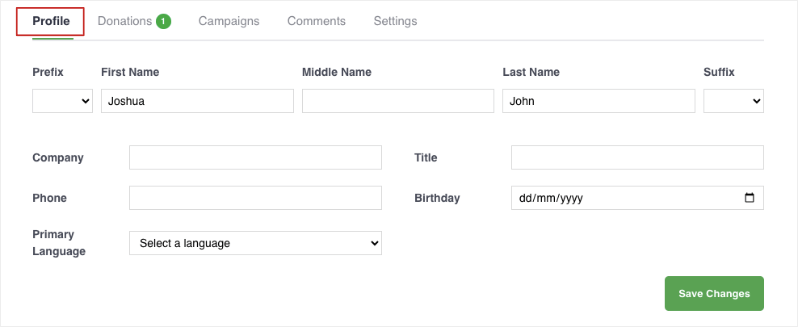
Edit profile in donor dashboard

Profile

Donors can update their profile information, including:

  • Prefix, name and suffix
  • Company and title
  • Phone
  • Birthday
  • Primary language
  • Address
  • Email
  • Social profiles
  • Avatar

Donations

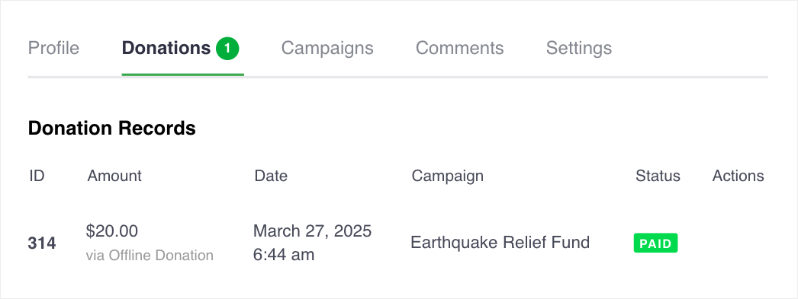
Donations tab in donor dashboard

There are 2 tabs that will show donors their one-time donations and recurring contributions. They’ll see a list of their donations, including details such as amount, campaign, date, payment method, and status. They can also download a PDF receipt for each donation.

Campaigns

This will show donors a list of campaigns they’ve contributed to along with the donation amount, status, and end date.

Comments

This will show donors a list of the comments they have posted on their donations. They can also see if their comment has been approved or is pending approval.

Settings
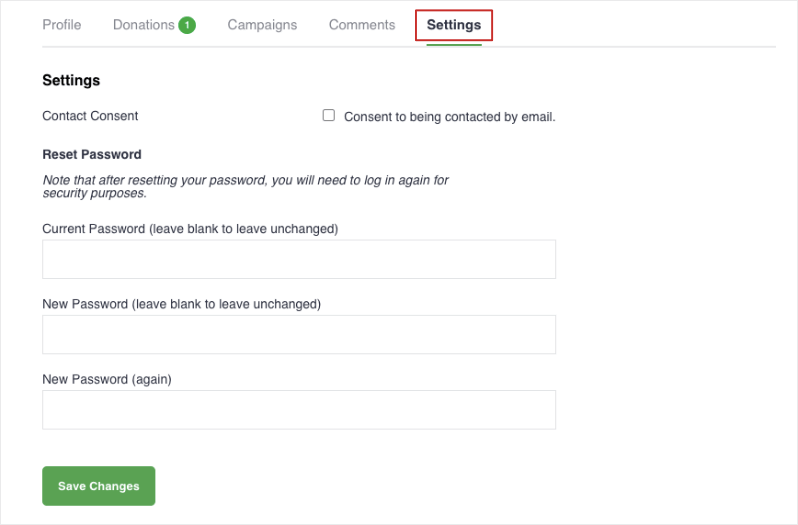
Donor-dashboard-settings-password

They can consent to being contacted by email. They can also update their password for added security.

Now let’s learn how to customize this dashboard.

Customizing the Donor Dashboard as Admin

This section shows you how to customize the donor dashboard and control what will appear to the donor on the front-end.

To enable and customize the donor dashboard, go to the Charitable » Settings » Donor Dashboard page in your WordPress admin.

On this page, you’ll see a toggle switch to enable/disable the dashboard with one click. Click on it to enable the dashboard.
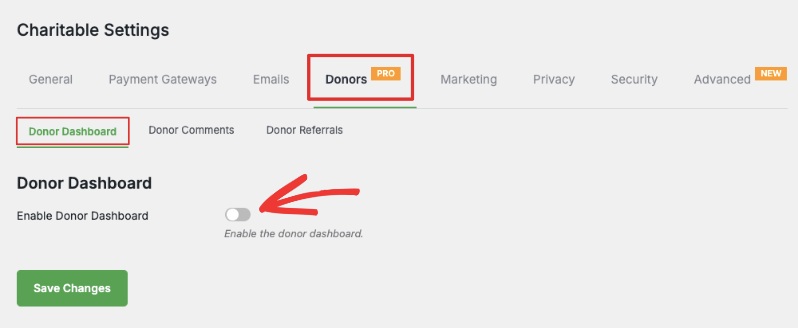
Enable donor dashboard

Below this, you can decide what information you want to appear in the dashboard.

Customize the Overview
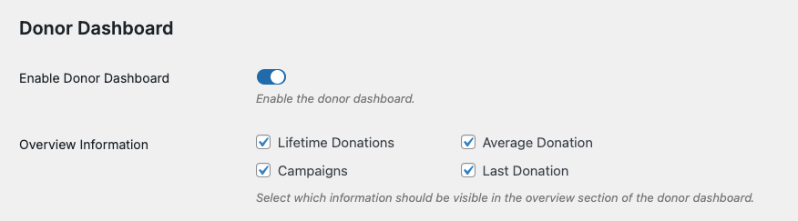
Overview in donor dashboard customization

You can choose to show/hide these fields that appear in the Overview section:

  • Lifetime Donations: Shows the total amount the donor has given across all campaigns which shows their overall impact.
  • Average Donation: Displays how much the donor gives on average
  • Campaigns: Shows how many campaigns they’ve participated in and helped
  • Last Donation: Shows most recent contribution date and amount

Customize Communication & Social Preferences

Next, you can choose to allow donors to add and manage their postal or shipping addresses as well as email addresses.

You can also allow them to add and edit their social media links.

Contact in donor dashboard customization

Customize Profile Information

Remember, Charitable can show these tabs:

Tabs in donor dashboard
  • Profile: Appears by default and can be customized
  • Donations: Appears by default and is automatically configured, no customizations needed
  • Campaigns: Can be shown or hidden
  • Comments: Can be shown or hidden
  • Settings: Appears by default and can be customized

Profile Tab

By default, Charitable will show first and last names. You can customize other fields that appears in the Profile tab:

  • Prefix (Mr., Mrs., etc)
  • Suffix (Jr., Sr., etc)
  • Middle Name
  • Company
  • Title/Position
  • Phone Number
  • Birthday
  • Primary Language
  • Avatar Upload

By default, all fields are selected for you. Simply click on the ticked checkbox to unselect the ones you want to hide.
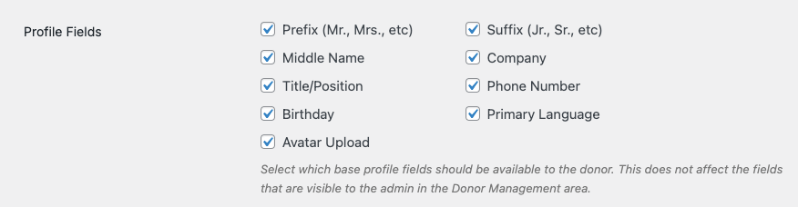
Profile fields in donor dashboard customization

Note: The choices you make here will not affect the fields that are visible in your admin Donor Management area.

Donations Tab

This tab appears by default and is automatically configured. It will display a list of all the donations made by the donor across all campaigns. They can manage their donation records and download PDFs here. There are no customizations needed.

Campaigns Tab

You can choose to display a list of all campaigns the donor has created or participated in.

Simply click the checkbox next to Campaigns to enable this feature and save your changes.
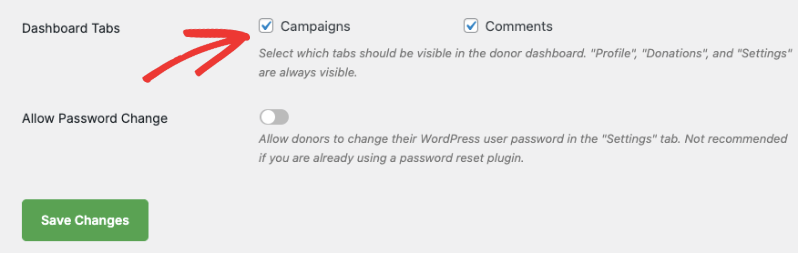
Enable campaigns tab

Comments Tab

You can choose to display any comments made by the donor across various campaigns. They’ll be able to see the status of their comment as well.

Simply click the checkbox next to Comments to enable this feature and save your changes.
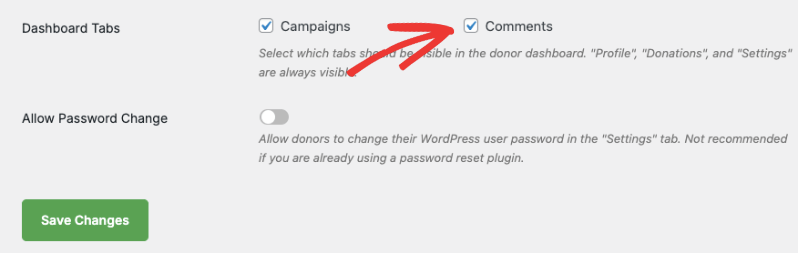
Enable comments tab

Pro Tip: Collect only the information you need from donors. This increases the chances of getting your donors to fill out all the fields in the dashboard.

Settings Tab

This tab gives your donors the option to consent to being contacted by email or withdraw their consent.

You can also give them to option to change their password for added security. You can enable this option in the same Donor Dashboard settings page like so:
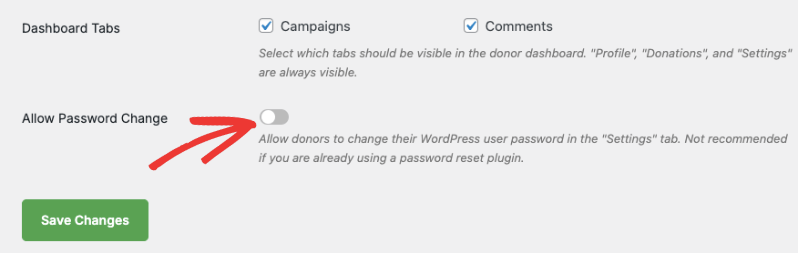
Allow password change

Hit the ‘Save Changes’ button to store all your dashboard settings.

Create a Static Donor Dashboard Page

Charitable automatically creates a donor dashboard for you. You’ll find this setting under the Charitable » Settings » General » Pages tab.

If you’d like to create a static page, then head to Pages » Add New in your WordPress admin panel.

In the page editor, give your page a title such as “Donor Portal”. In the content section, add this shortcode [charitable_donor_dashboard]
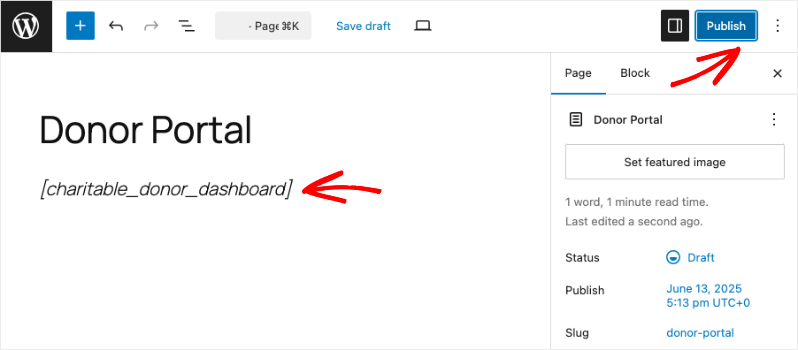
Donor portal page in block editor

Save and publish your page.

Now, go to the Charitable » Settings » General tab. Switch to the Pages tab.
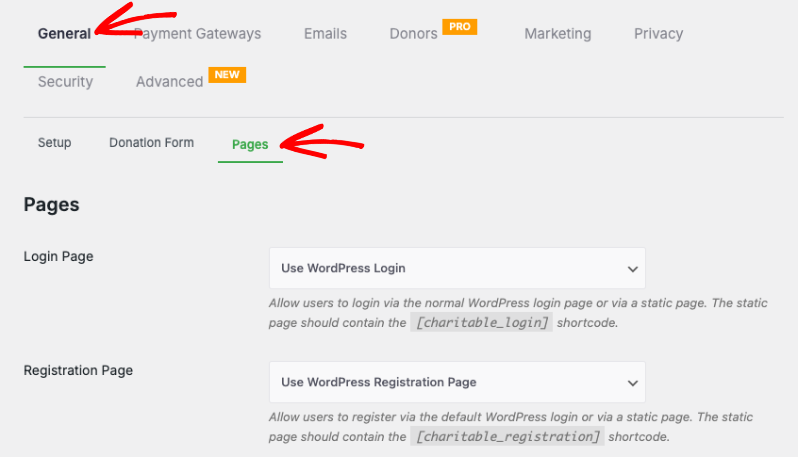
Charitable pages settings

Scroll down to “Donor Dashboard Page”. There’s a dropdown menu to choose the page you just created.
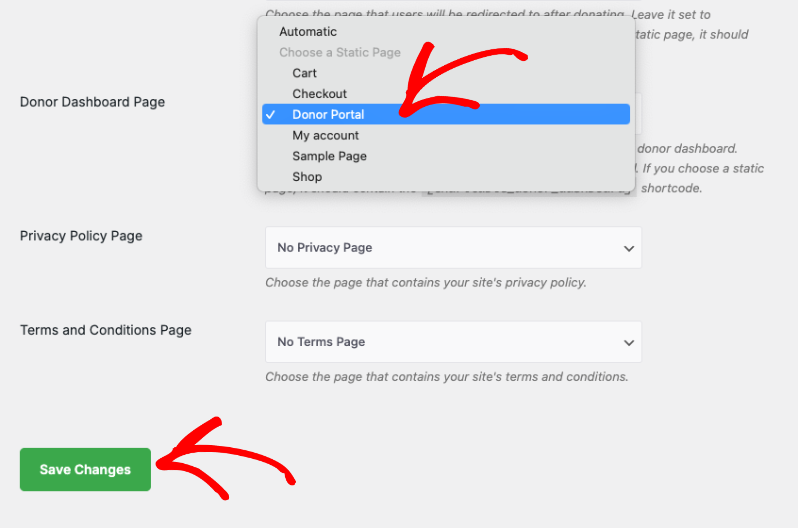
Donor portal page

Save your changes. Now you can visit this Donor Portal page and you’ll get the option to log in as a donor and access the dashboard.

That’s it. You’ve learned how to use the Donor Dashboard. Next, you may also want to learn more about How to Use the Donor Management System »
Still have questions? We’re here to help!

Last Modified:

What's New In Charitable

🔔 Subscribe to get our latest updates
📧 Subscribe to Emails

Email Subscription

Join our Newsletter

We won’t spam you. We only send an email when we think it will genuinely help you. Unsubscribe at any time!

Donations Live New

👉🏻 Showcase Real Momentum with the Donations Feed

Give your donors a reason to trust. Our new feed lets you display a living, breathing record of people showing up for your cause.

🤝 Build instant trust: Overcome donor hesitation by showing a proven track record of community support.
💬 Highlight donor stories: Display real donor comments and locations to show the human side of your fundraising.
🛠️ Drop it anywhere: Easily add the block to your homepage, campaign pages, or confirmation screens in seconds.
📈 Curate your feed: Group multiple donations from the same person or sort by highest amounts to encourage larger gifts.

Campaigns New

🎨 Campaign Showcase: Pro Level Display, No Coding Needed.

Display your causes with style and make it easier than ever for donors to find the right campaign. We are excited to announce the brand-new Campaign Showcase, a powerful, no-code tool designed to help you create beautiful, high-converting campaign grids and carousels.

The Ultimate Discovery Experience

Your mission deserves to be seen. With the Campaign Showcase, you can move beyond simple lists and create dynamic displays that highlight your most urgent needs, helping donors connect with the causes they care about most.

⚡ No-Code Customization: Effortlessly change layouts, columns, and styles with a single click. Whether you want a clean grid or an interactive carousel, you can match your organization’s look without any CSS or JavaScript.

🎯 Advanced Search & Filter: Empower your supporters with real-time filtering. Donors can quickly sort through campaigns by tags, popularity, or “ending soon,” making it easy to find exactly where their help is needed.

💰 Quick Donate Integration: Boost your conversions with instant giving. The Showcase allows donors to contribute via a modal popup directly from the display, featuring pre-selected amounts for a faster, friction-free experience.

Addon New

🤯 New Addon: Campaign Updates

Keep your supporters informed and engaged with every step of your progress! Share the ongoing impact of your mission and build lasting trust with your donor community!

The Ultimate Engagement Tool

Fundraising is a journey, not a one-time event. Now, you can easily provide real-time updates directly on your campaign pages, ensuring your donors stay connected to the causes they care about most.

📣 Easy Storytelling: Quickly post text updates, milestones, or field reports to show exactly how donations are being put to work, keeping the momentum alive throughout your fundraiser.

🏗️ Visual Builder Integration: Seamlessly add the Updates block anywhere on your page using our drag-and-drop builder, or use a simple shortcode to display news in widgets and sidebars.

📩 Build Donor Trust: By consistently sharing progress and success stories, you create a transparent giving experience that encourages recurring support and deeper community involvement.

Integration New

Build Beautiful Fundraising Pages Visually with WPBakery Integration

We are excited to announce our brand-new integration with WPBakery, one of the most popular WordPress page builders, designed to help you create stunning layouts for your campaigns without touching a single line of code.

The Ultimate Design Experience

Designing your nonprofit’s website should be as simple as your mission is powerful. Now, you can bring Charitable functionality directly into your WPBakery workflow, using native elements to build high-converting donation pages and campaign grids in seconds.

🖱️ Drag-and-Drop Building: Easily add donation forms, campaign progress bars, and “Donate Now” buttons to your layouts using the WPBakery elements you already know and love.

🎨 Total Creative Control: Customize the look and feel of your fundraising elements using WPBakery’s native design options. Adjust margins, padding, and borders to ensure your campaigns fit perfectly with your site’s branding.

📱 Seamlessly Responsive: Every element is built to be fully responsive and mobile-friendly, ensuring your donors have a smooth, professional experience whether they are giving from a phone, tablet, or desktop.

Integration New

🖼️ Add Image Galleries to Fundraising Campaigns With Envira Gallery

Showcase the impact of your mission like never before. We are excited to announce our brand-new integration with Envira Gallery, the best WordPress gallery plugin, designed to help you tell your story through powerful, high-performance visuals.

The Ultimate Storytelling Experience

A picture is worth a thousand words – and now, it’s worth even more for your fundraising. Connect your visual impact directly to your cause by creating stunning, responsive galleries that engage donors and drive contributions.

🖼️ Visual Impact: Easily create beautiful, fast-loading galleries to show your nonprofit’s work in action, from field reports to event highlights.

🔗 Seamless Connection: Link gallery images directly to your fundraising campaigns, making it effortless for inspired visitors to go from viewing a photo to making a donation.

📱 Perfectly Responsive: Whether your donors are on a phone, tablet, or desktop, your galleries will look professional and load lightning-fast, ensuring a smooth experience on every device.