Need to send year-end donation receipts to all your donors at once? The Annual Receipts Bulk Send feature in Charitable Pro lets you email annual receipts to every qualifying donor for a selected fiscal year, with a guided wizard that handles campaign exclusions, system checks, and batch processing automatically.
Requirements: Charitable Pro 1.8.13.3+ with the Annual Receipts addon version 2.0.0 or later.
Getting Started
Before you get started, make sure Charitable Pro and the Annual Receipts addon (2.0+) are installed and activated on your WordPress site.
To access the bulk send wizard, go to Charitable > Settings > Advanced > Annual Receipts in your WordPress admin. Scroll down to the Send Annual Receipts section.
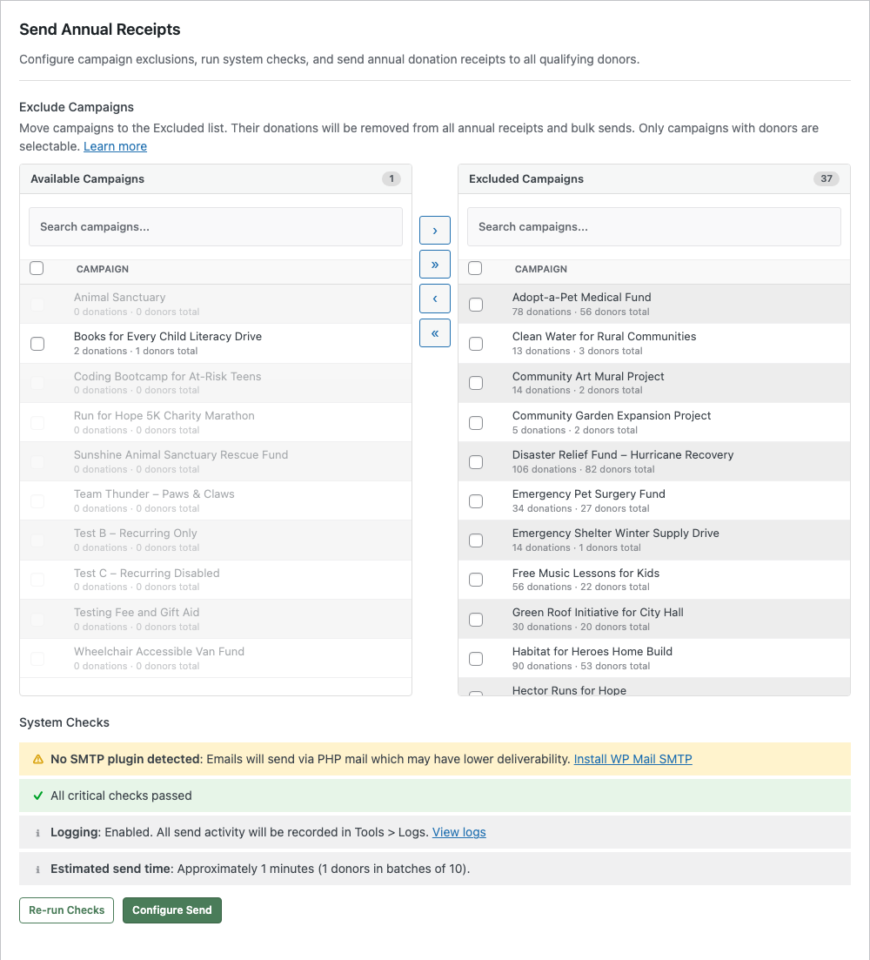
This section contains everything you need to send annual receipts: campaign exclusions, system checks, a 3-step send wizard, and your send history. The first step is to configure which campaigns should appear on receipts.
Excluding Campaigns from Receipts
If you have campaigns whose donations should not appear on annual receipts (such as event registrations, merchandise sales, or non-tax-deductible campaigns), you can exclude them before sending.
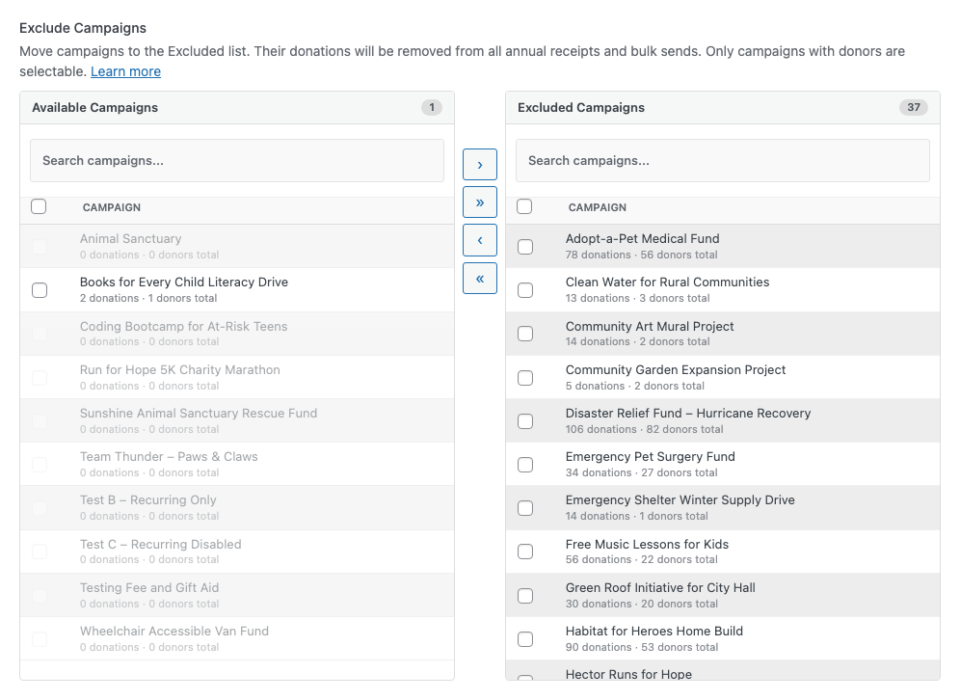
The exclusion panel shows two lists side by side:
- Available Campaigns (left) shows campaigns that will be included on receipts. Each campaign displays its all-time donation and donor totals.
- Excluded Campaigns (right) shows campaigns whose donations will be removed from all annual receipts.
To exclude a campaign, select it by clicking its row (the checkbox will toggle), then click the > arrow button to move it to the Excluded list. You can also double-click a campaign to move it instantly. Use >> to move all visible campaigns at once.
Campaigns with zero donors are greyed out and cannot be selected. Use the search box above each list to filter campaigns by name.
Note: Campaign donor totals reflect all-time counts, not just the selected year. The actual number of donors who will receive receipts depends on which donors have completed donations in the selected fiscal year.
After adjusting your exclusions, click Save Changes at the bottom of the page to persist them. Exclusions apply to all annual receipts, including individual downloads, PDF generation, and bulk sends.
System Checks
Before you can start a bulk send, the system runs automatic checks to verify your site is properly configured.
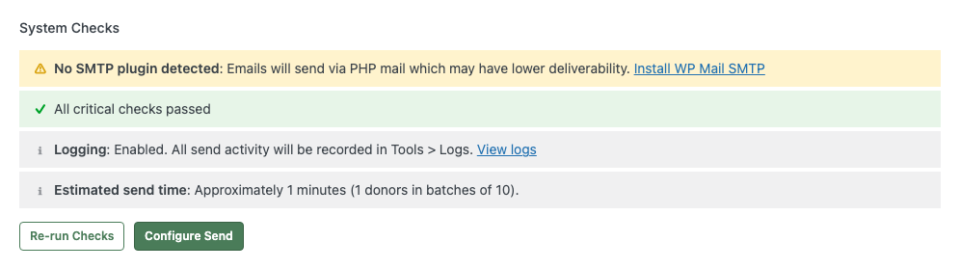
Checks fall into three categories:
- Critical (red) block sending until resolved. These include: the Annual Receipt email must be enabled in Settings > Emails, the annual receipt page must be configured, and WP Cron or Action Scheduler must be available.
- Warnings (amber) are advisory but do not block sending. Common warnings include: no SMTP plugin detected, low daily email limit (for Gmail or similar providers), and donors who have already received receipts for the selected year.
- Info (grey) items show your current configuration: email provider, logging status, estimated send time, and batch size.
Click Re-run Checks to refresh the results. When all critical checks pass, the Configure Send button becomes active.
Configuring Your Send
After clicking Configure Send, the wizard opens to Step 1.
Configure the following options:
- Year selects the fiscal year for the receipts. The donor count updates automatically when you change the year, reflecting only donors with completed donations in that period.
- Email Preview shows where to customize the email content. Click the Settings > Emails link to edit the subject line, body text, and template tags.
- Send Test Email sends a sample email to your admin email address so you can preview how it looks before sending to donors. If the PDF Attachment checkbox is checked, the test email includes a sample PDF.
- PDF Attachment (when available) attaches a PDF receipt to each email. This option appears only when your server has sufficient memory (128MB or more). If memory is limited, a warning appears with guidance.
Click Next: Review to proceed.
Reviewing and Confirming
Step 2 shows a summary of what will happen when you send.
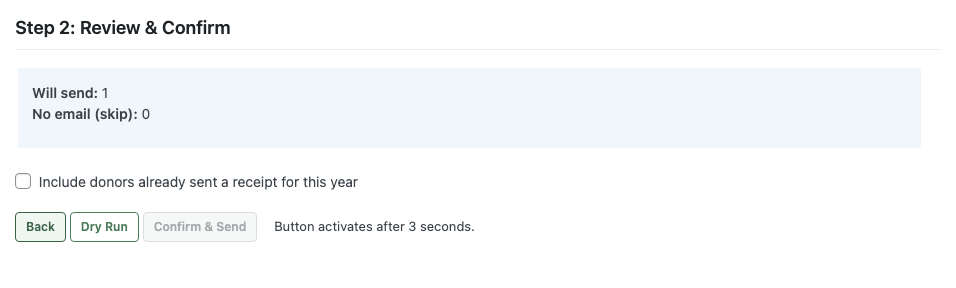
- Will send shows how many donors will receive receipts.
- No email (skip) shows donors without an email address who will be automatically skipped.
- Include donors already sent a receipt for this year controls whether donors who received a receipt in a previous send are included again. This is unchecked by default to prevent duplicate emails.
You have two options:
- Dry Run simulates the entire process without sending any emails. Use this to verify your configuration before committing to a real send. See Dry Run Mode for details.
- Confirm & Send starts the actual send. This button activates after a 3-second delay to prevent accidental clicks.
Sending and Tracking Progress
Once you confirm, Step 3 shows a live progress display. Emails are sent in batches via WP Cron (or Action Scheduler if available), so processing continues even if you close your browser.
The progress screen shows:
- A progress bar with completion percentage
- Live counters for Sent, Skipped, Failed, and Remaining
- An error log (if any donors fail) with the specific reason for each failure
- An Abort button to cancel the remaining sends (already-sent emails are not affected)
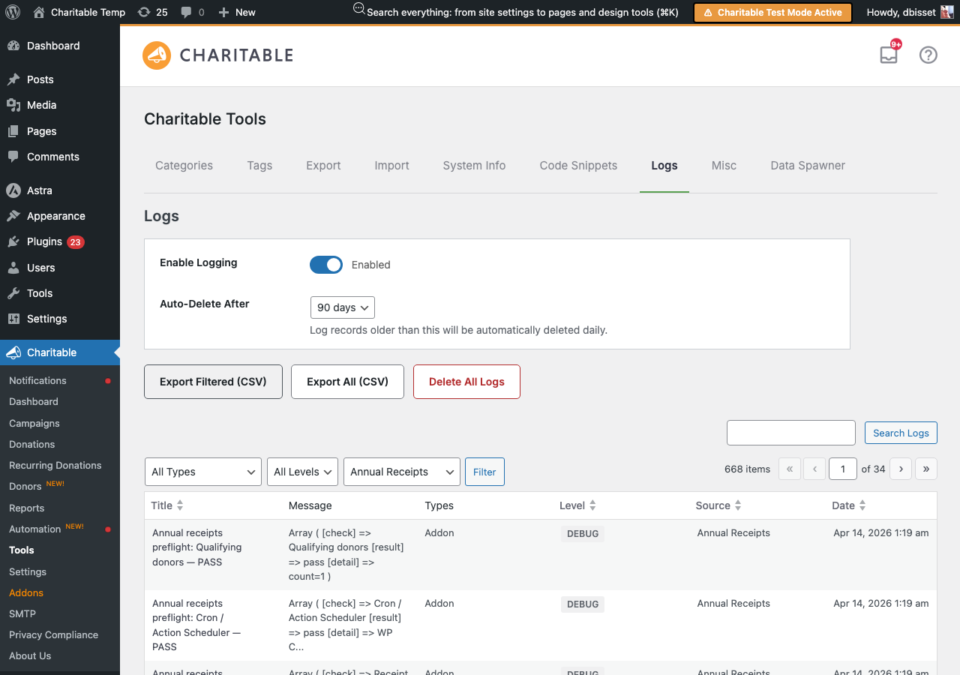
When complete, you can click View Send Log to see the full audit trail in Tools > Logs, filtered by the Annual Receipts source.
Note: If your email provider has a daily sending limit (such as Gmail’s 500 emails per day), the batch processor detects this automatically and pauses the job until the next day. You will see a “Paused” status with the expected resume time.
Dry Run Mode
A dry run simulates the entire send process without actually sending any emails. It checks every donor against the same rules as a real send: deduplication, campaign exclusions, email validation, and donation queries.
To start a dry run, click the Dry Run button in Step 2 instead of Confirm & Send. A yellow banner in Step 3 confirms that no emails will be sent.
After the dry run completes, the summary shows “Would send”, “Would skip”, and “Would fail” counts. Dry runs do not mark donors as “already sent”, so you can immediately follow up with a real send.
Use dry runs to:
- Verify your campaign exclusions are working correctly
- Check how many donors qualify before committing
- Test the pipeline on a new site before the first real send
Customizing the Annual Receipt Email
The annual receipt email is fully customizable in Charitable > Settings > Emails. Look for Donor: Annual Receipt in the email list and click Email Settings.
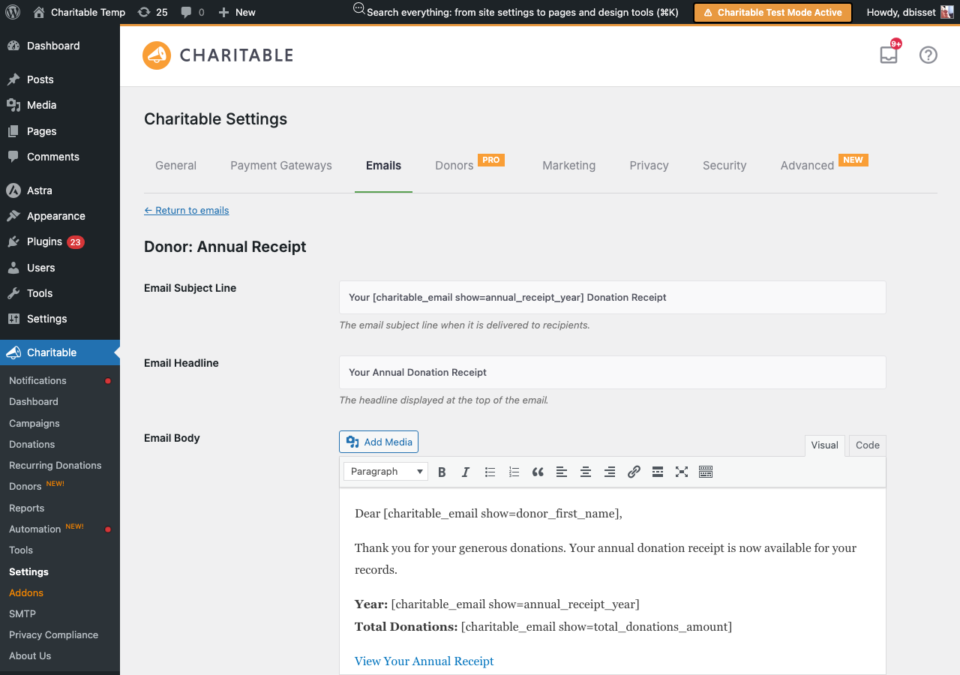
You can customize the subject line, headline, and body content. The following template tags are available:
[charitable_email show=donor_first_name]the donor’s first name[charitable_email show=donor_last_name]the donor’s last name[charitable_email show=annual_receipt_year]the fiscal year[charitable_email show=annual_receipt_url]a secure link to the donor’s receipt (no login required)[charitable_email show=total_donations_amount]the total donation amount for the year[charitable_email show=organization_name]your organization name
The receipt link uses a secure HMAC token that allows donors to view their receipt without logging in. Tokens expire after 30 days by default.
Note: The Annual Receipt email must be enabled before you can use the bulk send wizard. If you see a critical check failure for “Annual Receipt email”, click the link to go directly to the email settings and enable it.
Checking the Donor Log
Every successful receipt send is logged on the individual donor’s profile. To check, go to Charitable > Donors, open a donor’s profile, and click the Logs tab.
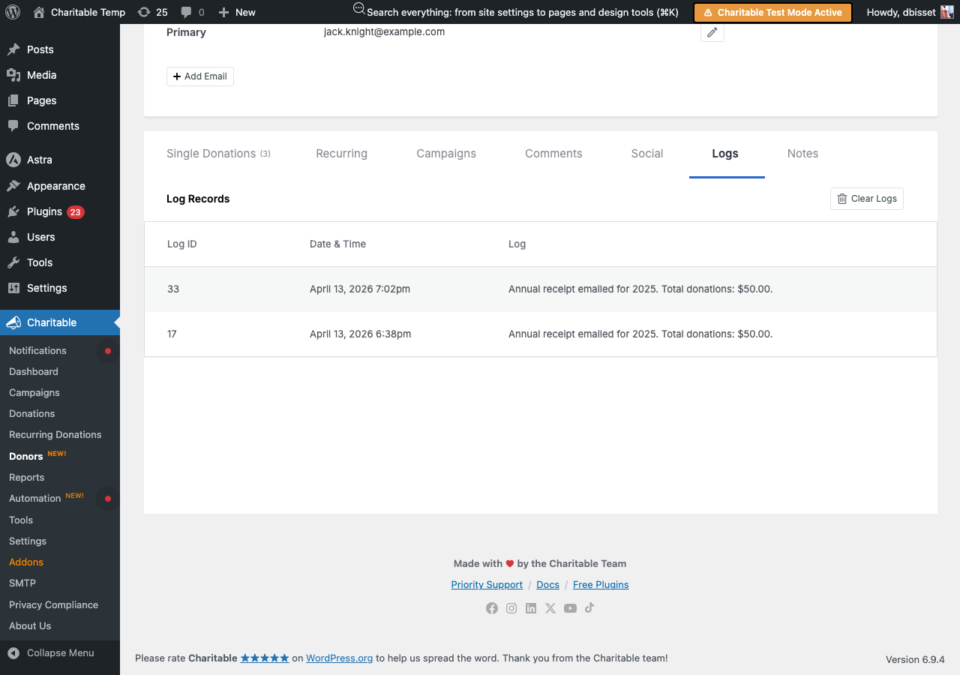
Each entry shows the date, year, and total donation amount for the receipt that was sent. Skipped and failed donors are logged in the system log (Tools > Logs) but not on the donor’s individual profile.
Send History and Resending
After completing a send, a Send History table appears below the wizard showing the year, number of donors sent, and the date of the last send.
To resend receipts for a year:
- Click Clear next to the year in the Send History table. This removes the deduplication log so all donors become eligible again. The audit trail in Tools > Logs is not affected.
- Run the wizard again for that year.
Alternatively, check the Include donors already sent a receipt for this year checkbox in Step 2 to resend without clearing the history.
FAQs on Annual Receipts
The campaign donor totals don’t match the send count. How do I resolve this?
Campaign donor totals in the exclusion lists show all-time counts across all years. The send count reflects only donors with completed donations in the selected fiscal year. A campaign may have 50 total donors, but only 10 who donated in 2025.
What if my emails are not being delivered?
If emails fail with “Email could not be sent”, check your server’s email configuration. For reliable delivery, install an SMTP plugin such as WP Mail SMTP. The system checks panel will warn you if no SMTP plugin is detected.
How to fix emails where the send is paused?
If your email provider has a daily sending limit, the batch processor pauses automatically when approaching that limit and resumes the next day. This is normal behavior for providers like Gmail (500/day) or Brevo free tier (300/day). Consider upgrading your email provider for higher-volume sends.
How do I see the full send log?
Go to Charitable > Tools > Logs and filter by the Annual Receipts source. Every sent, skipped, and failed donor is logged with the reason.
What do I do if donors received receipts showing $0.00?
This can happen if the donor’s donations were to campaigns that are now excluded, or if the fiscal year settings don’t match the donation dates. Verify your End of Financial Year setting at the top of the Annual Receipts settings page, and check that the relevant campaigns are not in the Excluded list.