Requires:
- Charitable 1.8.16+
- Charitable Multi-Currency 1.0.0+
The Multi-Currency addon lets donors give in their own currency on any Charitable donation form. Pick which currencies you support, set how exchange rates are sourced (auto-refreshed daily or set manually with an optional markup), and optionally use geolocation to pre-select a visitor’s currency based on their country. Reports break down totals by currency, gateway, and time period.
When you’d use it
- You accept donations from supporters outside your home country and want amounts displayed in familiar units instead of one global currency.
- You want exchange rates that refresh themselves daily instead of editing a spreadsheet.
- You need per-currency reporting so you can see how much actually came in as EUR vs USD vs GBP, separately from base-currency totals.
- You want visitors to see donation amounts in their local currency without having to pick from a dropdown first.
Finding it
All the main configuration lives in one place:
WordPress Admin > Charitable > Settings > Advanced > Multi-Currency
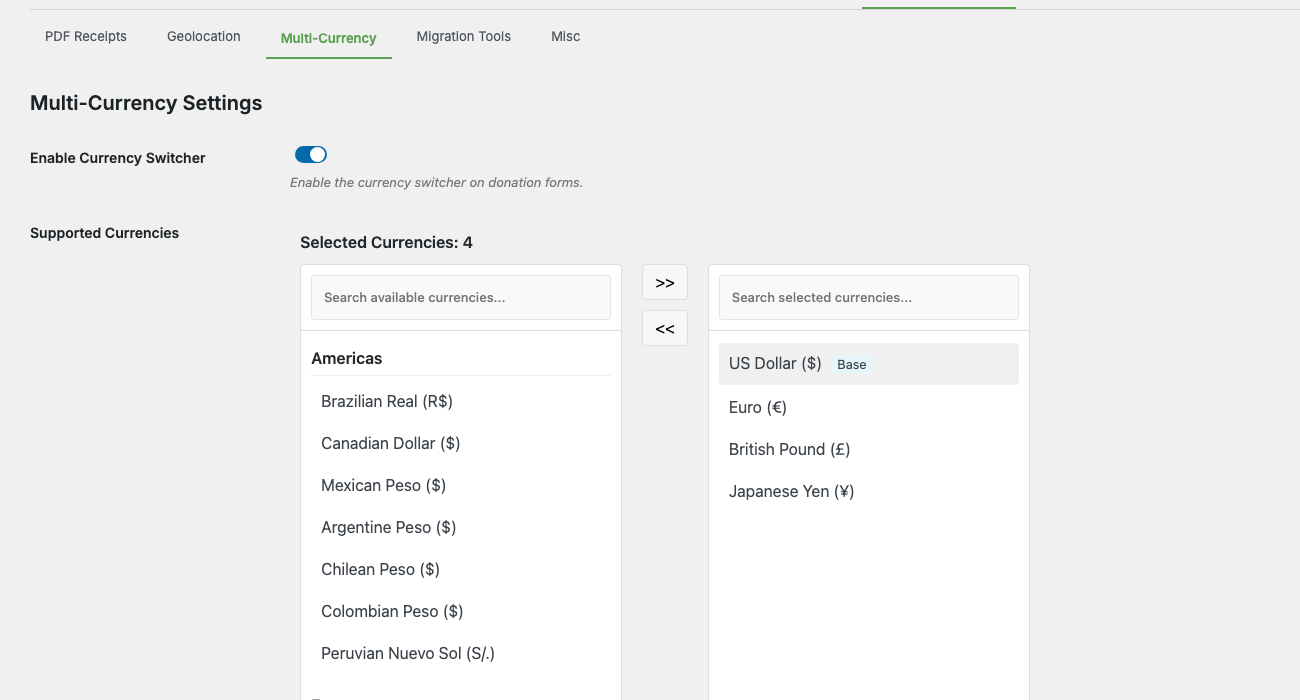
The Advanced tab has its own sub-navigation (PDF Receipts, Geolocation, Multi Currency, Migration Tools, Misc). Open Multi Currency and you’ll find everything in one panel:
- Enable Currency Switcher — master toggle for the whole feature.
- Supported Currencies — region-grouped dual-list selector (Americas, Europe, Asia Pacific, Other) for picking which currencies are available on donation forms.
- Exchange Rates — the per-currency rate table with auto-refresh, manual override, decimal places, and markup.
- Currency Switcher Message — the text displayed to donors when they switch currency.
- Currency Dropdown Label — the label above the dropdown on the donation form.
- Display Currency Acronym — show the 3-letter code (e.g.,
USD) alongside the symbol. - Enable Geolocation — auto-detect the visitor’s country and pre-select a matching currency.
- Plugin Deactivation Settings — what to do with multi-currency data if you ever deactivate the addon (preserve, convert to base currency, or remove).
There are two other places to know about:
- Per-gateway currency lists — under Charitable > Settings > Payment Gateways > [Stripe / PayPal / Square / Offline], a “Multi-Currency” section lets you narrow which of the supported currencies that specific gateway will accept.
- Currency-breakdown reports show up under Charitable > Reports > Advanced once you have donations in more than one currency.
The big picture
There are four pieces working together:
| Part | Where it lives | What it does |
|---|---|---|
| Supported currencies | Settings > Advanced > Multi-Currency | The master list of currencies your site offers. Base currency is always included. |
| Exchange rates | Settings > Advanced > Multi-Currency | Per-currency rate vs the base currency. Refreshed daily by cron or set manually. |
| Gateway-level filters | Settings > Payment Gateways > [gateway] | Per-gateway opt-in for which currencies that processor will accept. |
| The currency selector | Frontend donation form | The dropdown donors use to pick a currency. Renders automatically when more than one currency is enabled. |
A donor visits a campaign, sees their preferred currency pre-selected (or picks one from the dropdown), enters an amount, and the form converts and submits to the gateway in that currency. Behind the scenes, Charitable stores both the donation currency and the base-currency equivalent so reports stay accurate.
Step-by-step setup
The first time you set this up:
- Confirm your base currency. Go to Charitable > Settings > General and check Currency at the top. This is the currency all exchange rates are calculated against; pick the one most of your reporting is in.
- Enable the currency switcher. Go to Charitable > Settings > Advanced > Multi Currency and flip Enable Currency Switcher to On. This is the master switch for the addon.
- Pick your supported currencies. In Supported Currencies, use the dual-list selector (Americas, Europe, Asia Pacific, Other Regions) to move currencies from the right panel into the Selected Currencies panel on the left. Your base currency is always included as “Base” and can’t be removed.
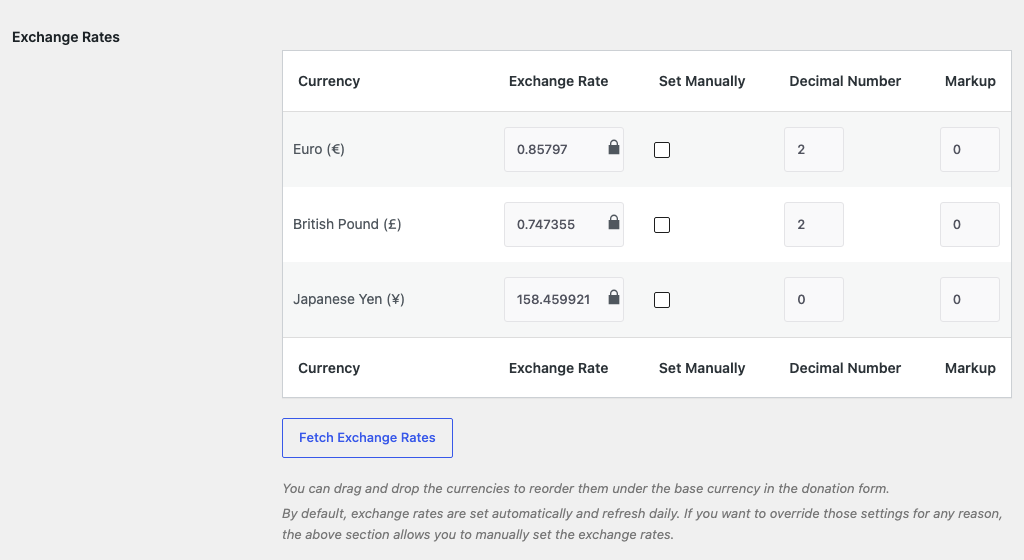
- Confirm the exchange rate table. Scroll down to Exchange Rates. Each non-base currency you selected now has a row showing the current rate, decimal number, and markup. Click Refresh Exchange Rates to pull the latest rates from the API.
- (Optional) Set a manual rate or markup. Tick the Set Manually column for a currency to lock its rate against the auto-refresh. Enter a value in the Markup column (e.g.,
2for a 2% markup on top of the live rate) if you want a small buffer to cover currency-conversion fees. - (Optional) Tune the donor-facing labels. Set Currency Switcher Message (the message that appears when a donor switches currency) and Currency Dropdown Label (the label above the dropdown). Toggle Display Currency Acronym on if you want the 3-letter code alongside the symbol on the donation form.
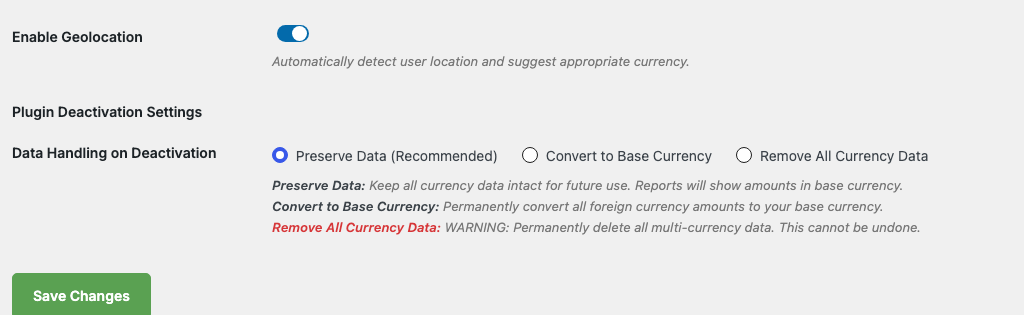
- (Optional) Turn on geolocation. Flip Enable Geolocation to On. New visitors will have their currency pre-selected based on the country their IP resolves to (using the bundled MaxMind GeoLite2 database). The donor can still change it via the dropdown.
- Choose your deactivation behavior. Under Plugin Deactivation Settings, pick what should happen to multi-currency donation data if the addon is ever deactivated: Preserve Data (recommended; keeps everything intact), Convert to Base Currency (rewrites foreign-currency donations to base-currency equivalents), or Remove All Currency Data (deletes the multi-currency metadata, irreversible).
- Restrict per-gateway if needed. Go to Charitable > Settings > Payment Gateways and open each gateway in use. Scroll to the Multi-Currency section — you’ll see checkboxes for the currencies you enabled in step 3. Uncheck any that the gateway doesn’t (or can’t) accept. Currencies the gateway doesn’t support are automatically hidden from the dropdown when that gateway is selected.
- Test the donation form. Open a campaign donation page in an incognito window. The currency selector should appear above the amount field. Switch currencies and confirm amounts re-format with the right symbol and decimal places.
After this, donations submitted in non-base currencies will appear in the donation list with their original currency badge, and report totals will display in both the donation currency and the base-currency equivalent.
Settings reference
Master toggle
| Setting | What it does |
|---|---|
| Enable Currency Switcher | Master switch for the entire addon. Off means: no selector on donation forms, no exchange-rate refreshes, no per-currency reporting. |
Supported Currencies
A region-grouped dual-list selector. The right panel groups every available currency (150+ codes from the ISO 4217 list) under Americas, Europe, Asia Pacific, and Other Regions. The left panel holds your Selected Currencies, with your base currency pinned at the top as “Base” (it can’t be removed). Use the arrow buttons to move currencies between panels, or the search box at the top of each panel to filter by code or name.
Exchange Rates table
One row per enabled non-base currency, with these columns:
| Column | What it does |
|---|---|
| Currency | The ISO code and full name (e.g., Euro (€)). |
| Exchange Rate | How many units of this currency equal 1 unit of the base currency. Editable, but locked unless Set Manually is ticked. |
| Set Manually | Locks the row to your entered value. Auto-refresh skips manually-set rows. |
| Decimal Number | How many decimals to display in donation amounts and receipts. Most currencies use 2; JPY uses 0; some crypto-friendly use cases want 3 or 4. |
| Markup | Percentage added on top of the API rate. Useful to absorb conversion fees. Set to 0 if you don’t want a markup. |
Above the table you’ll find a Fetch Exchange Rates button that fires an immediate API call (manually-set rows are skipped). Rows can be dragged to reorder how currencies appear in the donation-form dropdown.
Donor-facing labels
| Setting | What it does |
|---|---|
| Currency Switcher Message | The message shown to donors when they change currency. Supports the placeholders {base_currency}, {new_currency_rate}, and {new_currency} (e.g., “The current exchange rate is 1.00 {base_currency} equals {new_currency_rate} {new_currency}.”). |
| Currency Dropdown Label | The label above the dropdown on the donation form (e.g., “Select Your Currency”). |
| Display Currency Acronym | When on, the 3-letter currency code is shown alongside the symbol in donation amounts (e.g., “$100 USD” instead of “$100”). |
Geolocation
A single toggle: Enable Geolocation. When on, the donor’s IP is checked against the bundled MaxMind GeoLite2 Country database to determine their country, and the form pre-selects the matching currency if it’s in your selected list. If the detected country’s currency isn’t selected, the donor sees your base currency.
Geolocation doesn’t override an explicit donor choice. Once a donor switches currency on the form, that choice sticks for the session (filterable; see Developer Reference below).
Plugin Deactivation Settings
Choose how multi-currency data is handled if the addon is ever deactivated:
| Option | What it does |
|---|---|
| Preserve Data (Recommended) | Keep all currency data intact. Reports will show amounts in base currency only, but donation records retain their original currency for later if you reactivate. |
| Convert to Base Currency | Permanently rewrite foreign-currency donation amounts to their base-currency equivalents at the time of deactivation. Irreversible. |
| Remove All Currency Data | Delete every multi-currency metadata field. Donations remain but lose their original-currency information. Irreversible. |
This setting only runs when the addon is deactivated; toggling it has no effect during normal operation.
Currency-breakdown report
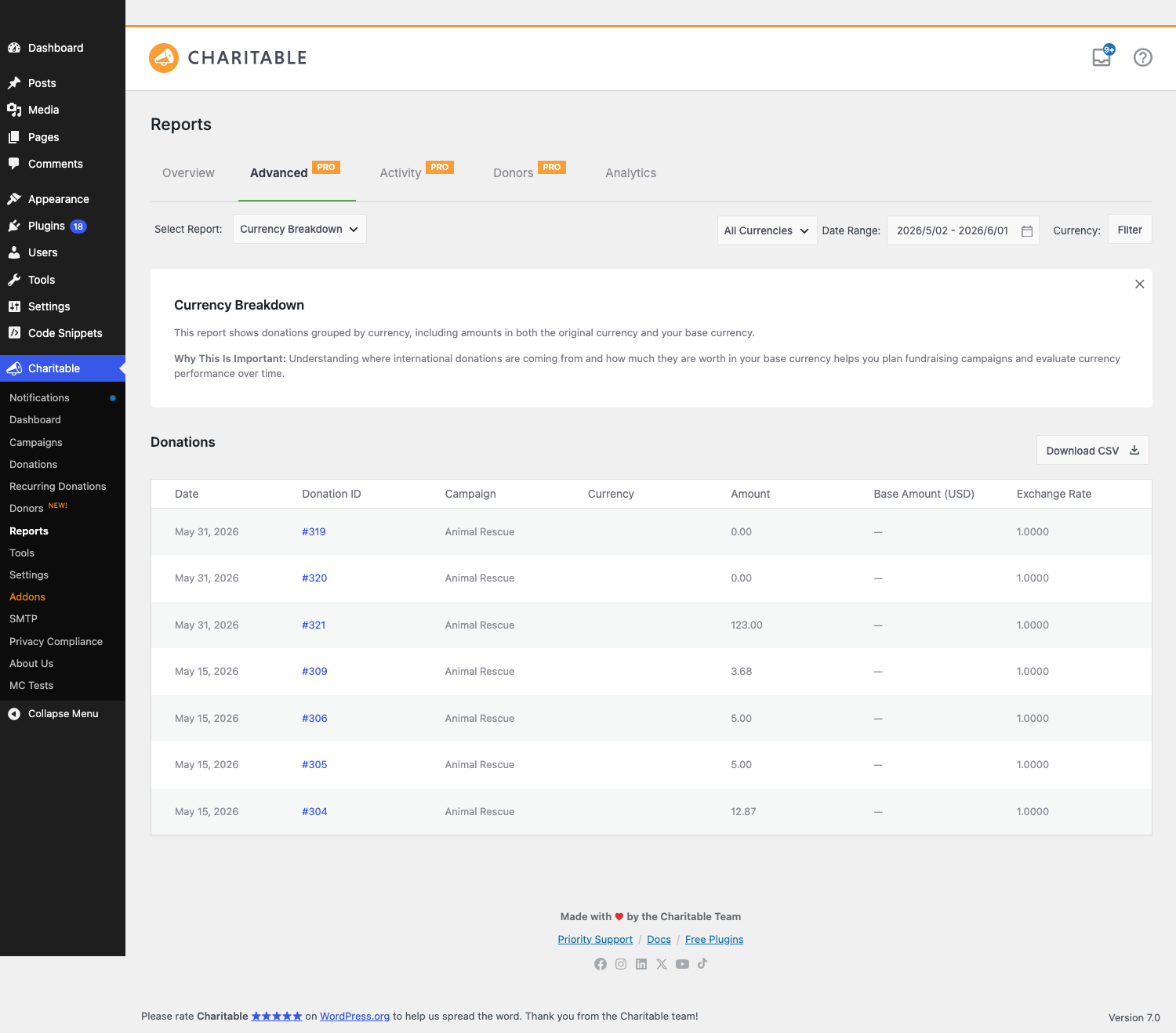
Once you have donations in multiple currencies, Charitable > Reports > Advanced gets a new Currency Breakdown report type. It shows totals per currency for a date range, with CSV download.
Currency selection on the donation form
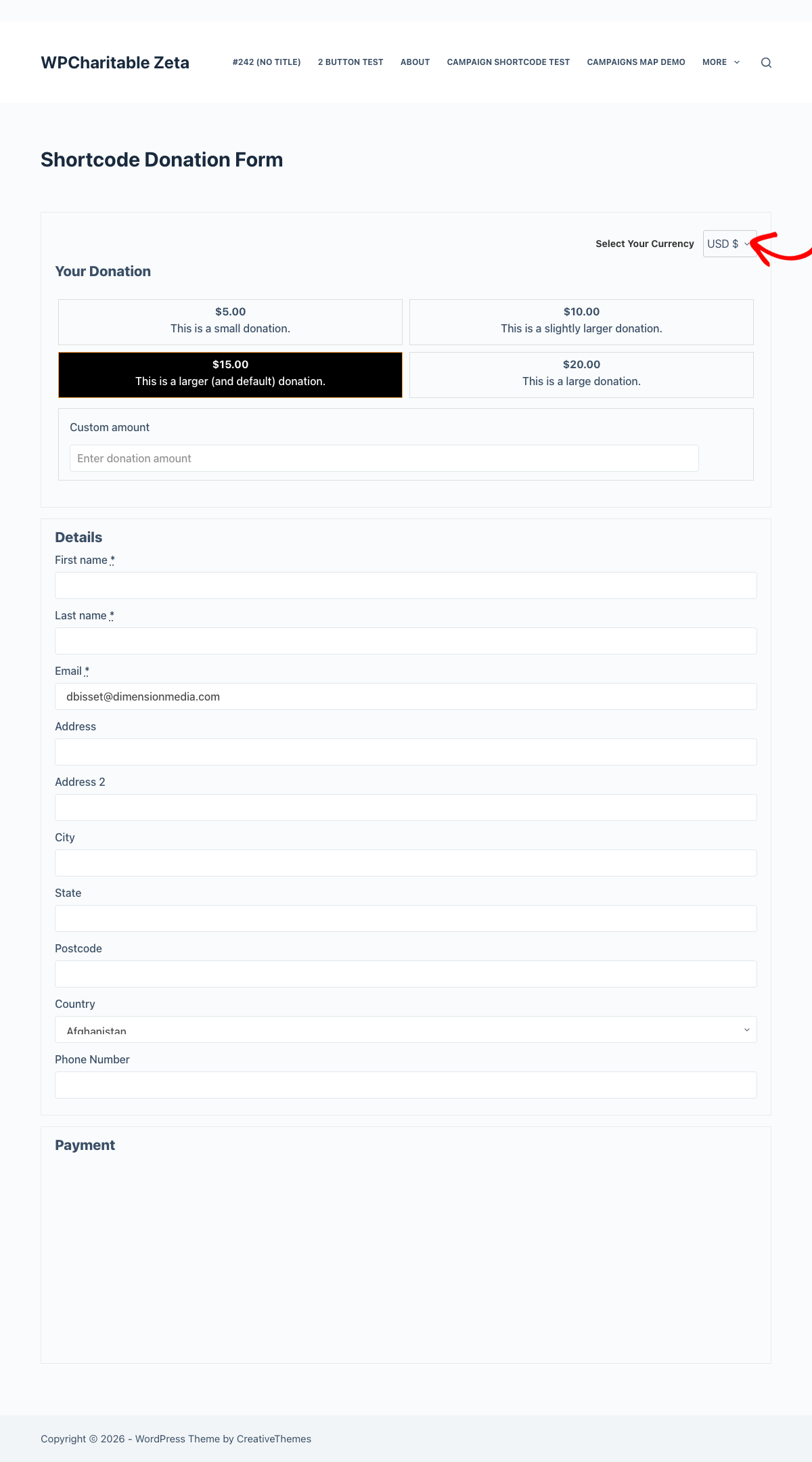
When more than one currency is enabled, every Charitable donation form automatically renders a currency selector above the amount field. The selector:
- Shows the currency code and symbol (e.g.,
EUR €). - Refreshes the displayed donation amount and any suggested amount buttons whenever the donor changes it.
- Persists the donor’s selection for the rest of their session (via cookie). New donations from the same browser default to their last choice until the cookie expires.
- Hides currencies the active gateway can’t process. If a donor switches payment method and their selected currency isn’t supported, the form falls back to the base currency.
Charitable Pro’s visual donation forms render the same selector inside the form layout. No extra setup needed; the addon detects Pro and integrates automatically.
Per-gateway currency restrictions
Each payment gateway in Charitable > Settings > Payment Gateways has its own Multi-Currency checklist near the bottom of the gateway settings page:

Uncheck any currency the gateway doesn’t (or can’t) accept. The donation form automatically hides any currency the active gateway doesn’t support — so if a donor switches from Stripe to PayPal and their selected currency isn’t on PayPal’s list, the form falls back to the base currency.
Exchange rate refresh
Rates auto-refresh once per day via WP-Cron (charitable_multi_currency_daily_exchange_rate_update). On a healthy site you don’t need to touch this. The primary source is a WPCharitable source with a fallback of ExchangeRate-API at api.exchangerate-api.com/v4/latest/ (again used automatically if the primary source is unreachable).
If both fail (network issue, both services down), the last-known good rates remain in place rather than resetting to 1:1. The Settings tab shows the timestamp of the last successful refresh so you can spot a stale rate table.
To force a manual refresh, use the Refresh Exchange Rates button on the settings page, or call the helper from PHP:
charitable_multi_currency_refresh_exchange_rates();
Geolocation details
Geolocation uses the bundled MaxMind GeoLite2 Country database. It runs locally – no external request is made when a visitor loads a donation form, and IP addresses are not stored permanently.
The country-to-currency mapping is opinionated (e.g., all EU member countries map to EUR even if a local sub-currency exists, like Romania’s RON). If the detected country’s currency isn’t in your supported list, the fallback currency is used.
Geolocation has no effect on localhost or private-IP visitors (the database can’t resolve those), so the fallback currency is what you’ll see in local development.
Reports and donation list
Once multi-currency is on, two things change in the admin:
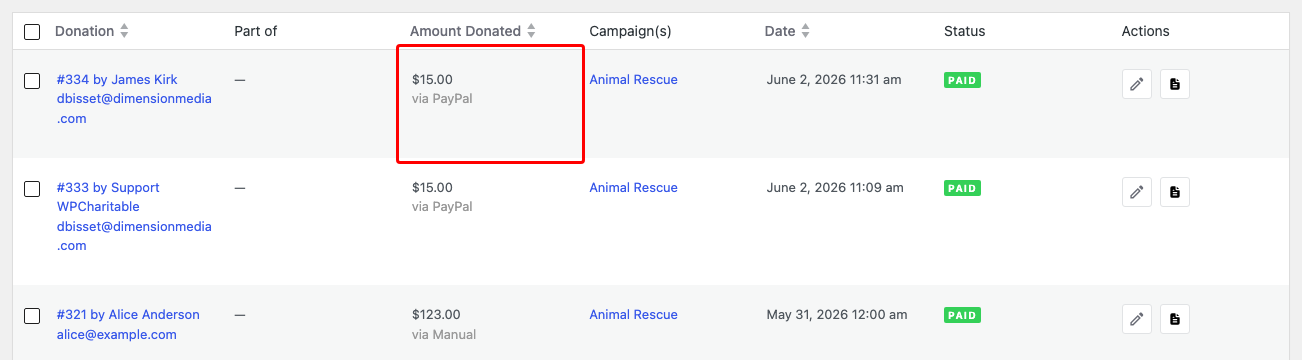
- Donation list shows the original currency next to the amount (e.g.,
€100.00 EUR). The base-currency equivalent appears as a tooltip on hover. - Donation details include a “Base Currency Equivalent” row showing what the donation was worth in your base currency at the rate active when the donation was made. The base-currency value is locked in at donation time; later rate changes don’t retroactively change historical totals.
The new Currency Breakdown report under Reports > Advanced lets you filter by currency, date range, and gateway. CSV download is available from the same screen:
Tips
- Set a rate markup once you have real donations. Currency conversion in production carries small fees; a 1–3% markup on the live rate covers them without leaving a visible spread for the donor.
- Don’t disable a currency that has historical donations. The donation records still reference the currency code, so removing it from supported currencies just stops new donations in that currency — it doesn’t break reporting on the old ones.
- Manual rates are sticky. If you tick Set manually for a currency, the auto-refresh will skip it permanently until you untick that box. Useful for pegged currencies (USD-pegged stablecoins, AED, etc.) where the API’s daily fluctuation is noise.
- Test the gateway combinations. If you accept Stripe and PayPal both, double-check the gateway-level currency lists. PayPal supports a different set of currencies than Stripe, and the form needs to know which ones to hide when each gateway is in use.
- Geolocation isn’t a fingerprint. It’s a one-shot pre-select. A donor in Toronto who’d rather donate in USD just opens the dropdown and picks USD; their session sticks to that choice from then on.
Developer reference
Filters
The highest-traffic filters most likely to come up in customization work:
| Filter | Default | Purpose |
|---|---|---|
charitable_multi_currency_supported_currencies | (array) | The supported-currency list. Filter to add codes the addon doesn’t ship with, or remove codes you don’t want exposed. |
charitable_multi_currency_exchange_rates | (array) | Filters exchange rates before they’re saved. Wrap the auto-refresh in your own logic, or inject custom rates. |
charitable_multi_currency_symbol | (string) | The display symbol for a currency. Filter to override (e.g., display US$ instead of $ for USD). |
charitable_multi_currency_format_amount | (string) | The fully formatted amount string. Override for custom number formatting beyond what decimal places + symbol provide. |
charitable_multi_currency_rate_providers | (array) | The list of exchange-rate provider classes. Add your own to use a different API. |
charitable_multi_currency_persist_donor_choice | true | Whether the donor’s currency selection persists for the session via cookie. Return false to make the selection per-page-load. |
charitable_multi_currency_cache_disable_when_cookie_set | false | Tell page caches not to cache a response when the multi-currency cookie is set. Return true if you serve donation forms from a full-page-cached path and need them to re-render per donor. |
charitable_multi_currency_form_supports | (bool) | Whether a given form should render the currency selector. Override per-form. |
charitable_multi_currency_forms_js_vars | (array) | The JS variable bag passed to the form-script. Inject extra config readable from custom JS. |
charitable_donation_form_currency | (string) | The default currency for a donation form. Override per-form or per-campaign. |
Actions
| Action | When it runs |
|---|---|
charitable_multi_currency_start | After the addon’s main class finishes booting ($plugin_instance passed). |
charitable_multi_currency_pro_init | After Pro compatibility loads (when Charitable Pro is active). |
charitable_multi_currency_rates_updated | After a successful exchange-rate refresh ($rates, $base_currency passed). |
charitable_multi_currency_donation_saved | After a donation with non-base currency is saved ($donation_id, $currency, $amount passed). |
charitable_multi_currency_daily_exchange_rate_update | The WP-Cron hook that triggers daily rate refresh. Hook in to add side effects (logging, Slack notifications). |
charitable_multi_currency_activate | Plugin activation. |
charitable_multi_currency_deactivate | Plugin deactivation. |
Helper functions
| Function | Purpose |
|---|---|
charitable_multi_currency_get_available_currencies() | Returns the full array of currencies the addon knows about (code => [name, symbol]). |
charitable_multi_currency_get_supported_currencies() | Returns the array of currency codes the site has enabled. |
charitable_multi_currency_convert_amount( $amount, $from, $to ) | Converts an amount between two currencies using current rates. |
charitable_multi_currency_get_exchange_rate( $currency ) | Returns the current rate for a currency (vs the base currency). |
charitable_multi_currency_format_amount( $amount, $currency ) | Formats an amount with the right symbol and decimal places for the given currency. |
Cron schedule
The daily refresh is scheduled on plugin activation and unscheduled on deactivation:
// Hook into the daily refresh:
add_action( 'charitable_multi_currency_daily_exchange_rate_update', function() {
    // Your code runs after the rates table is refreshed.
} );
If the cron isn’t firing (some hosts disable WP-Cron), you can trigger it with WP-CLI:
wp cron event run charitable_multi_currency_daily_exchange_rate_update
Customization examples
Add a custom currency the addon doesn’t ship with:
add_filter( 'charitable_multi_currency_supported_currencies', function( $currencies ) {
    $currencies['XYZ'] = array(
        'name'   => 'Example Coin',
        'symbol' => 'X',
    );
    return $currencies;
} );
Make donor currency selection forget itself between page loads:
add_filter( 'charitable_multi_currency_persist_donor_choice', '__return_false' );
Disable full-page caching when the multi-currency cookie is set:
add_filter( 'charitable_multi_currency_cache_disable_when_cookie_set', '__return_true' );
Override the rate for a specific currency (e.g., peg AED to USD at a fixed rate):
add_filter( 'charitable_multi_currency_exchange_rates', function( $rates, $base_currency ) {
    if ( 'USD' === $base_currency ) {
        $rates['AED'] = array(
            'exchange_rate'  => 3.6725,
            'set_manually'   => 1,
            'number_decimal' => 2,
            'rate_markup'    => 0,
        );
    }
    return $rates;
}, 10, 2 );
Notify Slack on every daily rate refresh:
add_action( 'charitable_multi_currency_rates_updated', function( $rates, $base_currency ) {
    $count = count( $rates );
    wp_remote_post( SLACK_WEBHOOK_URL, array(
        'body' => json_encode( array(
            'text' => "Exchange rates refreshed: {$count} currencies vs {$base_currency}.",
        ) ),
    ) );
}, 10, 2 );
Force a campaign to default to EUR regardless of geolocation:
add_filter( 'charitable_donation_form_currency', function( $currency, $form ) {
    if ( $form && method_exists( $form, 'get_campaign_id' ) && $form->get_campaign_id() === 123 ) {
        return 'EUR';
    }
    return $currency;
}, 10, 2 );
Related
- Charitable Documentation Hub – The main documentation index.
- Charitable Pro – Visual donation forms work seamlessly with the currency selector.