Requires: Charitable Pro 1.8.16+
Geolocation is the layer that turns latitude/longitude on individual campaigns into the maps, distance labels, and “find a campaign near me” search you see on the front end. As of 1.8.16, it supports two map providers — OpenStreetMap (Leaflet) with no API key, and Google Maps with higher-fidelity tiles — and adds a Location Data Coverage card so you can see at a glance how many of your campaigns have geo data.
This is the settings page. To display a map of those campaigns on the front end, see the Campaigns Map block doc.
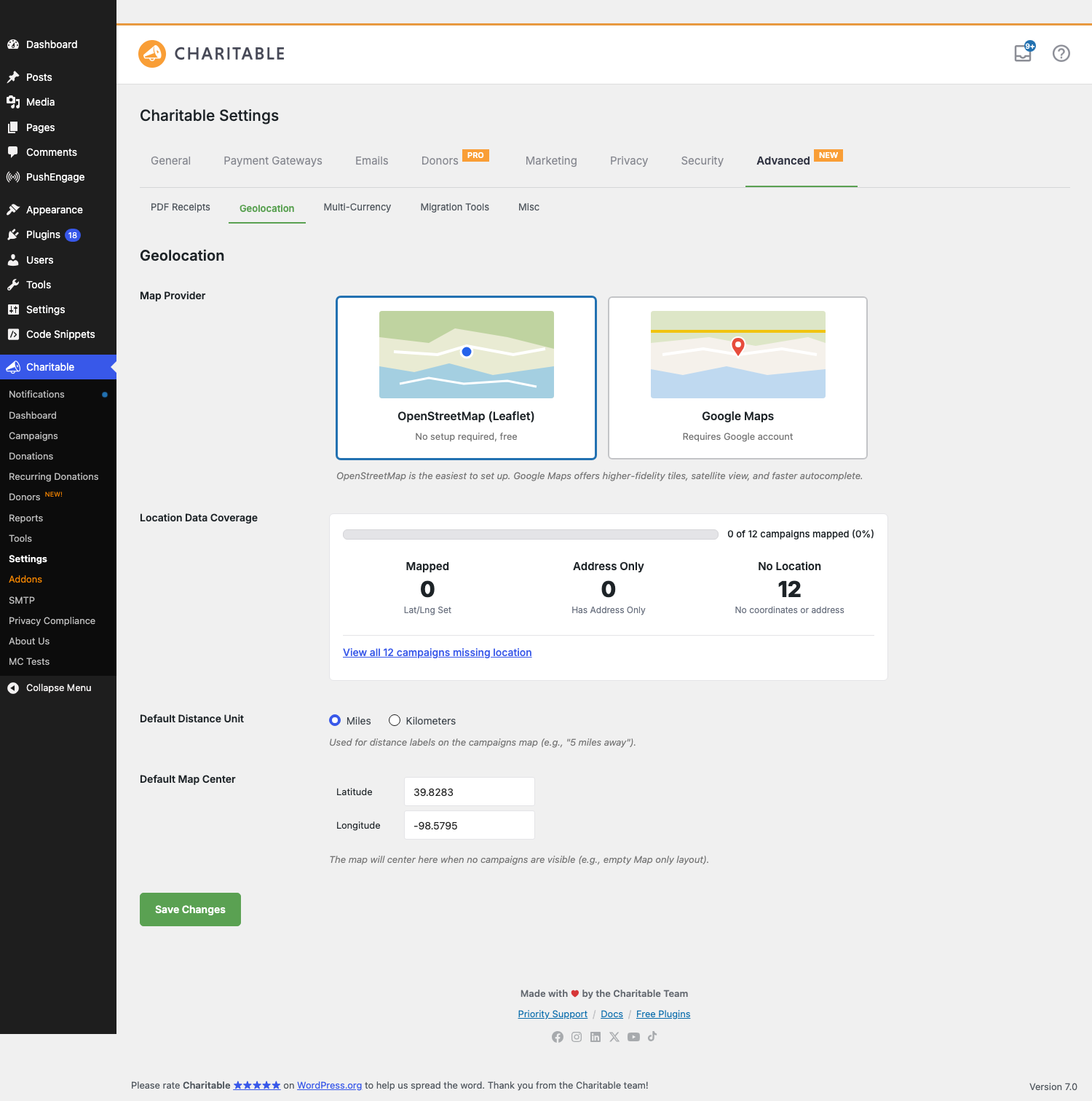
What’s new in 1.8.16
| Change | What it means |
|---|---|
| OpenStreetMap support | You no longer need a Google API key. OpenStreetMap (rendered via Leaflet) is the new default for fresh installs and is free with no account. |
| Map Provider picker | A visual two-card picker — OpenStreetMap (Leaflet) and Google Maps — replaces the previous setup flow. |
| Location Data Coverage card | At-a-glance stat block: how many campaigns have lat/lng set, how many have address-only, how many have no location data. Includes a one-click link to filter the campaigns list down to the campaigns missing location data. |
| Nominatim address autocomplete | Under OpenStreetMap, address autocomplete is powered by the Nominatim service. Type two or more characters into a location field and you’ll get suggestions — no Google account required. |
| Default Map Center | Set the lat/lng + zoom the map falls back to when no campaigns are visible. Default is the geographic center of the contiguous US (39.8283, -98.5795). |
| Ambassadors Location field | When the Ambassadors addon is active, the public campaign-submission form gets an optional Location field with the same autocomplete (Nominatim under OpenStreetMap, Google Places under Google). |
Upgrade behavior: Sites that already had a Google Places API key configured at the time of upgrade keep Google Maps as their provider. Fresh installs (and sites that had no key configured) default to OpenStreetMap. You can switch between providers at any time without data loss — campaign lat/lng meta is stored provider-agnostically.
Finding it
WordPress Admin > Charitable > Settings > Advanced > Geolocation
The Advanced tab has sub-tabs at the top of the panel (PDF Receipts, Geolocation, Multi-Currency, Migration Tools, Misc). Geolocation is the second one.
The big picture
| Part | Purpose |
|---|---|
| Map Provider | Which tile + autocomplete service the map uses. OpenStreetMap is free; Google Maps requires a key. |
| Location Data Coverage | Read-only summary of how many of your campaigns are mappable. |
| Default Distance Unit | Whether distance labels render as 5 miles away or 8 km away. |
| Default Map Center | The lat/lng + zoom the map snaps to when there’s nothing to show. |
| Per-campaign location | Set on each campaign in the Campaign Builder (_campaign_latitude, _campaign_longitude meta). |
| Ambassadors location field | Optional capture of location during public campaign submission. |
You configure the provider once on this page. The Campaigns Map block (and the [campaigns map="1"] shortcode) then renders maps using whatever provider you’ve selected.
Map Provider
The headline choice. A two-card picker:
OpenStreetMap (Leaflet)
No setup required, free. Tiles come from OpenStreetMap’s tile servers; the map widget is the open-source Leaflet library. Recommended for most sites — there’s nothing to register, no usage caps to monitor, no key to rotate. Address autocomplete in admin UIs and the Ambassadors form is powered by Nominatim, OpenStreetMap’s free geocoding service.
A note on Nominatim usage: OpenStreetMap asks that high-volume integrations be polite (one request per second per user, results cached when possible). Charitable’s autocomplete debounces input and caches lookups, so a normal-traffic donation site is comfortably under the limit.
Google Maps
Requires a Google account and an API key. Better tile fidelity, includes satellite imagery, and the autocomplete is faster and more forgiving with partial / misspelled addresses. Choose this if you’ve already standardized on Google services or your maps will be the centerpiece of the experience.
Switching to Google reveals the Google Places API Key field and a Setup Help panel with deep-links to Google Cloud:
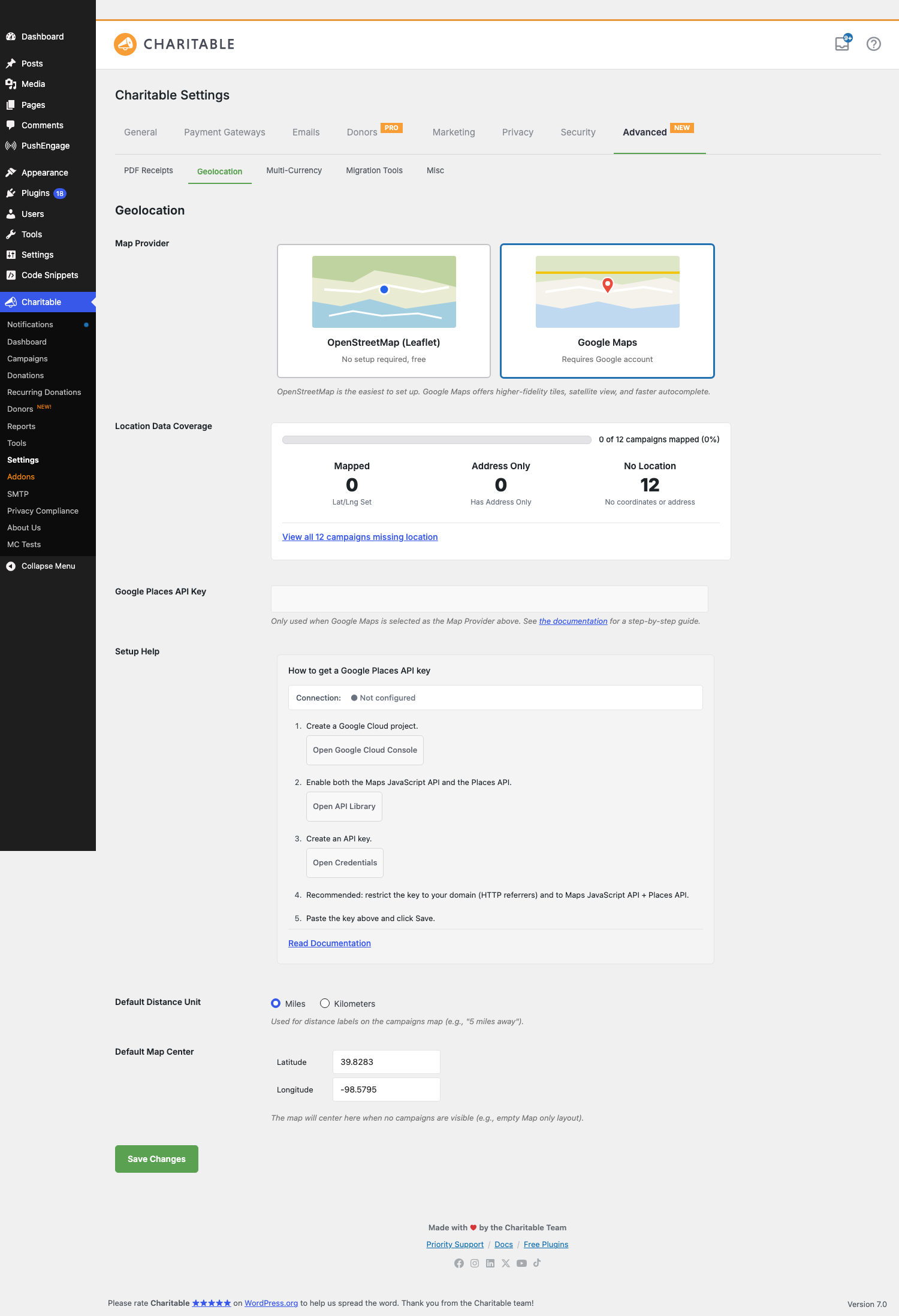
Setup Help (5 steps)
- Create a Google Cloud project. Button opens
console.cloud.google.com/projectcreate. - Enable both the Maps JavaScript API and the Places API. Button opens the API Library.
- Create an API key. Button opens the Credentials page.
- Recommended: restrict the key to your domain (HTTP referrers) and to Maps JavaScript API + Places API. This prevents the key from being abused if it leaks.
- Paste the key above and click Save.
Connection indicator
A small status pill next to the Setup Help title reflects the current state of the API key:
| State | What it means |
|---|---|
| ● Not configured | The key field is empty. Geolocation features that need Google won’t work yet. |
| ⋯ Checking… | The key was changed; we’re pinging Google to verify. Takes 1–2 seconds. |
| ● Connected | The key is valid, the relevant APIs are enabled, and your domain restriction (if any) accepts your site’s hostname. |
| ● Invalid key — check restrictions | The key was rejected. Most common cause: HTTP-referrer restriction on the key doesn’t include your site, or the Maps JavaScript API / Places API isn’t enabled on the project. Fix the restriction or enable the API and the indicator will flip to Connected on the next page load. |
The Setup Help panel and the API key field are hidden when OpenStreetMap (Leaflet) is selected — you can toggle the provider without reloading the page and they appear/disappear instantly.
Location Data Coverage
A read-only stat card that summarizes how many of your published campaigns are mappable:
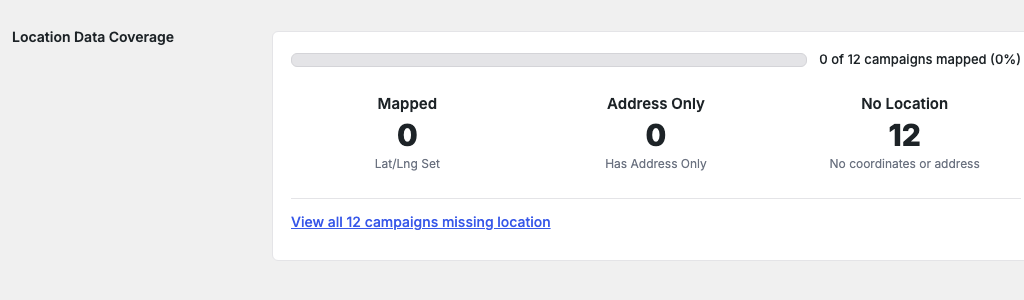
| Stat | What it shows |
|---|---|
| Mapped | Campaigns with explicit _campaign_latitude and _campaign_longitude meta. These render on the Campaigns Map immediately. |
| Address Only | Campaigns with a street address but no resolved lat/lng. They won’t render on the map until the address is geocoded — typically this happens on the next save of the campaign, or you can trigger it manually. |
| No Location | Campaigns with neither lat/lng nor address. They’ll never appear on the map until you add location data. |
Above the stats is a progress bar showing the percentage of total published campaigns that have a usable mapping. Below, a one-click “View all N campaigns missing location” link filters the Campaigns admin list to show only campaigns without location data, so you can batch-fix them.
The card auto-refreshes whenever a campaign is saved, so you’ll see the count tick up as you fill in location data across your campaigns. Stats are cached for one minute to keep the settings page snappy on sites with thousands of campaigns.
Default Distance Unit
A radio: Miles or Kilometers. Used by the Campaigns Map block’s distance labels (5 miles away vs 8 km away) and any sorting by distance in the front-end search. Default: Miles.
This is a display-only setting — the underlying lat/lng calculations don’t change. Sites with audiences in km-using countries should flip this; otherwise leave it alone.
Default Map Center
Two number inputs: Latitude and Longitude. The map snaps here when there’s nothing else to show — for example, when the Campaigns Map block is configured to display only campaigns in a category that currently has zero entries, or before the visitor’s geolocation has resolved.
Default: 39.8283, -98.5795 — the geographic center of the contiguous United States. For a nonprofit with most campaigns in one region or city, set this to that region’s center instead so empty-map renders feel local.
Ambassadors Location field (requires Ambassadors addon)
When the Charitable Ambassadors addon is active and Geolocation is enabled, the public Campaign Submission form gets an optional Location field. New ambassadors can:
- Type a street address. Autocomplete suggests matches (Nominatim under OpenStreetMap, Google Places under Google) after the first two characters, with a ~300ms debounce.
- Click a suggestion. The input fills with the full normalized address; hidden lat/lng inputs populate; the preview map next to the field re-centers on the address.
- Skip the field entirely — it’s optional unless you’ve made it required via filter.
Once the campaign is submitted, the lat/lng saved into _campaign_latitude / _campaign_longitude makes the campaign immediately mappable.
The autocomplete provider follows the global Map Provider setting: switch the site from Google to OpenStreetMap and the Ambassadors form quietly switches autocomplete providers on the next page load.
Tips
- Start on OpenStreetMap. Skip the Google Cloud account work unless you already have one. For most charity sites the OSM tile quality is fine, and you avoid an ongoing usage bill if you go viral.
- Coverage card is your TODO list. If Address Only is a high number, those campaigns need their addresses re-saved (or you need to trigger a bulk geocode); if No Location is high, you have data-entry work to do before the map shows much.
- Restrict your Google key. Leaving a key unrestricted means anyone who grabs it from your page source can run up your bill. Add the HTTP-referrer restriction in step 4 of the setup wizard; it’s quick and meaningfully changes your risk posture.
- Default Map Center isn’t latitude/longitude trivia. Most visitors won’t notice it day-to-day, but if you ever ship the map embedded somewhere with no campaigns, the world snapping to a sensible region instead of mid-Kansas matters.
- Switching providers is safe. Switch back and forth as much as you want. Lat/lng meta on campaigns is provider-agnostic; only the tile and autocomplete services change.
Developer reference
Per-campaign meta
| Key | Type | Purpose |
|---|---|---|
_campaign_latitude |
string (decimal) | The latitude saved for this campaign. Set automatically when an address geocodes; can be set manually via Quick Edit or programmatically. |
_campaign_longitude |
string (decimal) | The longitude saved for this campaign. |
_campaign_address |
string | Optional. The original address string the donor / ambassador typed. Used for re-geocoding when the provider changes. |
Filters
| Filter | Default | Purpose |
|---|---|---|
charitable_geolocation_map_provider |
'leaflet' or 'google' |
The active map provider for a given request. Filter to override per page (e.g. force OSM in the Ambassadors flow even if the global setting is Google). |
charitable_geolocation_default_distance_unit |
'mi' |
The unit used in distance labels. |
charitable_geolocation_default_center |
[39.8283, -98.5795] |
Default map center lat/lng. |
charitable_geolocation_coverage_stats |
(array) | The Location Data Coverage stats. Filter to inject custom counts (e.g., if you store location data in a non-standard meta key). |
charitable_geolocation_nominatim_user_agent |
Site name + URL | The User-Agent string sent to Nominatim. Required by their usage policy; should identify your site. Override only if you understand the policy. |
charitable_geolocation_google_api_key |
The saved key | The Google Places API key returned to client-side code. Filter to keep the key in a secret manager instead of the database. |
Actions
| Action | When it fires |
|---|---|
charitable_geolocation_provider_changed |
The site admin saved a new Map Provider. Receives $old_provider, $new_provider. Hook in to clear caches or trigger re-geocoding. |
charitable_geolocation_campaign_geocoded |
A campaign’s address was successfully resolved to lat/lng. Receives $campaign_id, $lat, $lng. |
charitable_geolocation_invalidate_coverage_stats_cache |
Internal hook fired when campaign data changes, to bust the 1-minute coverage card cache. |
Bulk geocode helper
If a lot of campaigns are stuck in Address Only state (typically because they were imported), trigger a bulk geocode pass via WP-CLI:
wp charitable geolocation bulk-geocode --batch-size=20
Output shows progress per campaign and a summary of successes / failures at the end. The bulk command respects the provider rate limits and pauses appropriately.
Customization examples
Make Location required on the Ambassadors campaign submission form:
add_filter( 'charitable_ambassadors_submission_form_fields', function( $fields ) {
    if ( isset( $fields['location'] ) ) {
        $fields['location']['required'] = true;
    }
    return $fields;
}, 20 );
Force OpenStreetMap on a specific page (e.g., a public map embed) even if the site default is Google:
add_filter( 'charitable_geolocation_map_provider', function( $provider ) {
    if ( is_page( 'public-campaign-map' ) ) {
        return 'leaflet';
    }
    return $provider;
} );
Pull the Google API key from a secret manager instead of the DB:
add_filter( 'charitable_geolocation_google_api_key', function( $key_from_db ) {
    if ( defined( 'GOOGLE_PLACES_KEY' ) ) {
        return GOOGLE_PLACES_KEY;
    }
    return $key_from_db;
} );
Customize the default map center per region:
add_filter( 'charitable_geolocation_default_center', function( $center ) {
    return array( 'lat' => 51.5074, 'lng' => -0.1278 ); // London.
} );
Identify your site to Nominatim with a more descriptive User-Agent:
add_filter( 'charitable_geolocation_nominatim_user_agent', function( $ua ) {
    return 'YourNonprofit (https://yournonprofit.org) - geocoding for campaign maps';
} );
Related
- Campaigns Map block — The front-end block that renders your campaigns on an actual map using these settings.
- Charitable Documentation Hub — The main documentation index.