Charitable Documentation

Learn how to make the most of Charitable with clear, step-by-step instructions.

How to Install the Charitable Plugin

We’ve designed Charitable to be easy to set up and use so that anyone can raise funds online without any technical knowledge. This guide provides step-by-step instructions for installing and activating the plugin on your WordPress website.

Prerequisites

  • A self-hosted WordPress website (version 5.0 or higher)
  • Administrative access to your WordPress dashboard
  • PHP 7.4 or higher
  • MySQL 8.0 or higher

Charitable is available in two versions: Charitable Pro (Premium) and Charitable Lite (Free). Both versions allow you to create donation campaigns and accept payments on your WordPress website, with Premium offering additional features and enhanced functionality.

Installing Charitable Pro

Here’s how to install the premium version of Charitable on your WordPress site.

Step 1: Choose Your Charitable Plan

To get the pro version, first, head over to the Charitable Plans page. It details all the features available in the plugin, along with the different pricing tiers available. You can review the options and see which best fits your organization’s needs.

There are four plans you can choose from:

  1. Basic: Gives you the essential tools to raise funds and manage donations with ease.
  2. Plus: Designed for growing non-profits who want to expand their fundraising with recurring donations, fee relief, and annual receipts.
  3. Pro: For more powerful integrations, automation, peer-to-peer fundraising, ambassadors, fundraising teams, and more.
  4. Elite: Designed for agencies and non-profits with multiple websites.
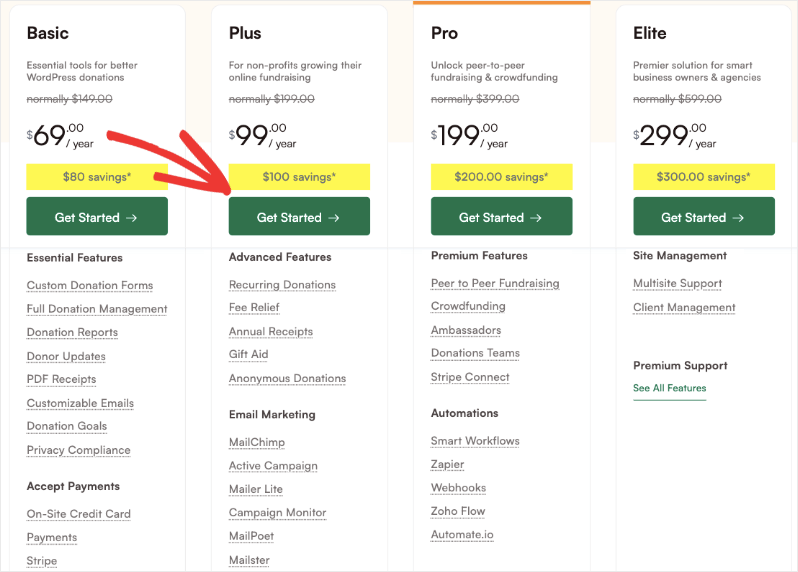
Charitable plan features

Once you’ve found the right plan, click the Get Started button to proceed to checkout. Complete your purchase, and Charitable will create a new account for you.

Step 2: Download the Plugin File

Now, you’ll be logged into your Charitable account. In the Downloads tab, you’ll see a plugin file and a license key.
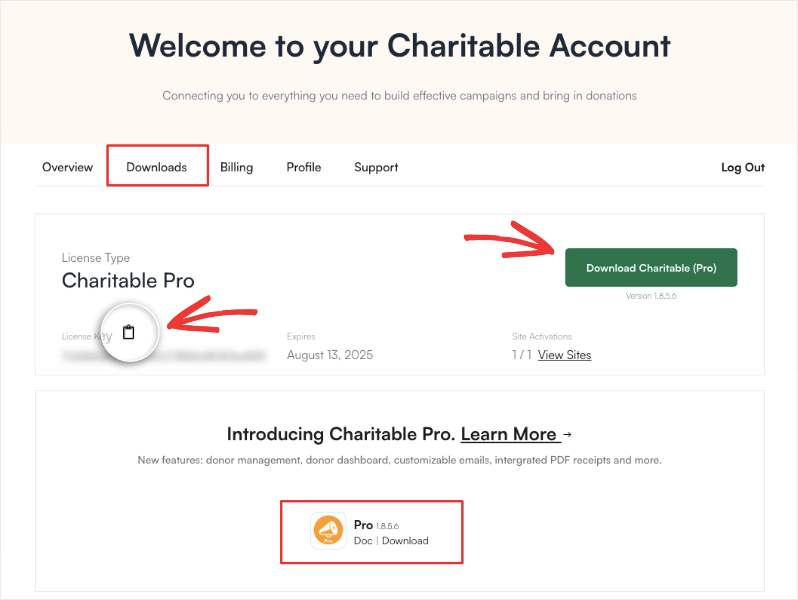
Download Charitable Pro

Download this file to your computer and copy the license key by clicking on the clipboard icon next to it.

We’ve added a link to the documentation on this page as well, so you can easily access these step-by-step instructions any time you need.

Step 3: Install and Activate the Plugin

In your WordPress admin panel, go to Plugins » Add New » Upload Plugin. Here, select the plugin file and upload it to your WordPress site. Then install and activate the plugin.
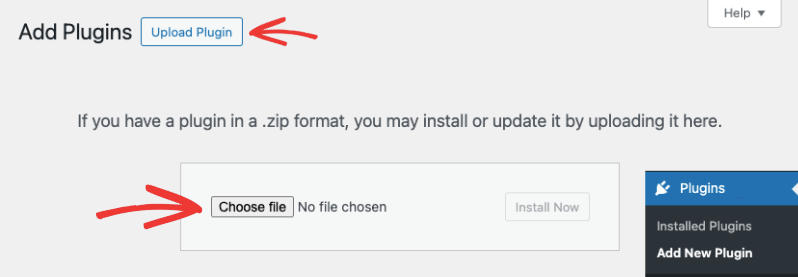
Upload new wordpress plugin

Once done, for new installations, the setup wizard will appear, which will take you through all the essential steps on getting started.
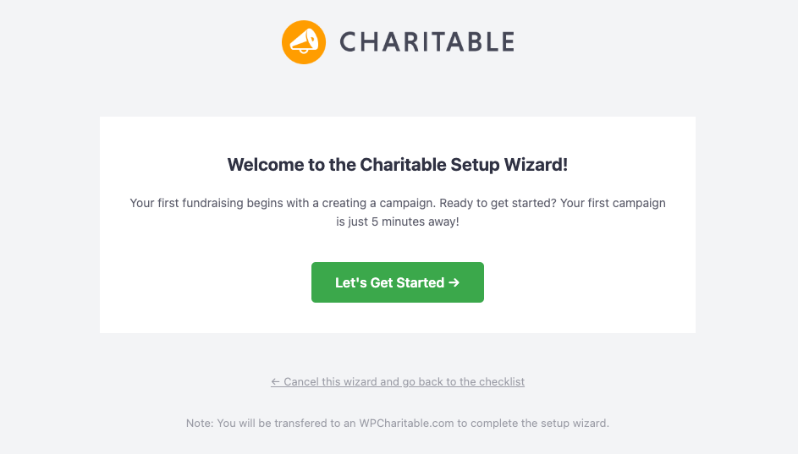
Charitable wizard

We’ve designed the wizard to be simple and self-explanatory. No matter your level of expertise, you’ll be able to configure important settings such as your payment gateway and launch your first fundraising campaign.

Step 4: Activate Your License Key

The last step in setting up is activating your Charitable license. In your WordPress menu, open the Charitable » Settings page.
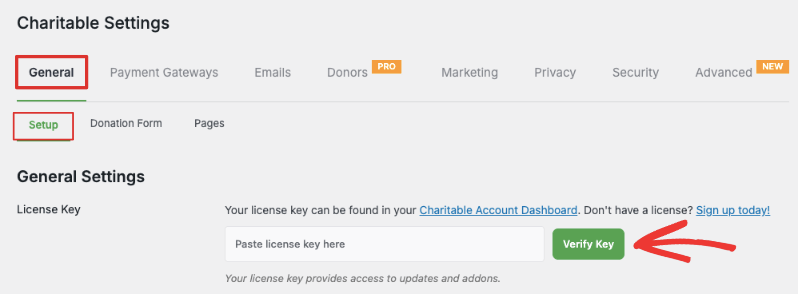
Verify charitable license key

You’ll see a field where you can paste your license key and verify it. Once done, your plan details will appear here.

That’s it. You’re ready to build and launch fundraising campaigns to collect donations online.

Need help with setting up other features of Charitable? Find all the guides you need here: Charitable Documentation »

Installing Charitable Lite

Charitable offers a free version with all the essential features you need to raise funds online. This includes unlimited donation campaigns, donation records, and built-in Stripe integration.

To get started with Charitable Lite, go to Plugins » Add New in your WordPress dashboard. In the search bar here, type in ‘Charitable’. Once you find the plugin, install and activate it.
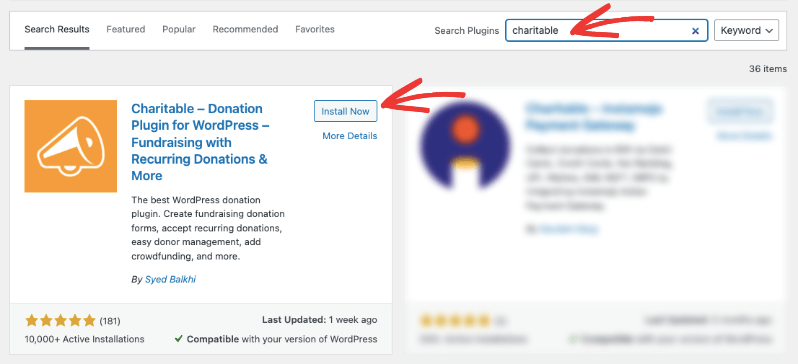
Install Charitable WordPress plugin

That’s it. You’re all set to use Charitable Lite. No license key required.

Here too, for new installations, Charitable’s setup wizard will launch. We recommend using this wizard to quickly configure essential settings and payment gateway options.

Charitable wizard

Now you’re all set to raise funds online and manage your donations with ease. For more on how to set up your first campaign with Charitable, refer to our comprehensive documentation here: Get Started with Charitable »


Still have questions? We’re here to help!

Last Modified:

What's New In Charitable

View The Latest Updates
🔔 Subscribe to get our latest updates
📧 Subscribe to Emails

Email Subscription

Join our Newsletter

We won’t spam you. We only send an email when we think it will genuinely help you. Unsubscribe at any time!

Donations Improvement

📊 Your Pro Dashboard Can Now Compare, Export, and Score!

Most fundraising dashboards only tell you how much you have raised. Charitable Pro 1.8.19 rebuilds the dashboard and the Reports Overview around the harder questions: whether anything is broken, whether this period beat the last one, and which single change would make the most difference today. Why this is important:

  • 📈 Every figure has a trend: Pick a period and the tiles and the chart move together, with each total shown against the previous period.
  • 🗓️ Charts that stay readable: Short ranges group donations day by day, while longer ranges group by week or month, so a full year reads as a curve instead of a flat line.
  • 🔀 Compare any 2 periods: Not just consecutive ones, so you can ask how this December did against last December. That matters because fundraising is seasonal.
  • 📤 Export the whole summary: Send the full overview out as CSV or PDF, ready for a board pack or a funder report.
  • 🎯 Score your setup for free: Have your fundraising setup scored, so the one change worth making next is the one you can see.

Check out our announcement here.

Feature New

🎟️ Introducing Charitable Events: Sell Tickets Inside Your Campaigns!

Most nonprofits sell event tickets in one tool and collect donations in another, which leaves two sets of reports and a manual match at the end of the year. Charitable Events brings both together, selling tickets through the same donation forms and payment gateways you already run in Charitable. Why this is important:

  • 🎟️ Every ticket is a donation: Ticket sales run through the gateway you already use and count toward the campaign goal, with everything managed under Charitable » Events.
  • 📱 QR check-in from any phone: Each attendee gets their own QR code on the receipt, and volunteers scan at the door through a check-in link that needs no WordPress account.
  • 🧾 Receipts ready for tax time: Give each ticket type a fair market value, and Charitable puts the correct tax-deductible amount on every donor receipt.
  • 📋 Attendee details at checkout: Ask every guest for a meal choice, shirt size, or access needs, with a separate attendee record created for each ticket.
  • 🗓️ Blocks and calendars included: Three editor blocks plus Sugar Calendar and The Events Calendar support put your events where supporters already look.

Check out our announcement here.

ai New

🚀 Unleash AI Power in Charitable!

Your AI assistant can now build, edit, and manage your Charitable fundraising campaigns directly — just by asking. With Charitable Pro adding write support for the WordPress Abilities API, tools like ChatGPT, Claude, and Cursor can handle full administrative actions safely through MCP. Why this is important:

  • 🤖 Campaign creation in plain language: Prompt your assistant with a goal like “Set up a fundraiser for the shelter with a $5,000 goal”, and it builds a real draft campaign complete with suggested donation tiers.
  • 🎨 Instant donation form tweaks: Add custom fields, change button colors, or reorder elements without diving into form settings.
  • 📝 Offline gift logging: Tell your assistant about cash or check gifts, and it will match donor emails and record transactions into your history.
  • 🛡️ Safety and control by default: Write access stays strictly off until turned on in Charitable » Tools » AI MCP, keeping read-only reporting safe by default.
  • 📜 Full audit logging: Every change made by an AI assistant is tracked under Charitable » Tools » Logs, so you always know who (or what) updated your site.

Check out our announcement here.

Improvement Payments

💰 Accept Recurring Donations with Windcave and Charitable

A donor sets their gift up once on Windcave’s secure payment page, and Charitable bills every renewal after that on schedule. Why this is important:

🏦 Organizations banked in New Zealand or Australia: monthly giving on the gateway your bank already set you up with, with no second processor to onboard.
⛪ Churches taking regular tithes and offerings: congregants set their own schedule once, which is the simplest way to launch recurring church giving without a separate platform.
🌏 Groups with donors in several currencies: Windcave handles more than 20, so a supporter can give in the currency they actually hold.
📅 Operating funds rather than one-time campaigns: switch on Recurring Only mode and the one-off option disappears, so every gift to that campaign is a subscription.
🧾 Teams with no developer on staff: 3 sets of credentials pasted into a settings page, and no code anywhere.

Check out our announcement here.

automation update

⚡ Visual Automation Builder: Drag and Drop With No Code!

Charitable Automation Connect 2.3.0 introduces the Visual Automation Builder, a full-screen canvas that lays each automation out as a flow of connected cards: a trigger, optional conditions, and a list of actions that run in order.

🧩 Many actions, one trigger: Tag a donor, send an email, add a note, and fire a webhook from a single event, dragged into any order.

✉️ Act inside Charitable: New Send Email, Tag Donor, and Add Donor Note actions run with no external service required.

🔤 Merge tags: Personalize emails and notes with live fields like {first_name}, {total}, and {campaign_name}.

🔁 Apply to existing donors: Run Tag Donor and Add Donor Note against the donors you already have.

🖥️ Canvas or Simple: Switch views anytime, and automations built before 2.3.0 keep working unchanged.

Read more here.