Besoin d'envoyer les reçus de dons de fin d'année à tous vos donateurs en une seule fois ? La fonctionnalité d'envoi en masse des reçus annuels de Charitable Pro vous permet d'envoyer par e-mail les reçus annuels à chaque donateur éligible pour une année fiscale sélectionnée, avec un assistant guidé qui gère automatiquement les exclusions de campagnes, les vérifications système et le traitement par lots.
Prérequis : Charitable Pro 1.8.13.3+ avec le module complémentaire Reçus Annuels version 2.0.0 ou ultérieure.
- Démarrage
- Exclusion des campagnes des reçus
- Vérifications système
- Configuration de votre envoi
- Examen et confirmation
- Envoi et suivi de la progression
- Mode simulation
- Personnalisation de l'e-mail de reçu annuel
- Vérification du journal des donateurs
- Historique des envois et renvoi
- FAQ sur les reçus annuels
- Les totaux des donateurs de la campagne ne correspondent pas au nombre d'envois. Comment résoudre ce problème ?
- Que faire si mes e-mails ne sont pas livrés ?
- Comment corriger les e-mails dont l'envoi est en pause ?
- Comment voir le journal d'envoi complet ?
- Que faire si les donateurs ont reçu des reçus affichant 0,00 $ ?
Démarrage
Avant de commencer, assurez-vous que Charitable Pro et le module complémentaire Reçus Annuels (2.0+) sont installés et activés sur votre site WordPress.
Pour accéder à l'assistant d'envoi en masse, allez dans Charitable > Paramètres > Avancé > Reçus Annuels dans votre administration WordPress. Faites défiler jusqu'à la section Envoyer les reçus annuels.
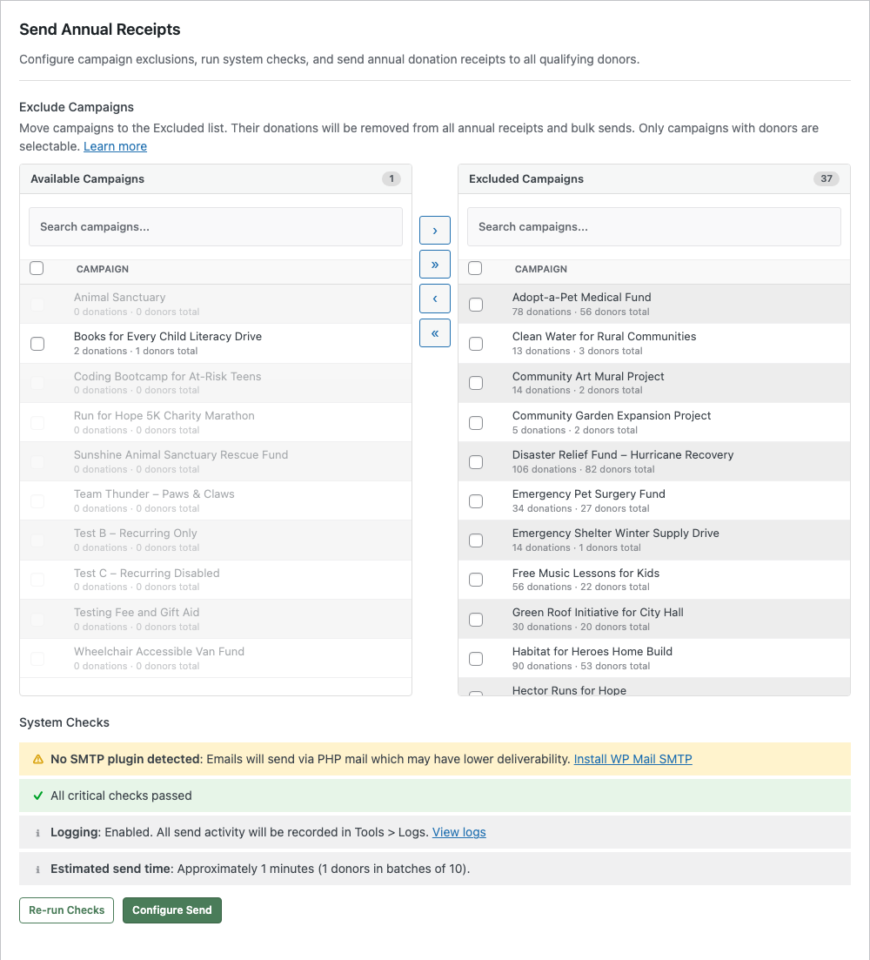
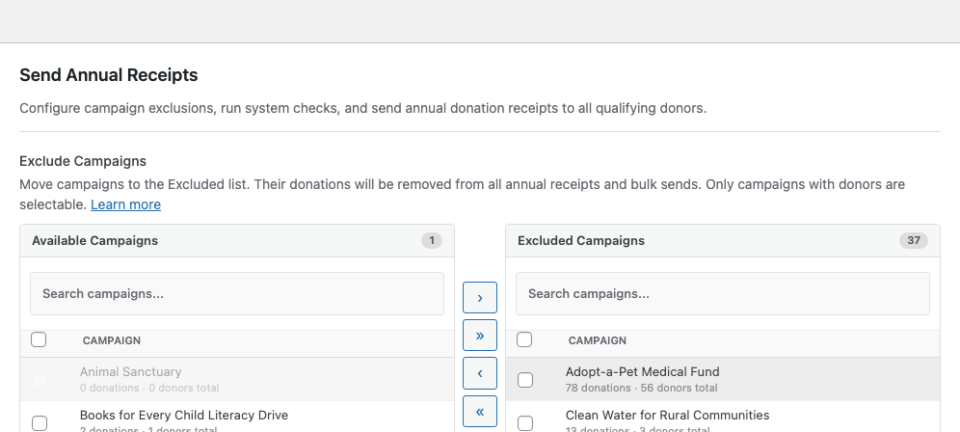
Cette section contient tout ce dont vous avez besoin pour envoyer les reçus annuels : exclusions de campagnes, vérifications système, un assistant d'envoi en 3 étapes et votre historique d'envoi. La première étape consiste à configurer les campagnes qui doivent apparaître sur les reçus.
Exclusion des campagnes des reçus
Si vous avez des campagnes dont les dons ne doivent pas apparaître sur les reçus annuels (telles que les inscriptions à des événements, les ventes de produits ou les campagnes non déductibles des impôts), vous pouvez les exclure avant l'envoi.
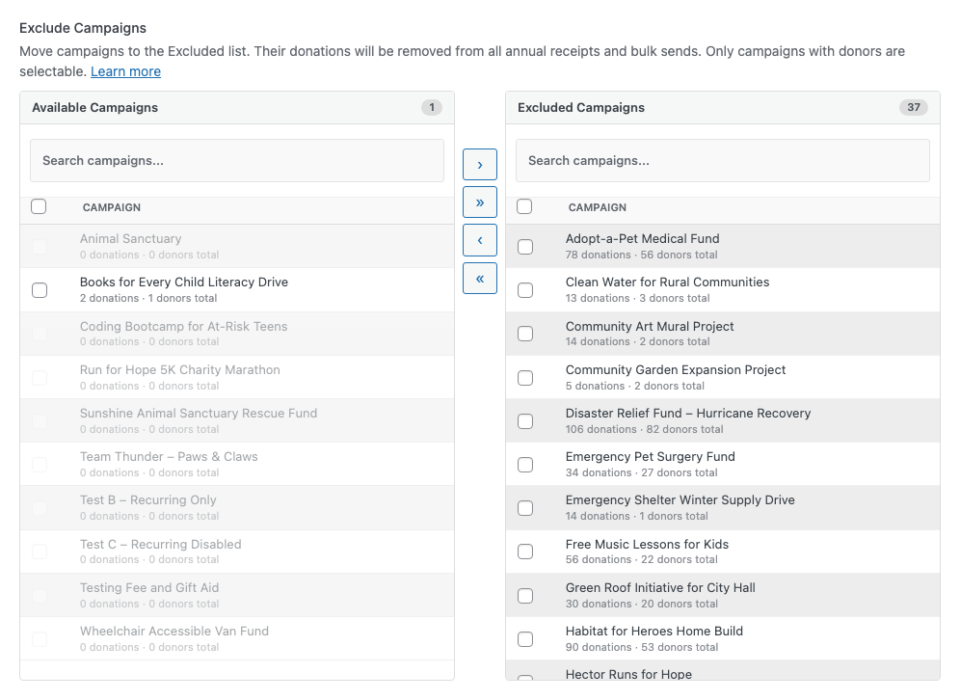
Le panneau d'exclusion affiche deux listes côte à côte :
- Campagnes disponibles (à gauche) affiche les campagnes qui seront incluses dans les reçus. Chaque campagne affiche ses totaux de dons et de donateurs depuis sa création.
- Campagnes exclues (à droite) affiche les campagnes dont les dons seront supprimés de tous les reçus annuels.
Pour exclure une campagne, sélectionnez-la en cliquant sur sa ligne (la case à cocher basculera), puis cliquez sur le bouton flèche > pour la déplacer vers la liste Exclues. Vous pouvez également double-cliquer sur une campagne pour la déplacer instantanément. Utilisez >> pour déplacer toutes les campagnes visibles en une seule fois.
Les campagnes avec zéro donateur sont grisées et ne peuvent pas être sélectionnées. Utilisez la boîte de recherche au-dessus de chaque liste pour filtrer les campagnes par nom.
Remarque : Les totaux des donateurs de la campagne reflètent les décomptes depuis la création, pas seulement l'année sélectionnée. Le nombre réel de donateurs qui recevront des reçus dépend des donateurs ayant effectué des dons au cours de l'année fiscale sélectionnée.
Après avoir ajusté vos exclusions, cliquez sur Enregistrer les modifications en bas de la page pour les conserver. Les exclusions s'appliquent à tous les reçus annuels, y compris les téléchargements individuels, la génération de PDF et les envois en masse.
Vérifications système
Avant de pouvoir démarrer un envoi en masse, le système effectue des vérifications automatiques pour s'assurer que votre site est correctement configuré.
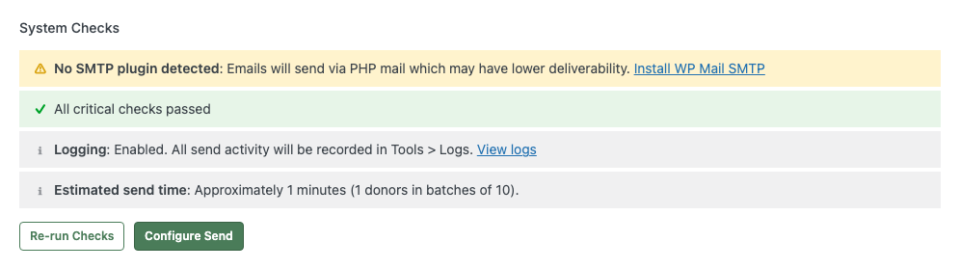
Les vérifications se répartissent en trois catégories :
- Critiques (rouges) bloquent l'envoi jusqu'à leur résolution. Celles-ci incluent : l'e-mail de reçu annuel doit être activé dans Paramètres > E-mails, la page de reçu annuel doit être configurée, et WP Cron ou Action Scheduler doit être disponible.
- Avertissements (ambre) sont consultatifs mais ne bloquent pas l'envoi. Les avertissements courants incluent : aucun plugin SMTP détecté, limite quotidienne d'e-mails faible (pour Gmail ou des fournisseurs similaires), et donateurs ayant déjà reçu des reçus pour l'année sélectionnée.
- Infos (gris) indiquent votre configuration actuelle : fournisseur d'e-mails, état de la journalisation, temps d'envoi estimé et taille du lot.
Cliquez sur Relancer les vérifications pour actualiser les résultats. Lorsque toutes les vérifications critiques sont réussies, le bouton Configurer l'envoi devient actif.
Configuration de votre envoi
Après avoir cliqué sur Configurer l'envoi, l'assistant s'ouvre à l'étape 1.
Configurez les options suivantes :
- Année sélectionne l'exercice fiscal pour les reçus. Le nombre de donateurs est mis à jour automatiquement lorsque vous changez d'année, reflétant uniquement les donateurs ayant des dons complétés pendant cette période.
- Aperçu de l'e-mail montre où personnaliser le contenu de l'e-mail. Cliquez sur le lien Paramètres > E-mails pour modifier la ligne d'objet, le corps du texte et les balises de modèle.
- Envoyer un e-mail de test envoie un e-mail d'exemple à votre adresse d'administrateur afin que vous puissiez prévisualiser son apparence avant de l'envoyer aux donateurs. Si la case Pièce jointe PDF est cochée, l'e-mail de test inclut un PDF d'exemple.
- Pièce jointe PDF (lorsqu'elle est disponible) attache un reçu PDF à chaque e-mail. Cette option n'apparaît que lorsque votre serveur dispose de suffisamment de mémoire (128 Mo ou plus). Si la mémoire est limitée, un avertissement apparaît avec des instructions.
Cliquez sur Suivant : Révision pour continuer.
Examen et confirmation
L'étape 2 affiche un résumé de ce qui se passera lors de l'envoi.
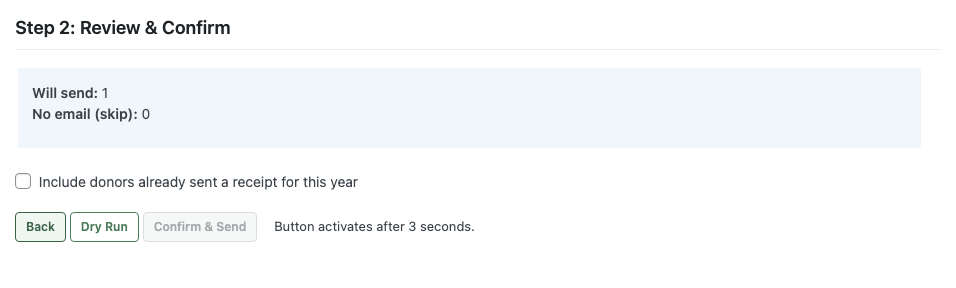
- Enverra indique combien de donateurs recevront des reçus.
- Aucun e-mail (ignorer) indique les donateurs sans adresse e-mail qui seront automatiquement ignorés.
- Inclure les donateurs ayant déjà reçu un reçu pour cette année contrôle si les donateurs ayant reçu un reçu lors d'un envoi précédent sont inclus à nouveau. Cette option est décochée par défaut pour éviter les e-mails en double.
Vous avez deux options :
- Simulation simule l'ensemble du processus sans envoyer d'e-mails. Utilisez cette option pour vérifier votre configuration avant de vous engager dans un envoi réel. Voir Mode Simulation pour plus de détails.
- Confirmer et envoyer démarre l'envoi réel. Ce bouton s'active après un délai de 3 secondes pour éviter les clics accidentels.
Envoi et suivi de la progression
Une fois que vous avez confirmé, l'étape 3 affiche un écran de progression en direct. Les e-mails sont envoyés par lots via WP Cron (ou Action Scheduler si disponible), le traitement continue donc même si vous fermez votre navigateur.
L'écran de progression affiche :
- Une barre de progression avec le pourcentage d'achèvement
- Compteurs en direct pour Envoyés, Ignorés, Échoués et Restants
- Un journal d'erreurs (si des donateurs échouent) avec la raison spécifique de chaque échec
- Un bouton Abandonner pour annuler les envois restants (les e-mails déjà envoyés ne sont pas affectés)
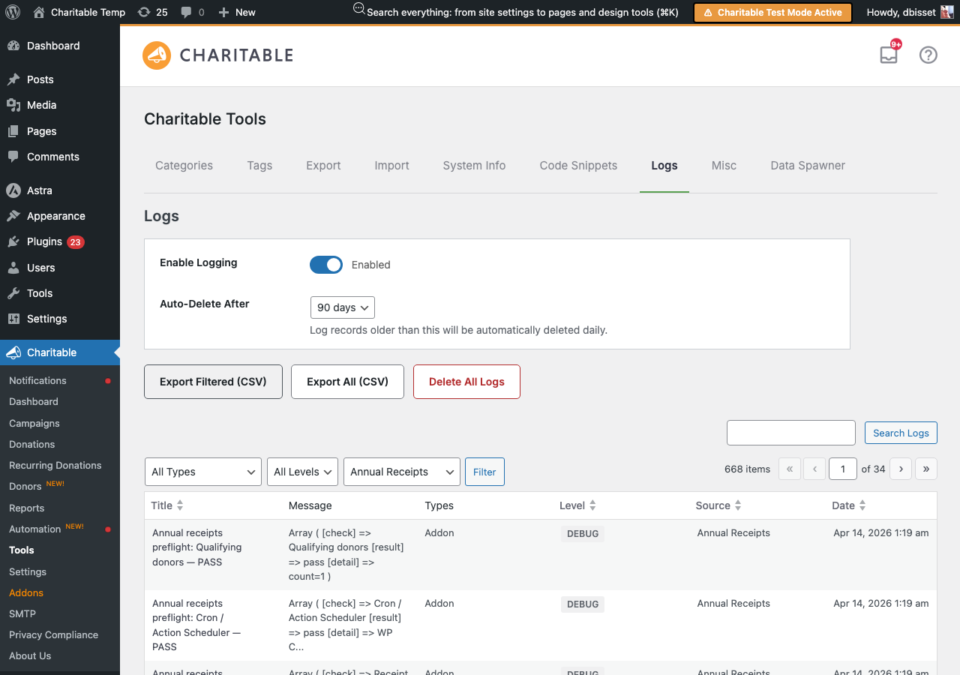
Une fois terminé, vous pouvez cliquer sur Afficher le journal d'envoi pour voir la piste d'audit complète dans Outils > Journaux, filtrée par la source Reçus annuels.
Remarque : Si votre fournisseur d'e-mails a une limite d'envoi quotidienne (comme les 500 e-mails par jour de Gmail), le processeur de lots le détecte automatiquement et met le travail en pause jusqu'au lendemain. Vous verrez un statut « En pause » avec l'heure de reprise prévue.
Mode simulation
Un essai à blanc simule l'ensemble du processus d'envoi sans envoyer réellement d'e-mails. Il vérifie chaque donateur selon les mêmes règles qu'un envoi réel : déduplication, exclusions de campagne, validation d'e-mail et requêtes de dons.
Pour démarrer un essai à blanc, cliquez sur le bouton Essai à blanc à l'étape 2 au lieu de Confirmer et envoyer. Une bannière jaune à l'étape 3 confirme qu'aucun e-mail ne sera envoyé.
Après la fin de l'essai à blanc, le résumé affiche les décomptes « Enverrait », « Ignorerait » et « Échouerait ». Les essais à blanc ne marquent pas les donateurs comme « déjà envoyés », vous pouvez donc immédiatement faire suivre avec un envoi réel.
Utilisez les essais à blanc pour :
- Vérifier que vos exclusions de campagne fonctionnent correctement
- Vérifier combien de donateurs sont éligibles avant de vous engager
- Tester le pipeline sur un nouveau site avant le premier envoi réel
Personnalisation de l'e-mail de reçu annuel
L'e-mail de reçu annuel est entièrement personnalisable dans Charitable > Paramètres > E-mails. Recherchez Donateur : Reçu annuel dans la liste des e-mails et cliquez sur Paramètres de l'e-mail.
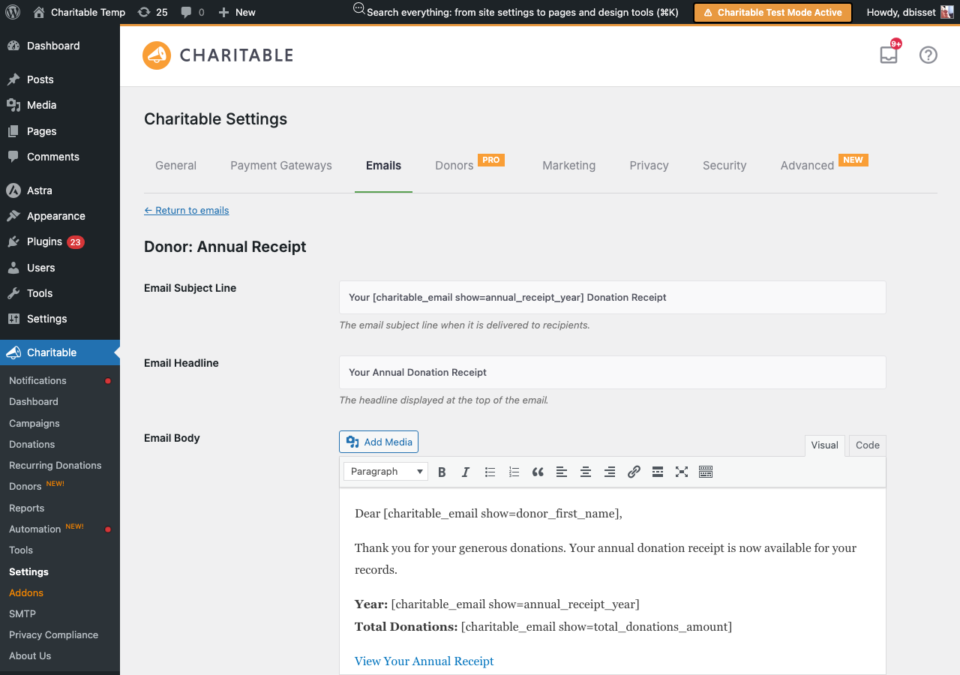
Vous pouvez personnaliser la ligne d'objet, le titre et le contenu du corps. Les balises de modèle suivantes sont disponibles :
[charitable_email show=donor_first_name]le prénom du donateur[charitable_email show=donor_last_name]le nom de famille du donateur[charitable_email show=annual_receipt_year]l'année fiscale[charitable_email show=annual_receipt_url]un lien sécurisé vers le reçu du donateur (aucune connexion requise)[charitable_email show=total_donations_amount]le montant total des dons pour l'année[charitable_email show=organization_name]le nom de votre organisation
Le lien de reçu utilise un jeton HMAC sécurisé qui permet aux donateurs de consulter leur reçu sans se connecter. Les jetons expirent après 30 jours par défaut.
Remarque : L'e-mail de reçu annuel doit être activé avant de pouvoir utiliser l'assistant d'envoi en masse. Si vous voyez un échec de vérification critique pour « E-mail de reçu annuel », cliquez sur le lien pour accéder directement aux paramètres de l'e-mail et l'activer.
Vérification du journal des donateurs
Chaque envoi de reçu réussi est consigné dans le profil du donateur individuel. Pour vérifier, allez dans Charitable > Donateurs, ouvrez le profil d'un donateur et cliquez sur l'onglet Journaux.
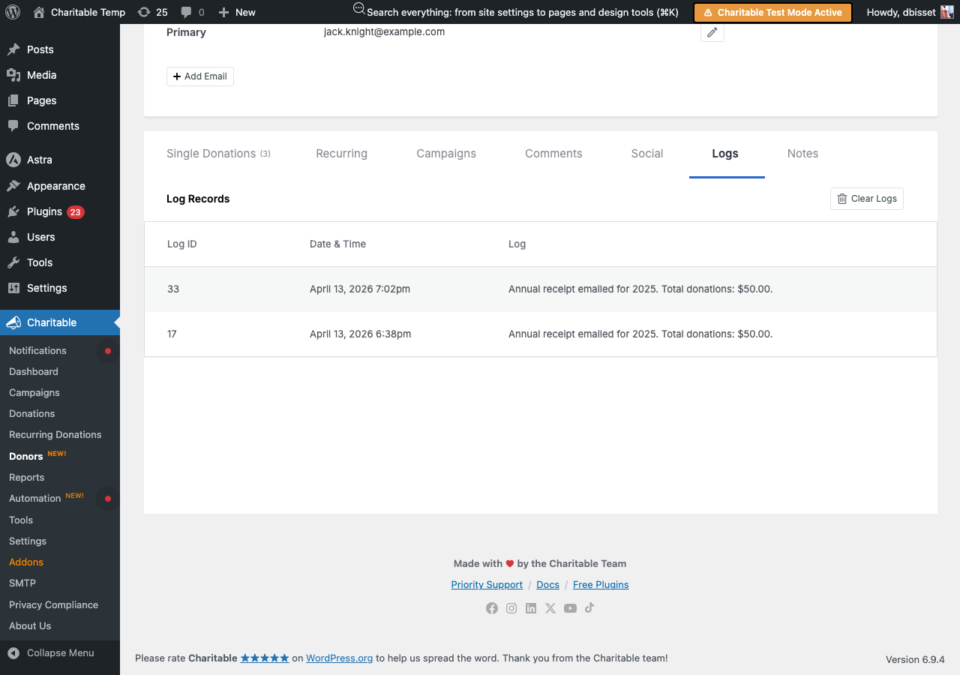
Chaque entrée affiche la date, l'année et le montant total du don pour le reçu qui a été envoyé. Les donateurs ignorés et échoués sont enregistrés dans le journal système (Outils > Journaux) mais pas sur le profil individuel du donateur.
Historique des envois et renvoi
Après avoir terminé un envoi, un tableau Historique des envois apparaît sous l'assistant, indiquant l'année, le nombre de donateurs à qui l'envoi a été effectué et la date du dernier envoi.
Pour renvoyer les reçus pour une année :
- Cliquez sur Effacer à côté de l'année dans le tableau Historique des envois. Cela supprime le journal de déduplication, rendant ainsi tous les donateurs éligibles à nouveau. La piste d'audit dans Outils > Journaux n'est pas affectée.
- Exécutez à nouveau l'assistant pour cette année.
Alternativement, cochez la case Inclure les donateurs à qui un reçu a déjà été envoyé pour cette année à l'étape 2 pour renvoyer sans effacer l'historique.
FAQ sur les reçus annuels
Les totaux des donateurs de la campagne ne correspondent pas au nombre d'envois. Comment puis-je résoudre ce problème ?
Les totaux des donateurs de la campagne dans les listes d'exclusion affichent les comptes de tous les temps sur toutes les années. Le nombre d'envois reflète uniquement les donateurs ayant effectué des dons au cours de l'exercice sélectionné. Une campagne peut avoir 50 donateurs au total, mais seulement 10 qui ont fait un don en 2025.
Que faire si mes e-mails ne sont pas livrés ?
Si les e-mails échouent avec le message « L'e-mail n'a pas pu être envoyé », vérifiez la configuration de messagerie de votre serveur. Pour une livraison fiable, installez un plugin SMTP tel que WP Mail SMTP. Le panneau de vérification du système vous avertira si aucun plugin SMTP n'est détecté.
Comment corriger les e-mails dont l'envoi est en pause ?
Si votre fournisseur de messagerie a une limite d'envoi quotidienne, le processeur de lots s'arrête automatiquement à l'approche de cette limite et reprend le lendemain. C'est un comportement normal pour des fournisseurs comme Gmail (500/jour) ou Brevo (version gratuite 300/jour). Envisagez de mettre à niveau votre fournisseur de messagerie pour des envois à plus grand volume.
Comment voir le journal d'envoi complet ?
Accédez à Charitable > Outils > Journaux et filtrez par la source Reçus Annuels. Chaque donateur envoyé, ignoré et échoué est enregistré avec la raison.
Que faire si les donateurs ont reçu des reçus affichant 0,00 $ ?
Cela peut se produire si les dons du donateur concernaient des campagnes qui sont maintenant exclues, ou si les paramètres de l'exercice ne correspondent pas aux dates des dons. Vérifiez votre paramètre de fin d'exercice en haut de la page des paramètres des Reçus Annuels, et assurez-vous que les campagnes pertinentes ne figurent pas dans la liste Exclues.