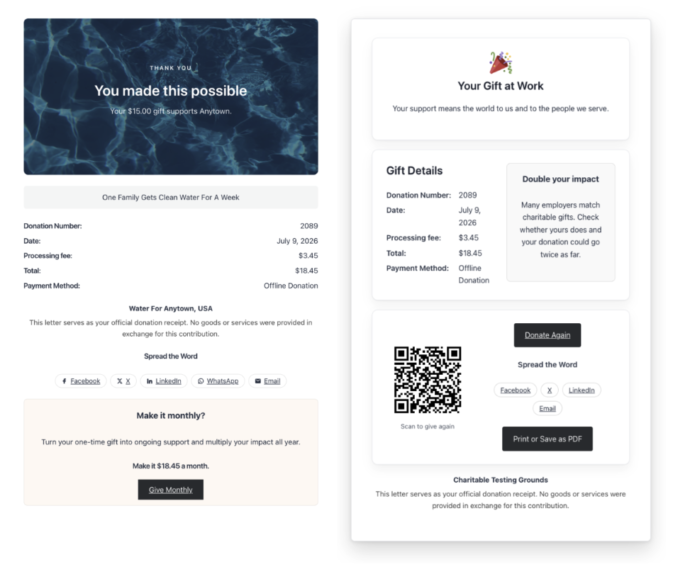
Charitable facilite la création de reçus PDF personnalisés que vous et votre donateur pouvez générer et télécharger instantanément. Les donateurs peuvent également choisir d'envoyer les reçus de don à leur adresse e-mail juste après avoir effectué une contribution.
Ce guide vous montrera comment personnaliser vos reçus et configurer les paramètres exactement selon les besoins de votre organisation.
Table des matières
- Configuration et personnalisation des reçus PDF
- Comment envoyer les reçus de don par e-mail
- Comment télécharger un reçu PDF en tant qu'administrateur
- Comment télécharger un reçu PDF en tant que donateur
- Comment les donateurs peuvent s'envoyer leur reçu ou l'envoyer à quelqu'un d'autre
- Comment réduire la charge de votre serveur
- FAQ sur les reçus de dons PDF
Configuration minimale requise :
- PHP 7.2+
- Caritatif 1.6.59+
Configuration et personnalisation des reçus PDF
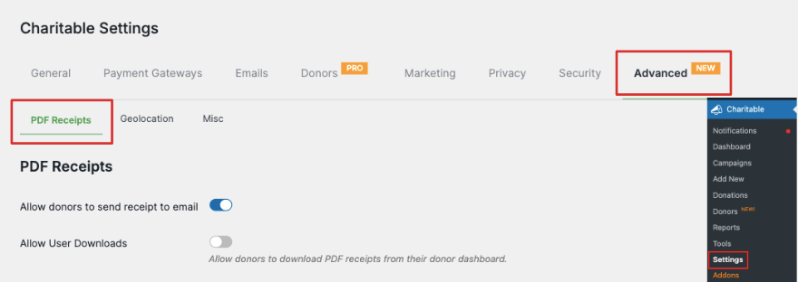
Dans votre menu d'administration WordPress, allez à la page Charitable » Paramètres. Ici, vous verrez un menu en haut de la page à partir duquel vous pouvez sélectionner l'onglet Avancé.
Vous devriez maintenant être sur la page des paramètres Reçus PDF. Passons en revue les paramètres disponibles ici.
Tout d'abord, vous pouvez choisir d'autoriser les donateurs à envoyer le reçu à leur adresse e-mail. Charitable détectera automatiquement l'e-mail qu'ils ont saisi dans le formulaire de don, générera un reçu et l'enverra à leur adresse e-mail.
Ci-dessous, vous pouvez également autoriser les utilisateurs à télécharger leurs reçus depuis leur propre tableau de bord de donateur. Si vous n'avez pas activé le tableau de bord, découvrez comment le faire ici : Comment utiliser le tableau de bord du donateur »
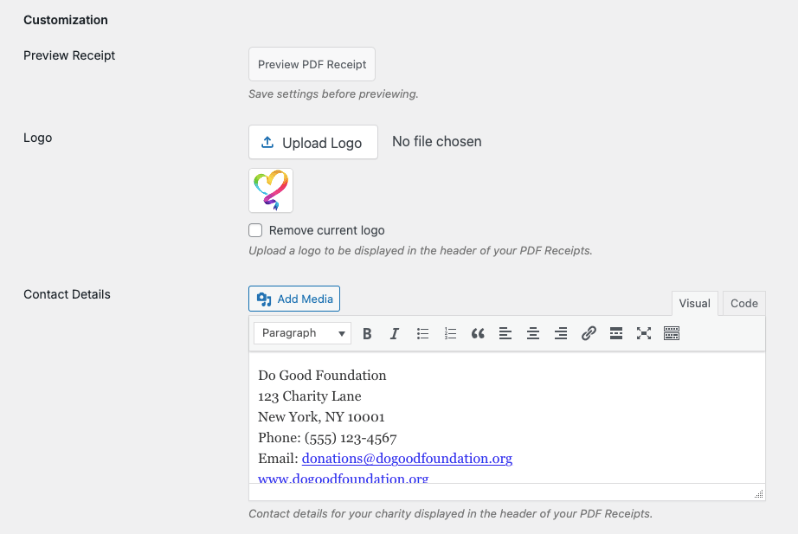
Ensuite, vous pouvez personnaliser le reçu avec votre logo et vos coordonnées. Utilisez le bouton « Télécharger le logo » pour sélectionner votre fichier logo et l'ajouter à votre reçu.
Ci-dessous, vous pouvez ajouter vos coordonnées telles que votre adresse, numéro de téléphone, adresse e-mail, etc. Vous pouvez également ajouter des fichiers multimédias ici si vous souhaitez afficher une image.
Vous verrez maintenant une liste d'options sous la boîte de coordonnées. Ce sont les étiquettes qui apparaîtront sur votre reçu pour les différents champs.
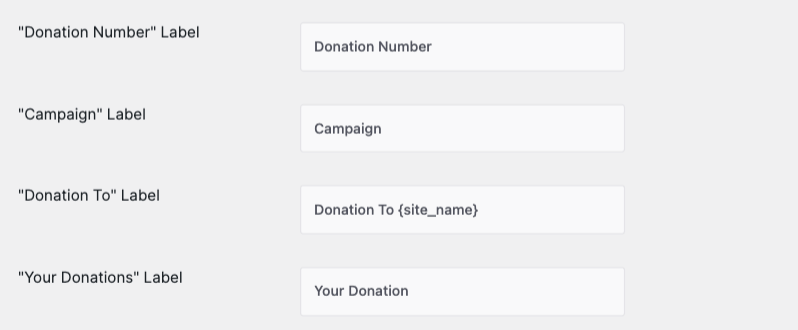
Dans ces paramètres, vous pouvez personnaliser toutes ces étiquettes :
Numéro de don : Affiche le numéro de don ou de reçu.
Campagne : Affiche la campagne à laquelle ils ont fait un don
Don à : Apparaît avant le nom de la fondation ou de l'organisation à but non lucratif
Vos dons : Apparaît au-dessus des détails de la contribution, du montant et du total.
Gardez à l'esprit que vous ne modifiez que le texte des noms de champs qui apparaissent sur votre reçu de don. Les détails, tels que le numéro de don, le nom de la campagne et le nom de votre site, seront automatiquement récupérés par Charitable et affichés sur votre reçu.
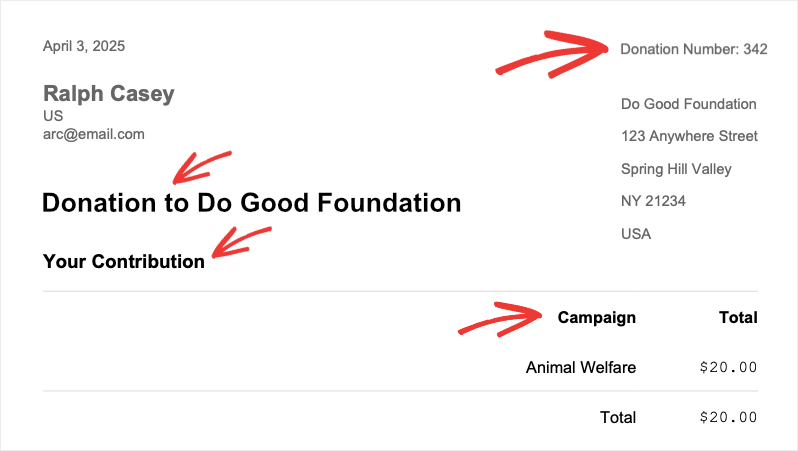
Voici un exemple de reçu où nous avons personnalisé « Votre don » en « Votre contribution » :
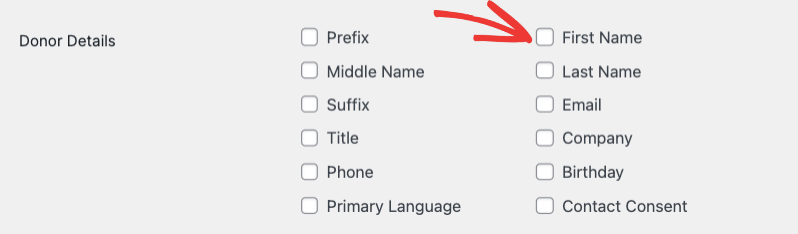
Ensuite, vous verrez une section où vous pouvez choisir quels détails du donateur apparaissent sur le reçu, tels que son nom et ses coordonnées. Nous recommandons d'afficher son préfixe, son prénom et son nom, son e-mail et un détail de contact.
Ci-dessous, vous pouvez choisir d'ajouter un code QR contenant un lien de campagne à partager. Il y a aussi une option pour ajouter un message de remerciement qui s'affiche en haut du reçu.
Enfin, vous pouvez personnaliser le pied de page de votre reçu pour y inclure votre logo ou toute image que vous souhaitez afficher. Vous pouvez également y ajouter des informations importantes sur votre organisation, sur la façon dont la contribution aidera, ou un message personnalisé.
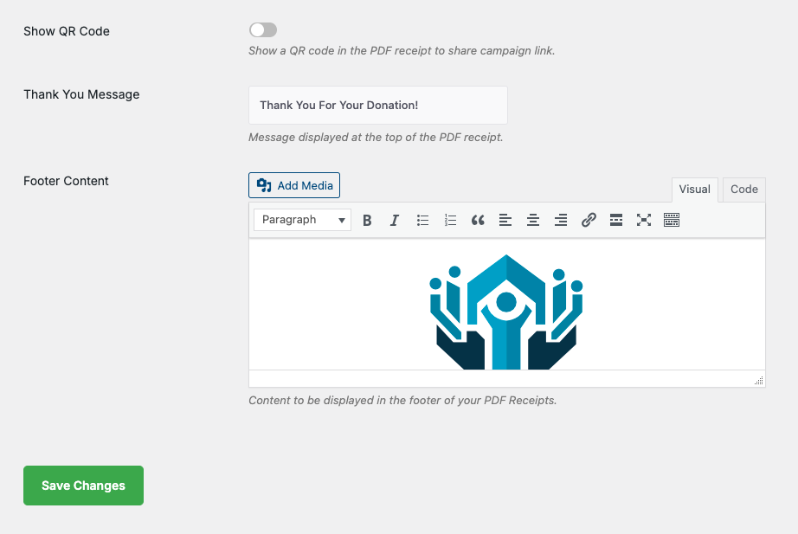
C'est tout. Assurez-vous de sauvegarder vos modifications pour conserver vos personnalisations.
Ensuite, nous vous montrerons comment envoyer ces reçus par e-mail.
Comment envoyer les reçus de don par e-mail
Charitable vous permet de configurer des e-mails qui sont envoyés automatiquement à votre donateur dès qu'il fait une contribution.
Accédez à la page Charitable » Paramètres et ouvrez l'onglet E-mails.
Ici, vous verrez une variété d'e-mails disponibles que vous pouvez activer ou désactiver en un seul clic.
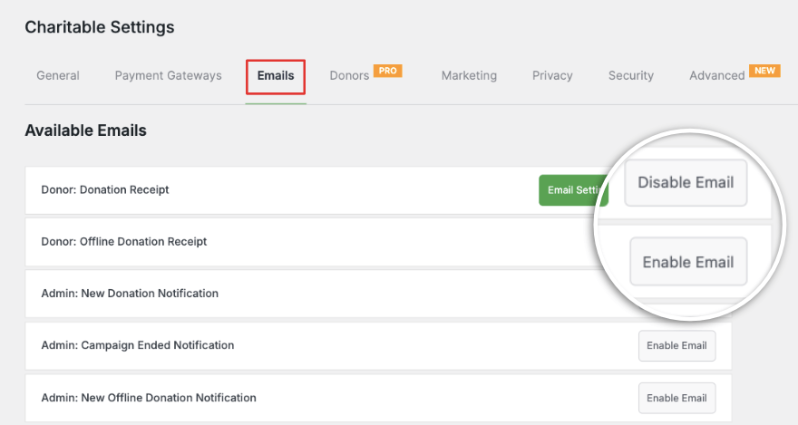
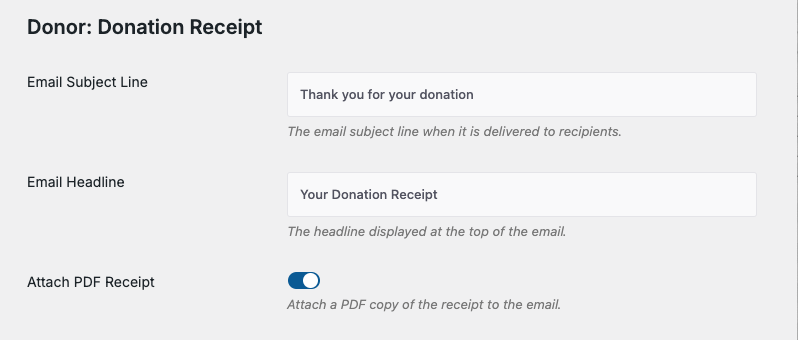
Le reçu de don est activé par défaut. Cliquez sur le bouton « Paramètres de l'e-mail » pour personnaliser cet e-mail. Sur la page suivante, vous pouvez saisir votre propre ligne d'objet et votre titre.
Il y a aussi un interrupteur pour joindre un reçu PDF à l'e-mail. Il sera généré dans le format et le style que vous avez créés ci-dessus.
Ci-dessous, vous pouvez personnaliser le corps de l'e-mail. Charitable vous permet d'ajouter facilement les informations que vous souhaitez sans aucune connaissance technique. Il existe une liste de shortcodes disponibles que vous pouvez simplement copier et coller dans votre e-mail.
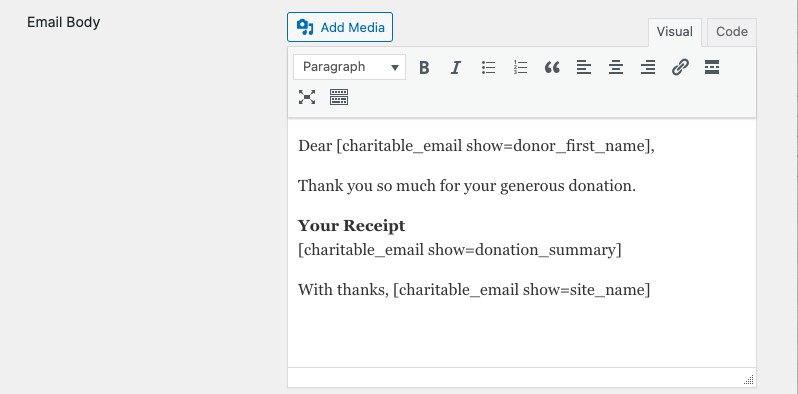
Ainsi, par exemple, si vous souhaitez inclure le nom complet du donateur, vous pouvez utiliser [charitable_email show=donor] dans votre e-mail.
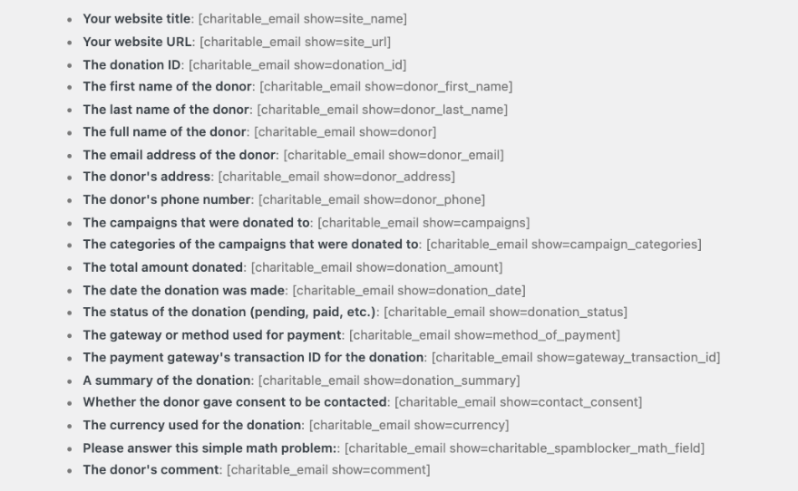
Ainsi, vous pouvez personnaliser votre e-mail pour inclure un résumé du don, les coordonnées du donateur, le titre de votre site Web, et bien plus encore. Les shortcodes les plus importants dont vous aurez besoin pour votre e-mail sont ci-dessous :
- Titre de votre site web : [charitable_email show=site_name]
- URL de votre site web : [charitable_email show=site_url]
- ID du don : [charitable_email show=donation_id]
- Prénom du donateur : [charitable_email show=donor_first_name]
- Nom de famille du donateur : [charitable_email show=donor_last_name]
- Nom complet du donateur : [charitable_email show=donor]
- Adresse e-mail du donateur : [charitable_email show=donor_email]
- Adresse du donateur : [charitable_email show=donor_address]
- Numéro de téléphone du donateur : [charitable_email show=donor_phone]
- Campagnes auxquelles des dons ont été faits : [charitable_email show=campaigns]
- Montant total donné : [charitable_email show=donation_amount]
- Date du don : [charitable_email show=donation_date]
- Passerelle ou méthode de paiement utilisée : [charitable_email show=method_of_payment]
- ID de transaction de la passerelle de paiement pour le don : [charitable_email show=gateway_transaction_id]
- Un résumé du don : [charitable_email show=donation_summary]
- Si le donateur a consenti à être contacté : [charitable_email show=contact_consent]
- Le commentaire du donateur : [charitable_email show=comment]
Une fois que vous avez personnalisé l'e-mail, Charitable vous donne la possibilité de prévisualiser votre e-mail pour vous assurer que tout est correct.

Lorsque vous êtes prêt, cliquez sur le bouton « Enregistrer les modifications » pour enregistrer vos personnalisations.
Comment télécharger un reçu PDF en tant qu'administrateur
Charitable vous permet de télécharger un reçu PDF à tout moment depuis votre tableau de bord WordPress.
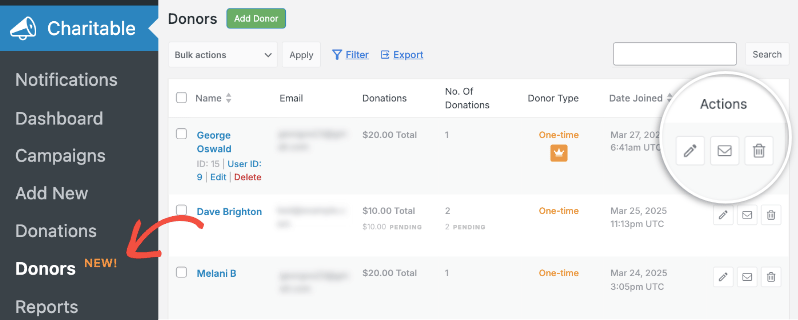
Accédez à la page Charitable » Donateurs. Ici, vous verrez une liste de donateurs. Vous pouvez utiliser la barre de recherche pour trouver le donateur qui a effectué la contribution.
Utilisez l'icône crayon ou le bouton « Modifier » pour accéder au profil du donateur.
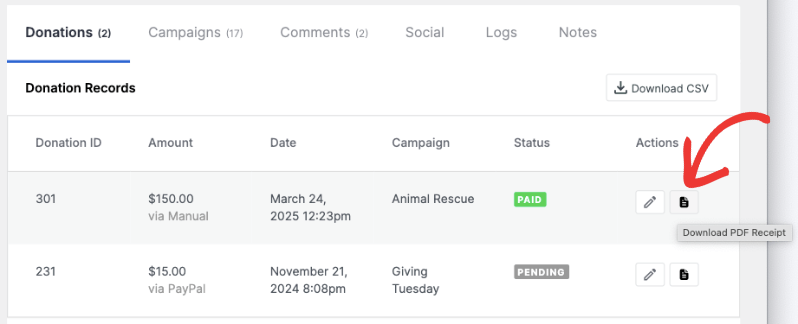
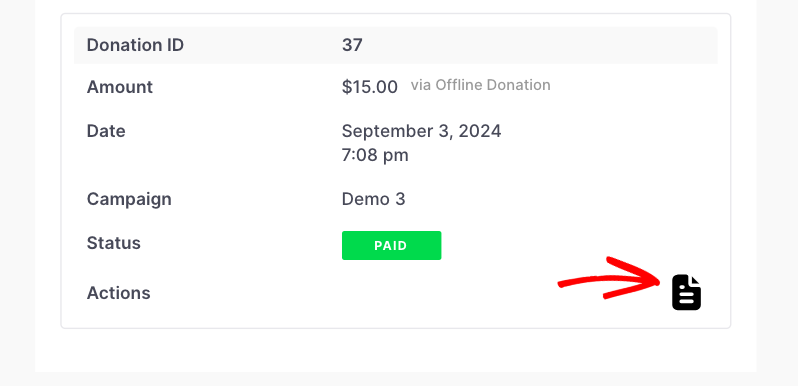
Sur la page du profil du donateur, faites défiler jusqu'à la dernière section, qui vous montre la liste des dons effectués par le donateur. Il y a une icône PDF à côté de chaque don. Cliquez simplement sur cette icône à côté de l'enregistrement du don dont vous avez besoin, et le reçu PDF sera téléchargé sur votre ordinateur.
Voyons maintenant comment votre donateur peut également télécharger le reçu par lui-même via son propre tableau de bord de donateur.
Comment télécharger un reçu PDF en tant que donateur
Votre donateur peut se connecter à son tableau de bord donateur en utilisant ses identifiants de connexion.
À l'intérieur, il peut accéder à son profil, à ses dons, à ses campagnes, à ses commentaires et à ses paramètres.
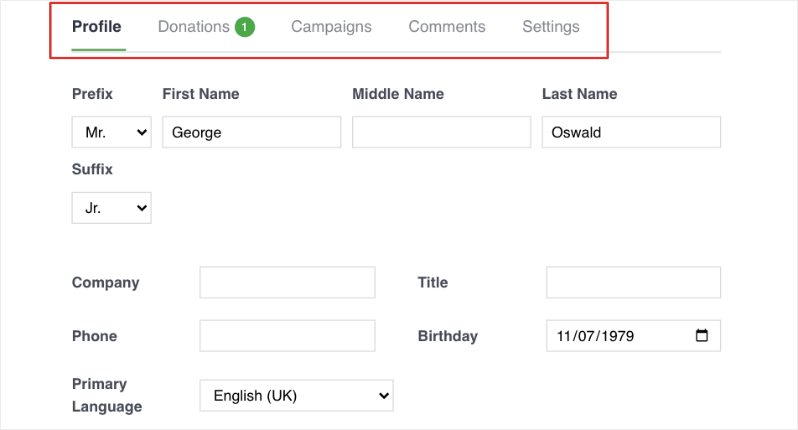
Sous Dons, il peut voir une liste de tous les dons qu'il a effectués. Il peut cliquer sur l'icône PDF ici pour télécharger instantanément le reçu dont il a besoin.
Comment les donateurs peuvent s'envoyer leur reçu ou l'envoyer à quelqu'un d'autre
Vos donateurs peuvent facilement s'envoyer des reçus ou les envoyer à quelqu'un d'autre, leur offrant ainsi un moyen simple de partager un reçu avec leur partenaire ou leur comptable, par exemple.
Sur la page de reçu de don qui apparaît après qu'un donateur a effectué une contribution avec succès, il y a une option pour le télécharger ainsi que Envoyer par e-mail.
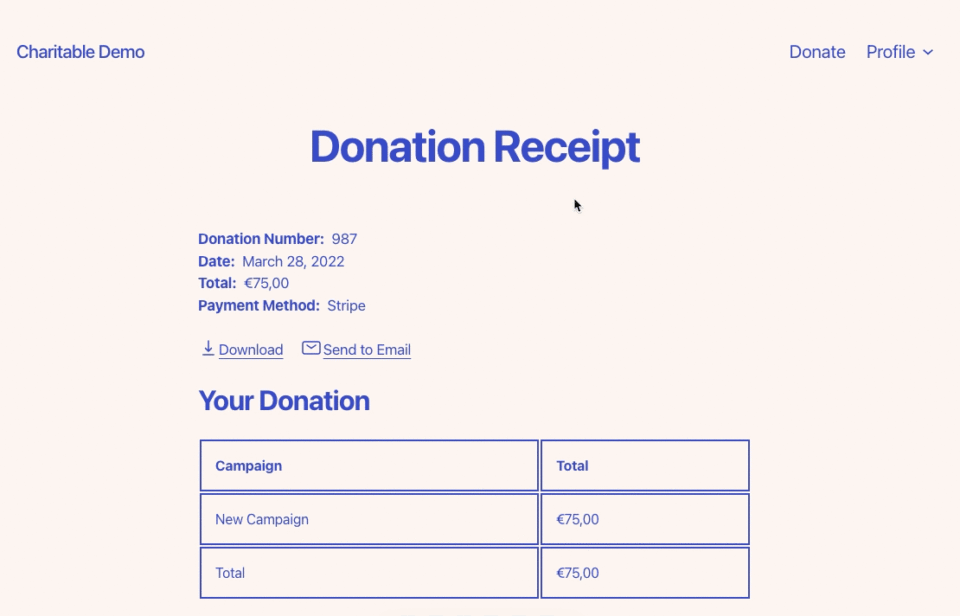
C'est une fonctionnalité simple conçue pour faciliter la vie de vos donateurs en leur fournissant les outils dont ils ont besoin après avoir fait un don.
Comment réduire la charge de votre serveur
La génération de PDF peut être exigeante pour votre site Web, surtout si vous recevez beaucoup de dons. La fonctionnalité de reçus PDF de Charitable offre donc des moyens de réduire la charge.
Au lieu de joindre automatiquement les reçus PDF à vos e-mails de don, vous pouvez désactiver cette option et offrir plutôt aux donateurs un lien direct vers une page où ils peuvent télécharger un reçu PDF.
Cela reporte la génération du PDF au moment où les donateurs en ont besoin.
Une fois générés, les reçus PDF sont conservés jusqu'à 2 heures avant d'être supprimés, évitant ainsi un gonflement inutile tout en évitant la génération répétée du même PDF sur une courte période.
FAQ sur les reçus de dons PDF
Les donateurs peuvent-ils recevoir automatiquement des reçus PDF par e-mail après avoir fait un don ?
Oui, les donateurs peuvent recevoir des reçus PDF automatiquement par e-mail. Dans les paramètres des reçus PDF, vous pouvez activer l'option permettant aux donateurs d'envoyer des reçus à leur e-mail.
Charitable détectera automatiquement l'adresse e-mail du formulaire de don, générera le reçu et le leur enverra. Vous pouvez également joindre le reçu PDF à l'e-mail de reçu de don qui est envoyé automatiquement après les contributions.
Quelles informations puis-je personnaliser sur les reçus PDF ?
Vous pouvez personnaliser plusieurs éléments, notamment le logo de votre organisation, les coordonnées (adresse, téléphone, e-mail), les étiquettes de champs (comme changer « Votre don » en « Votre contribution »), les détails du donateur qui apparaissent sur le reçu, les messages de remerciement, le contenu du pied de page, et même ajouter un code QR avec un lien de campagne. Les données réelles du don telles que les montants et les noms de campagne sont automatiquement renseignées par Charitable.
Puis-je permettre aux donateurs de télécharger le reçu PDF au lieu de le joindre à l'e-mail ?
Oui, vous pouvez laisser l'option de pièce jointe PDF désactivée. Vos donateurs peuvent toujours accéder à leur reçu PDF via leur reçu de don sur votre site Web, et vous pouvez également inclure un lien direct pour que vos donateurs téléchargent un PDF dans vos e-mails de don.
Où les donateurs accèdent-ils à leurs reçus PDF s'ils souhaitent les télécharger plus tard ?
Les donateurs peuvent accéder à leurs reçus PDF via le tableau de bord du donateur. Une fois connectés, ils peuvent naviguer vers la section Dons où ils verront une liste de toutes leurs contributions. Chaque don a une icône PDF à côté, sur laquelle ils peuvent cliquer pour télécharger instantanément leur reçu.
Comment puis-je activer le tableau de bord donateur pour que les sympathisants puissent accéder à leurs reçus ?
Suivez le guide Comment utiliser le tableau de bord du donateur pour configurer correctement cette fonctionnalité pour vos donateurs.
Puis-je prévisualiser les e-mails de reçu de don avant qu’ils ne soient envoyés aux donateurs ?
Oui, Charitable propose une option de prévisualisation pour les e-mails de reçus de don. Après avoir personnalisé le contenu de votre e-mail avec les shortcodes disponibles, vous pouvez utiliser la fonction de prévisualisation pour voir exactement à quoi ressemblera l'e-mail avant de sauvegarder vos modifications et de l'envoyer aux donateurs.
Quels shortcodes sont disponibles pour personnaliser les e-mails de reçu de don ?
Charitable propose de nombreux shortcodes, y compris des informations sur le donateur comme [charitable_email show=donor] pour le nom complet, des détails sur le don comme [charitable_email show=donation_amount] pour le montant total, des informations sur la campagne, les méthodes de paiement, les identifiants de transaction, et même les commentaires des donateurs. Ces shortcodes extraient automatiquement les informations pertinentes pour chaque don spécifique.
Comment puis-je, en tant qu'administrateur, télécharger des reçus PDF pour n'importe quel donateur ?
Allez dans Charitable » Donateurs dans votre tableau de bord WordPress, trouvez le donateur spécifique (vous pouvez utiliser la fonction de recherche), et cliquez sur le bouton Modifier ou l'icône crayon pour accéder à son profil. Faites défiler jusqu'à la section des dons où vous verrez des icônes PDF à côté de chaque enregistrement de don. Cliquez sur l'icône pour télécharger le reçu de cette contribution spécifique.
Ai-je besoin de connaissances techniques pour configurer et personnaliser les reçus PDF ?
Aucune connaissance technique n'est requise. Charitable fournit une interface intuitive où vous pouvez télécharger des logos avec un simple bouton, ajouter des coordonnées dans des champs de texte, personnaliser les étiquettes via des menus déroulants, et utiliser des shortcodes prédéfinis que vous pouvez copier-coller dans vos modèles d'e-mail. Le système gère tous les aspects techniques automatiquement.
Vous savez maintenant comment gérer les reçus de dons pour vos donateurs. Ensuite, vous voudrez également en savoir plus sur comment utiliser le système de gestion des donateurs »