Necesita enviar los recibos de donación de fin de año a todos sus donantes a la vez? La función de envío masivo de recibos anuales en Charitable Pro le permite enviar por correo electrónico los recibos anuales a cada donante que cumpla los requisitos para un año fiscal seleccionado, con un asistente guiado que se encarga de las exclusiones de campañas, las comprobaciones del sistema y el procesamiento por lotes automáticamente.
Requisitos: Charitable Pro 1.8.13.3+ con el complemento de recibos anuales versión 2.0.0 o posterior.
- Empezar
- Exclusión de campañas de los recibos
- Comprobaciones del sistema
- Configuración de su envío
- Revisión y confirmación
- Envío y seguimiento del progreso
- Modo de prueba
- Personalización del correo electrónico de recibo anual
- Comprobación del registro de donantes
- Historial de envíos y reenvío
- Preguntas frecuentes sobre recibos anuales
- Los totales de donantes de la campaña no coinciden con el recuento del envío. ¿Cómo lo resuelvo?
- ¿Qué pasa si mis correos electrónicos no se entregan?
- ¿Cómo solucionar correos electrónicos donde el envío está en pausa?
- ¿Cómo veo el registro completo del envío?
- ¿Qué hago si los donantes recibieron recibos que muestran 0,00 €?
Empezar
Antes de empezar, asegúrese de que Charitable Pro y el complemento de Recibos Anuales (2.0+) estén instalados y activados en su sitio de WordPress.
Para acceder al asistente de envío masivo, vaya a Charitable > Ajustes > Avanzado > Recibos Anuales en su administrador de WordPress. Desplácese hacia abajo hasta la sección Enviar Recibos Anuales.
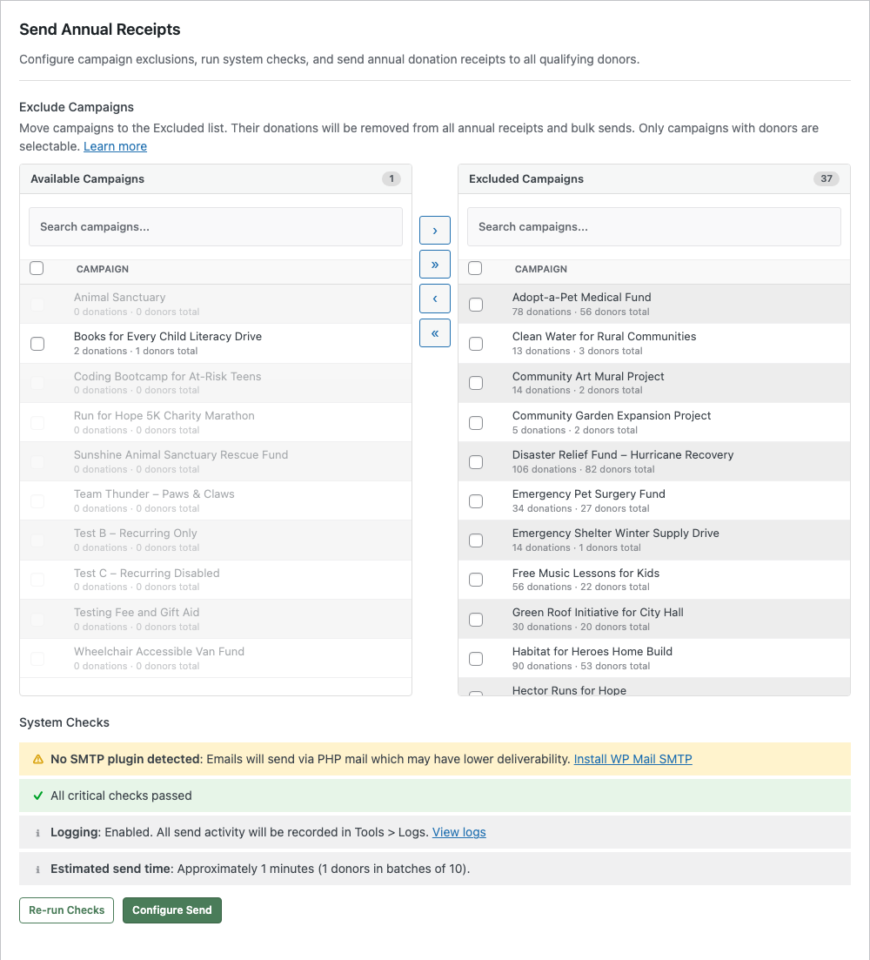
Esta sección contiene todo lo que necesita para enviar recibos anuales: exclusiones de campañas, comprobaciones del sistema, un asistente de envío de 3 pasos y su historial de envíos. El primer paso es configurar qué campañas deben aparecer en los recibos.
Exclusión de campañas de los recibos
Si tiene campañas cuyas donaciones no deben aparecer en los recibos anuales (como inscripciones a eventos, ventas de productos o campañas no deducibles de impuestos), puede excluirlas antes de enviar.
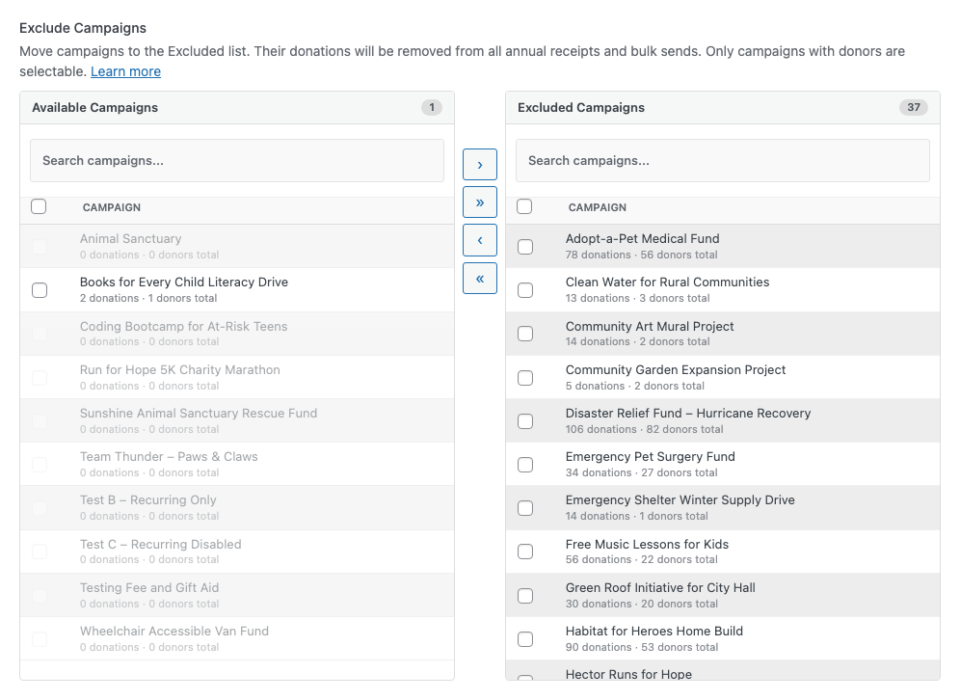
El panel de exclusión muestra dos listas una al lado de la otra:
- Campañas disponibles (izquierda) muestra las campañas que se incluirán en los recibos. Cada campaña muestra sus totales de donaciones y donantes de todos los tiempos.
- Campañas excluidas (derecha) muestra las campañas cuyas donaciones se eliminarán de todos los recibos anuales.
Para excluir una campaña, selecciónela haciendo clic en su fila (la casilla de verificación se activará) y luego haga clic en el botón de flecha > para moverla a la lista de Excluidas. También puede hacer doble clic en una campaña para moverla instantáneamente. Use >> para mover todas las campañas visibles a la vez.
Las campañas con cero donantes aparecen en gris y no se pueden seleccionar. Use el cuadro de búsqueda encima de cada lista para filtrar las campañas por nombre.
Nota: Los totales de donantes de la campaña reflejan los recuentos de todos los tiempos, no solo del año seleccionado. El número real de donantes que recibirán recibos depende de qué donantes hayan completado donaciones en el año fiscal seleccionado.
Después de ajustar sus exclusiones, haga clic en Guardar Cambios en la parte inferior de la página para conservarlas. Las exclusiones se aplican a todos los recibos anuales, incluidas las descargas individuales, la generación de PDF y los envíos masivos.
Comprobaciones del sistema
Antes de poder iniciar un envío masivo, el sistema realiza comprobaciones automáticas para verificar que su sitio esté configurado correctamente.
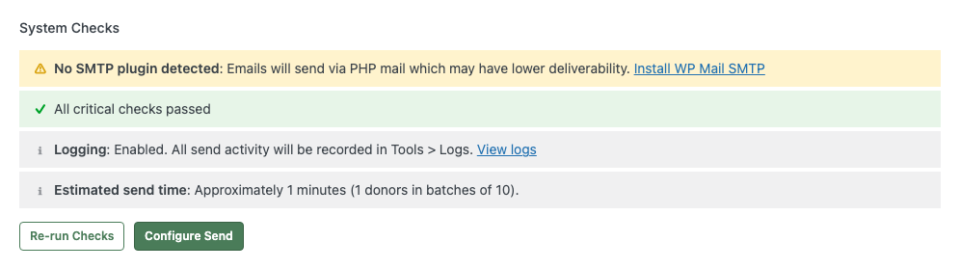
Las comprobaciones se dividen en tres categorías:
- Críticas (rojo) bloquean el envío hasta que se resuelvan. Incluyen: la opción de correo electrónico de recibo anual debe estar habilitada en Ajustes > Correos electrónicos, la página de recibo anual debe estar configurada y WP Cron o Action Scheduler deben estar disponibles.
- Advertencias (ámbar) son informativas pero no bloquean el envío. Las advertencias comunes incluyen: no se detectó ningún plugin SMTP, límite diario bajo de correos electrónicos (para Gmail o proveedores similares) y donantes que ya han recibido recibos para el año seleccionado.
- Información (gris) muestra su configuración actual: proveedor de correo electrónico, estado del registro, tiempo estimado de envío y tamaño del lote.
Haga clic en Volver a ejecutar comprobaciones para actualizar los resultados. Cuando todas las comprobaciones críticas se superen, el botón Configurar envío se activará.
Configuración de su envío
Después de hacer clic en Configurar envío, el asistente se abrirá en el Paso 1.
Configure las siguientes opciones:
- Año selecciona el año fiscal para los recibos. El recuento de donantes se actualiza automáticamente al cambiar el año, reflejando solo a los donantes con donaciones completadas en ese período.
- Vista previa del correo electrónico muestra dónde personalizar el contenido del correo electrónico. Haga clic en el enlace Ajustes > Correos electrónicos para editar la línea de asunto, el cuerpo del texto y las etiquetas de la plantilla.
- Enviar correo electrónico de prueba envía un correo electrónico de ejemplo a su dirección de correo electrónico de administrador para que pueda previsualizar cómo se ve antes de enviarlo a los donantes. Si la casilla Adjuntar PDF está marcada, el correo electrónico de prueba incluye un PDF de ejemplo.
- Adjuntar PDF (cuando esté disponible) adjunta un recibo en PDF a cada correo electrónico. Esta opción solo aparece cuando su servidor tiene suficiente memoria (128 MB o más). Si la memoria es limitada, aparece una advertencia con instrucciones.
Haga clic en Siguiente: Revisar para continuar.
Revisión y confirmación
El Paso 2 muestra un resumen de lo que sucederá cuando envíe.
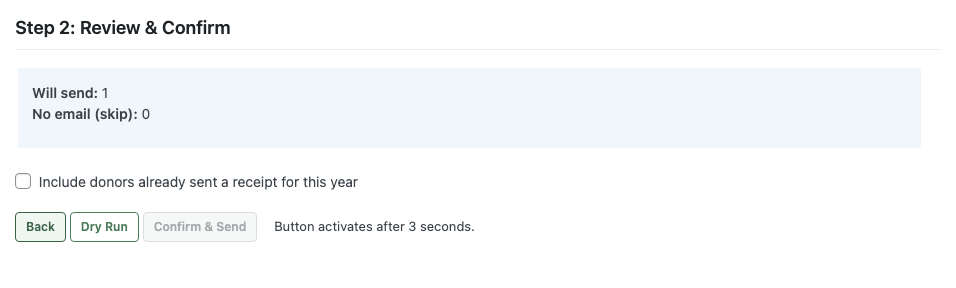
- Se enviará muestra cuántos donantes recibirán recibos.
- No hay correo electrónico (omitir) muestra los donantes sin dirección de correo electrónico que se omitirán automáticamente.
- Incluir donantes a los que ya se les envió un recibo este año controla si se incluyen nuevamente los donantes que recibieron un recibo en un envío anterior. Esta opción está desmarcada por defecto para evitar correos electrónicos duplicados.
Tiene dos opciones:
- Simulacro simula todo el proceso sin enviar ningún correo electrónico. Úselo para verificar su configuración antes de comprometerse con un envío real. Consulte Modo de simulacro para obtener detalles.
- Confirmar y enviar inicia el envío real. Este botón se activa después de un retraso de 3 segundos para evitar clics accidentales.
Envío y seguimiento del progreso
Una vez que confirme, el Paso 3 muestra una pantalla de progreso en vivo. Los correos electrónicos se envían en lotes a través de WP Cron (o Action Scheduler si está disponible), por lo que el procesamiento continúa incluso si cierra su navegador.
La pantalla de progreso muestra:
- Una barra de progreso con el porcentaje de finalización
- Contadores en vivo de Enviados, Omitidos, Fallidos y Restantes
- Un registro de errores (si algún donante falla) con el motivo específico de cada fallo
- Un botón de Abortar para cancelar los envíos restantes (los correos ya enviados no se ven afectados)
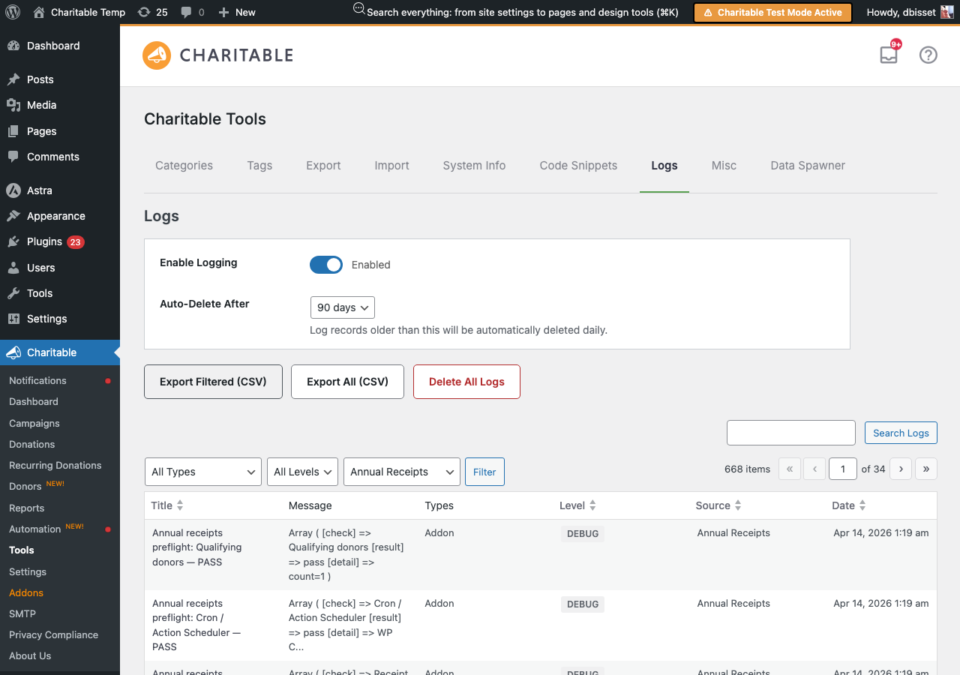
Cuando termine, puede hacer clic en Ver registro de envío para ver el rastro de auditoría completo en Herramientas > Registros, filtrado por la fuente Recibos Anuales.
Nota: Si su proveedor de correo electrónico tiene un límite diario de envío (como los 500 correos diarios de Gmail), el procesador de lotes lo detecta automáticamente y pausa el trabajo hasta el día siguiente. Verá un estado de "Pausado" con la hora esperada de reanudación.
Modo de prueba
Una ejecución de prueba simula todo el proceso de envío sin enviar realmente ningún correo electrónico. Comprueba cada donante según las mismas reglas que un envío real: deduplicación, exclusiones de campaña, validación de correo electrónico y consultas de donaciones.
Para iniciar una ejecución de prueba, haga clic en el botón Ejecución de prueba en el Paso 2 en lugar de Confirmar y Enviar. Un banner amarillo en el Paso 3 confirma que no se enviarán correos electrónicos.
Después de que la ejecución de prueba se complete, el resumen muestra los recuentos de "Se enviaría", "Se omitiría" y "Fallaría". Las ejecuciones de prueba no marcan a los donantes como "ya enviados", por lo que puede hacer un seguimiento inmediato con un envío real.
Utilice las ejecuciones de prueba para:
- Verificar que sus exclusiones de campaña funcionan correctamente
- Comprobar cuántos donantes califican antes de comprometerse
- Probar el flujo de trabajo en un sitio nuevo antes del primer envío real
Personalización del correo electrónico de recibo anual
El correo electrónico de recibo anual es totalmente personalizable en Charitable > Configuración > Correos electrónicos. Busque Donante: Recibo Anual en la lista de correos electrónicos y haga clic en Configuración de correo electrónico.
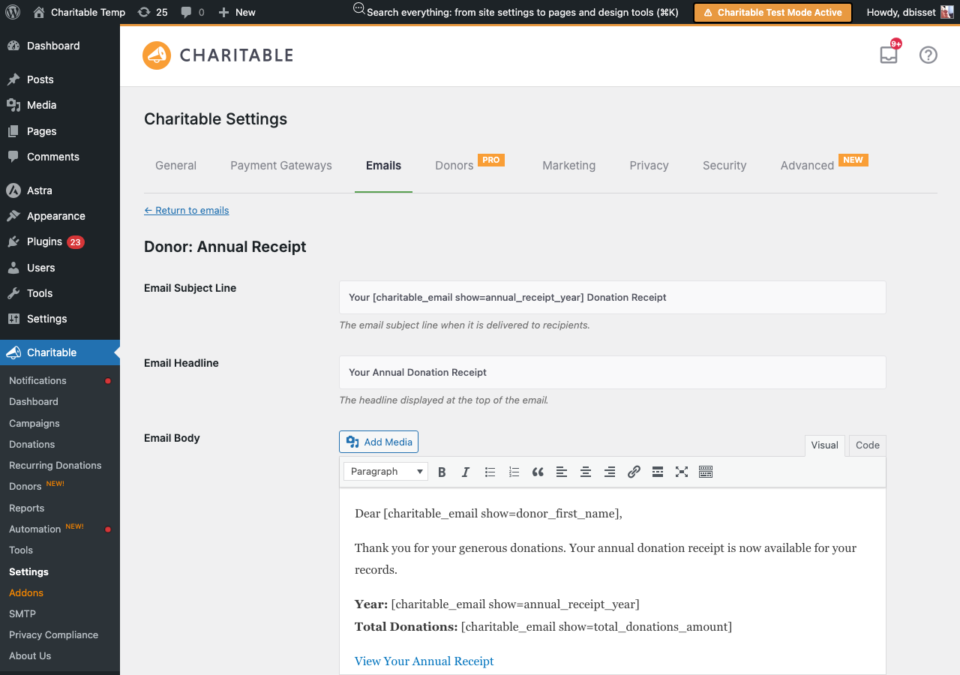
Puede personalizar la línea de asunto, el encabezado y el contenido del cuerpo. Las siguientes etiquetas de plantilla están disponibles:
[charitable_email show=donor_first_name]el nombre del donante[charitable_email show=donor_last_name]el apellido del donante[charitable_email show=annual_receipt_year]el año fiscal[charitable_email show=annual_receipt_url]un enlace seguro al recibo del donante (no se requiere inicio de sesión)[charitable_email show=total_donations_amount]el monto total de las donaciones del año[charitable_email show=organization_name]el nombre de su organización
El enlace del recibo utiliza un token HMAC seguro que permite a los donantes ver su recibo sin iniciar sesión. Los tokens caducan después de 30 días por defecto.
Nota: El correo electrónico de Recibo Anual debe estar habilitado antes de poder usar el asistente de envío masivo. Si ve un fallo de verificación crítico para "correo electrónico de Recibo Anual", haga clic en el enlace para ir directamente a la configuración del correo electrónico y habilitarlo.
Comprobación del registro de donantes
Cada envío de recibo exitoso se registra en el perfil del donante individual. Para comprobarlo, vaya a Charitable > Donantes, abra el perfil de un donante y haga clic en la pestaña Registros.
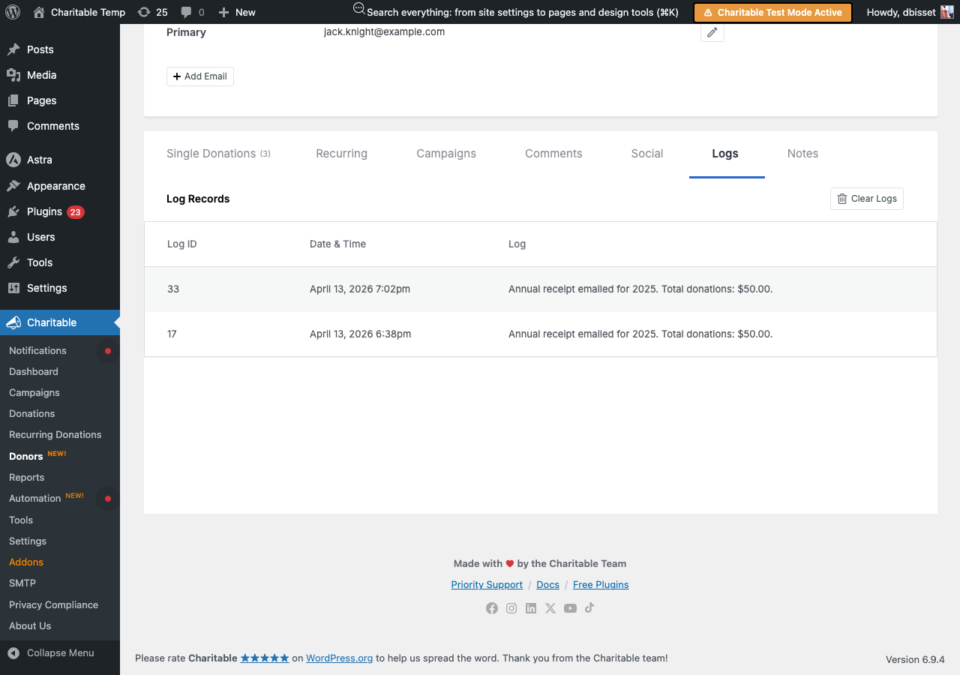
Cada entrada muestra la fecha, el año y el importe total de la donación del recibo que se envió. Los donantes omitidos y fallidos se registran en el registro del sistema (Herramientas > Registros), pero no en el perfil individual del donante.
Historial de envíos y reenvío
Después de completar un envío, aparece una tabla de Historial de envíos debajo del asistente que muestra el año, el número de donantes a los que se envió y la fecha del último envío.
Para reenviar recibos de un año:
- Haz clic en Borrar junto al año en la tabla Historial de envíos. Esto elimina el registro de deduplicación para que todos los donantes vuelvan a ser elegibles. El rastro de auditoría en Herramientas > Registros no se ve afectado.
- Ejecuta el asistente de nuevo para ese año.
Alternativamente, marca la casilla Incluir donantes a los que ya se les envió un recibo este año en el Paso 2 para reenviar sin borrar el historial.
Preguntas frecuentes sobre recibos anuales
Los totales de donantes de la campaña no coinciden con el recuento de envíos. ¿Cómo lo resuelvo?
Los totales de donantes de la campaña en las listas de exclusión muestran recuentos de todos los tiempos en todos los años. El recuento de envíos refleja solo a los donantes con donaciones completadas en el año fiscal seleccionado. Una campaña puede tener 50 donantes en total, pero solo 10 que donaron en 2025.
¿Qué pasa si mis correos electrónicos no se entregan?
Si los correos electrónicos fallan con "No se pudo enviar el correo electrónico", comprueba la configuración de correo electrónico de tu servidor. Para una entrega fiable, instala un plugin SMTP como WP Mail SMTP. El panel de comprobación del sistema te advertirá si no se detecta ningún plugin SMTP.
¿Cómo solucionar correos electrónicos donde el envío está en pausa?
Si tu proveedor de correo electrónico tiene un límite diario de envíos, el procesador por lotes se pausa automáticamente al acercarse a ese límite y se reanuda al día siguiente. Este es un comportamiento normal para proveedores como Gmail (500/día) o el nivel gratuito de Brevo (300/día). Considera mejorar tu proveedor de correo electrónico para envíos de mayor volumen.
¿Cómo veo el registro completo del envío?
Ve a Charitable > Herramientas > Registros y filtra por la fuente Recibos Anuales. Cada donante enviado, omitido y fallido se registra con el motivo.
¿Qué hago si los donantes recibieron recibos que muestran 0,00 €?
Esto puede suceder si las donaciones del donante fueron a campañas que ahora están excluidas, o si la configuración del año fiscal no coincide con las fechas de las donaciones. Verifica tu configuración de Fin del Año Financiero en la parte superior de la página de configuración de Recibos Anuales y comprueba que las campañas relevantes no estén en la lista de Excluidas.