Müssen Sie Spendenquittungen für das Jahresende auf einmal an alle Ihre Spender senden? Die Funktion "Massenversand von Jahresquittungen" in Charitable Pro ermöglicht es Ihnen, Jahresquittungen mit einem geführten Assistenten, der Kampagnenausschlüsse, Systemprüfungen und Stapelverarbeitung automatisch abwickelt, an jeden berechtigten Spender für ein ausgewähltes Geschäftsjahr per E-Mail zu versenden.
Voraussetzungen: Charitable Pro 1.8.13.3+ mit dem Addon "Jahresquittungen" Version 2.0.0 oder neuer.
- Erste Schritte
- Ausschluss von Kampagnen von Quittungen
- Systemprüfungen
- Konfiguration Ihres Versands
- Überprüfung und Bestätigung
- Versand und Fortschrittsverfolgung
- Testlaufmodus
- Anpassen der E-Mail für Jahresquittungen
- Überprüfung des Spenderprotokolls
- Versandhistorie und erneuter Versand
- FAQs zu Jahresquittungen
- Die Spendergesamtsummen der Kampagne stimmen nicht mit der Anzahl der gesendeten E-Mails überein. Wie löse ich das?
- Was passiert, wenn meine E-Mails nicht zugestellt werden?
- Wie behebe ich E-Mails, bei denen der Versand pausiert ist?
- Wie sehe ich das vollständige Versandprotokoll?
- Was soll ich tun, wenn Spender Quittungen mit einem Betrag von 0,00 € erhalten haben?
Erste Schritte
Stellen Sie vor Beginn sicher, dass Charitable Pro und das Addon "Jahresquittungen" (2.0+) auf Ihrer WordPress-Website installiert und aktiviert sind.
Um zum Assistenten für den Massenversand zu gelangen, navigieren Sie in Ihrem WordPress-Adminbereich zu Charitable > Einstellungen > Erweitert > Jahresquittungen. Scrollen Sie nach unten zum Abschnitt Jahresquittungen senden.
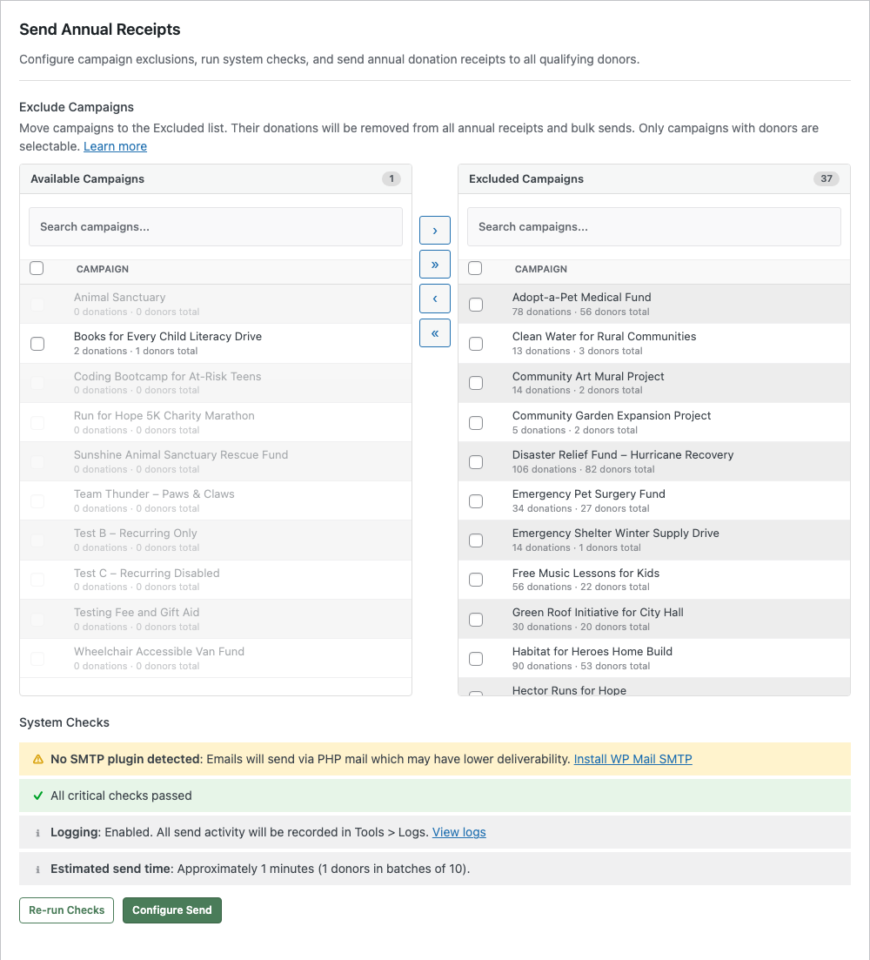
Dieser Abschnitt enthält alles, was Sie zum Senden von Jahresquittungen benötigen: Kampagnenausschlüsse, Systemprüfungen, einen 3-stufigen Versandassistenten und Ihre Versandhistorie. Der erste Schritt besteht darin, zu konfigurieren, welche Kampagnen auf den Quittungen erscheinen sollen.
Ausschluss von Kampagnen von Quittungen
Wenn Sie Kampagnen haben, deren Spenden nicht auf Jahresquittungen erscheinen sollen (z. B. Veranstaltungsregistrierungen, Merchandise-Verkäufe oder nicht steuerlich abzugsfähige Kampagnen), können Sie diese vor dem Versand ausschließen.
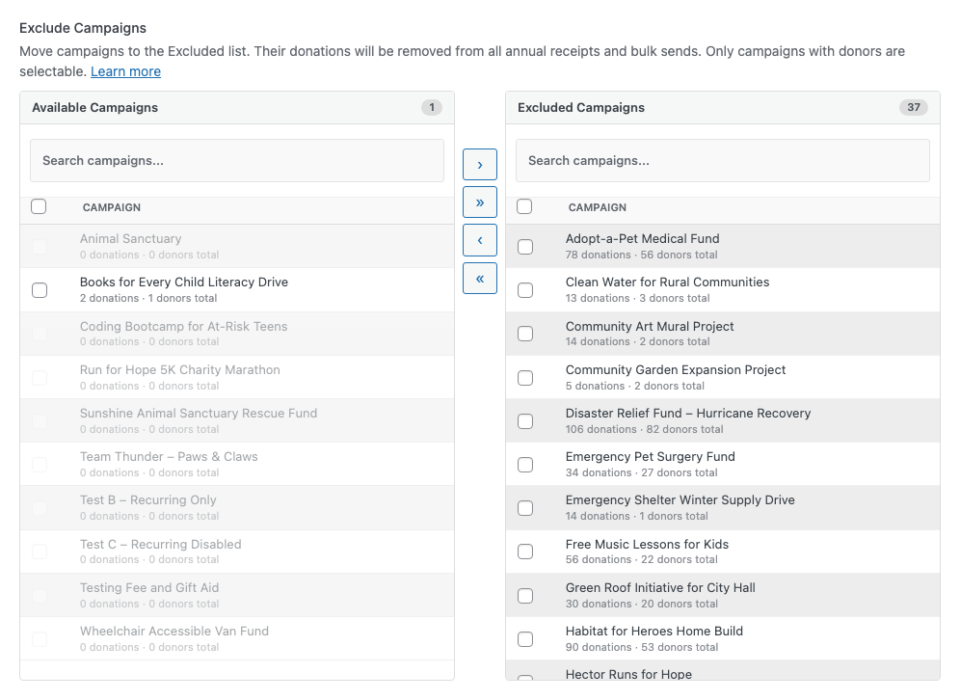
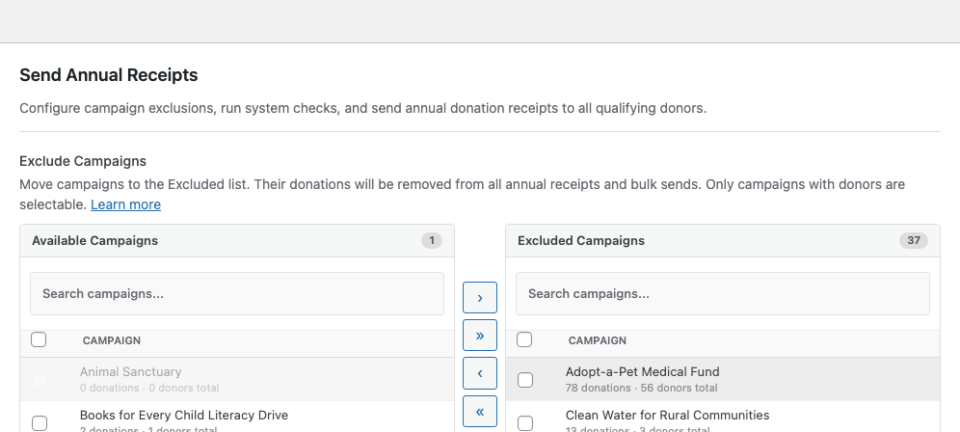
Das Ausschlussfeld zeigt zwei Listen nebeneinander an:
- Verfügbare Kampagnen (links) zeigt Kampagnen an, die in die Quittungen aufgenommen werden. Jede Kampagne zeigt ihre Spenden- und Spendergesamtsummen aller Zeiten an.
- Ausgeschlossene Kampagnen (rechts) zeigt Kampagnen an, deren Spenden von allen Jahresquittungen entfernt werden.
Um eine Kampagne auszuschließen, wählen Sie sie aus, indem Sie auf ihre Zeile klicken (das Kontrollkästchen wird umgeschaltet), und klicken Sie dann auf den Pfeilbutton >, um sie zur Liste der ausgeschlossenen Kampagnen zu verschieben. Sie können auch auf eine Kampagne doppelklicken, um sie sofort zu verschieben. Verwenden Sie >>, um alle sichtbaren Kampagnen auf einmal zu verschieben.
Kampagnen mit null Spendern sind ausgegraut und können nicht ausgewählt werden. Verwenden Sie das Suchfeld über jeder Liste, um Kampagnen nach Namen zu filtern.
Hinweis: Die Spendergesamtsummen der Kampagnen spiegeln die Gesamtsummen aller Zeiten wider, nicht nur des ausgewählten Jahres. Die tatsächliche Anzahl der Spender, die Quittungen erhalten, hängt davon ab, welche Spender im ausgewählten Geschäftsjahr Spenden getätigt haben.
Nachdem Sie Ihre Ausschlüsse angepasst haben, klicken Sie unten auf der Seite auf Änderungen speichern, um sie zu übernehmen. Ausschlüsse gelten für alle Jahresquittungen, einschließlich einzelner Downloads, PDF-Generierung und Massenversand.
Systemprüfungen
Bevor Sie mit einem Massenversand beginnen können, führt das System automatische Prüfungen durch, um zu verifizieren, dass Ihre Website ordnungsgemäß konfiguriert ist.
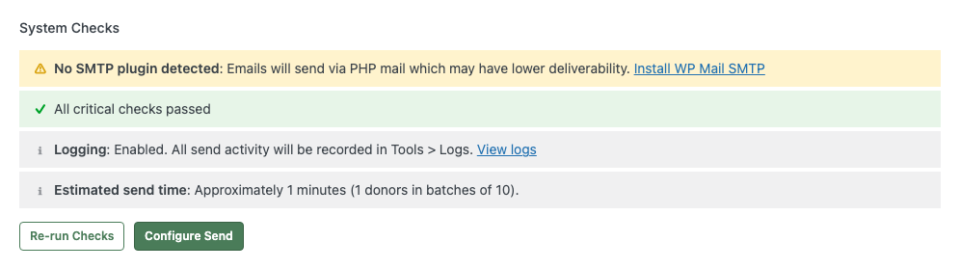
Prüfungen fallen in drei Kategorien:
- Kritisch (rot) blockiert den Versand, bis das Problem behoben ist. Dazu gehören: Die E-Mail für den Jahresbeleg muss in den Einstellungen > E-Mails aktiviert sein, die Seite für den Jahresbeleg muss konfiguriert sein und WP Cron oder Action Scheduler muss verfügbar sein.
- Warnungen (bernsteinfarben) sind beratend, blockieren aber nicht den Versand. Häufige Warnungen sind: Kein SMTP-Plugin erkannt, niedriges tägliches E-Mail-Limit (für Gmail oder ähnliche Anbieter) und Spender, die bereits Belege für das ausgewählte Jahr erhalten haben.
- Info (grau) zeigt Ihre aktuelle Konfiguration: E-Mail-Anbieter, Protokollierungsstatus, geschätzte Sendezeit und Stapelgröße.
Klicken Sie auf Prüfungen erneut ausführen, um die Ergebnisse zu aktualisieren. Wenn alle kritischen Prüfungen bestanden sind, wird die Schaltfläche Versand konfigurieren aktiviert.
Konfiguration Ihres Versands
Nachdem Sie auf Versand konfigurieren geklickt haben, öffnet sich der Assistent zu Schritt 1.
Konfigurieren Sie die folgenden Optionen:
- Jahr wählt das Geschäftsjahr für die Belege aus. Die Spenderanzahl wird automatisch aktualisiert, wenn Sie das Jahr ändern, und zeigt nur Spender mit abgeschlossenen Spenden in diesem Zeitraum an.
- E-Mail-Vorschau zeigt, wo Sie den E-Mail-Inhalt anpassen können. Klicken Sie auf den Link Einstellungen > E-Mails, um die Betreffzeile, den Textkörper und die Vorlagen-Tags zu bearbeiten.
- Test-E-Mail senden sendet eine Beispiel-E-Mail an Ihre Admin-E-Mail-Adresse, damit Sie sehen können, wie sie aussieht, bevor Sie sie an Spender senden. Wenn das Kontrollkästchen PDF-Anhang aktiviert ist, enthält die Test-E-Mail ein Beispiel-PDF.
- PDF-Anhang (sofern verfügbar) hängt einen PDF-Beleg an jede E-Mail an. Diese Option wird nur angezeigt, wenn Ihr Server über ausreichend Speicher verfügt (128 MB oder mehr). Wenn der Speicher begrenzt ist, wird eine Warnung mit Hinweisen angezeigt.
Klicken Sie auf Weiter: Überprüfen, um fortzufahren.
Überprüfung und Bestätigung
Schritt 2 zeigt eine Zusammenfassung dessen, was beim Senden passieren wird.
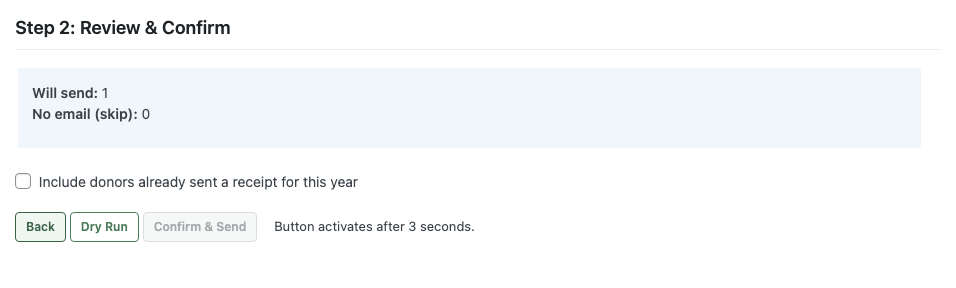
- Wird gesendet zeigt an, wie viele Spender Belege erhalten werden.
- Keine E-Mail (überspringen) zeigt Spender ohne E-Mail-Adresse an, die automatisch übersprungen werden.
- Spender einbeziehen, die für dieses Jahr bereits einen Beleg erhalten haben steuert, ob Spender, die in einem früheren Sendevorgang einen Beleg erhalten haben, erneut einbezogen werden. Dies ist standardmäßig deaktiviert, um doppelte E-Mails zu vermeiden.
Sie haben zwei Optionen:
- Testlauf simuliert den gesamten Prozess, ohne E-Mails zu senden. Verwenden Sie dies, um Ihre Konfiguration zu überprüfen, bevor Sie sich zu einem echten Sendevorgang verpflichten. Weitere Details finden Sie unter Testlaufmodus.
- Bestätigen & Senden startet den eigentlichen Sendevorgang. Diese Schaltfläche wird nach einer Verzögerung von 3 Sekunden aktiviert, um versehentliche Klicks zu verhindern.
Versand und Fortschrittsverfolgung
Sobald Sie bestätigen, zeigt Schritt 3 eine Live-Fortschrittsanzeige an. E-Mails werden in Stapeln über WP Cron (oder Action Scheduler, falls verfügbar) gesendet, sodass die Verarbeitung fortgesetzt wird, auch wenn Sie Ihren Browser schließen.
Der Fortschrittsbildschirm zeigt:
- Eine Fortschrittsleiste mit dem Fertigstellungsprozentsatz
- Live-Zähler für Gesendet, Übersprungen, Fehlgeschlagen und Verbleibend
- Ein Fehlerprotokoll (falls Spender fehlschlagen) mit dem spezifischen Grund für jeden Fehler
- Eine Abbrechen-Schaltfläche, um das Senden der restlichen E-Mails abzubrechen (bereits gesendete E-Mails sind nicht betroffen)
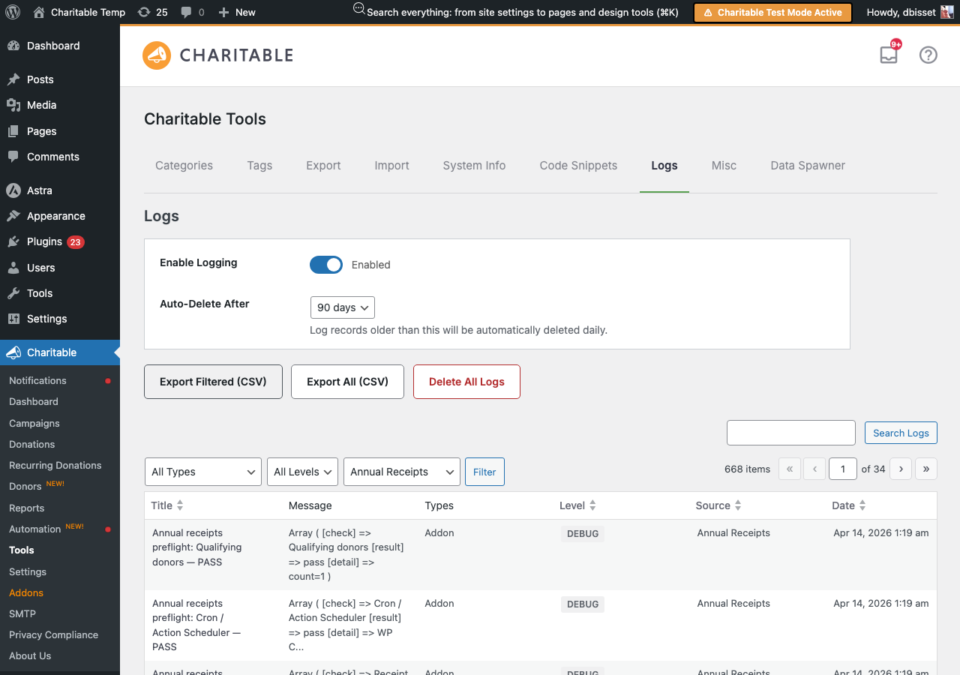
Nach Abschluss können Sie auf Sendeprotokoll anzeigen klicken, um den vollständigen Audit-Trail unter Tools > Protokolle anzuzeigen, gefiltert nach der Quelle „Jahresbelege“.
Hinweis: Wenn Ihr E-Mail-Anbieter ein tägliches Sendelimit hat (z. B. 500 E-Mails pro Tag bei Gmail), erkennt der Stapelverarbeitungsdienst dies automatisch und pausiert den Auftrag bis zum nächsten Tag. Sie sehen den Status „Pausiert“ mit der erwarteten Wiederaufnahmezeit.
Testlaufmodus
Ein Testlauf simuliert den gesamten Sendeprozess, ohne tatsächlich E-Mails zu versenden. Er prüft jeden Spender anhand derselben Regeln wie ein echter Sendevorgang: Deduplizierung, Kampagnenausschlüsse, E-Mail-Validierung und Spendenabfragen.
Um einen Testlauf zu starten, klicken Sie in Schritt 2 auf die Schaltfläche Testlauf anstelle von Bestätigen & Senden. Ein gelber Banner in Schritt 3 bestätigt, dass keine E-Mails gesendet werden.
Nach Abschluss des Testlaufs zeigt die Zusammenfassung die Zählungen „Würde senden“, „Würde überspringen“ und „Würde fehlschlagen“. Testläufe markieren Spender nicht als „bereits gesendet“, sodass Sie sofort mit einem echten Sendevorgang fortfahren können.
Verwenden Sie Testläufe, um:
- Zu überprüfen, ob Ihre Kampagnenausschlüsse korrekt funktionieren
- Zu prüfen, wie viele Spender sich qualifizieren, bevor Sie sich festlegen
- Die Pipeline auf einer neuen Website zu testen, bevor der erste echte Sendevorgang stattfindet
Anpassen der E-Mail für Jahresquittungen
Die E-Mail für die Jahresbelege ist vollständig anpassbar unter Charitable > Einstellungen > E-Mails. Suchen Sie nach Spender: Jahresbeleg in der E-Mail-Liste und klicken Sie auf E-Mail-Einstellungen.
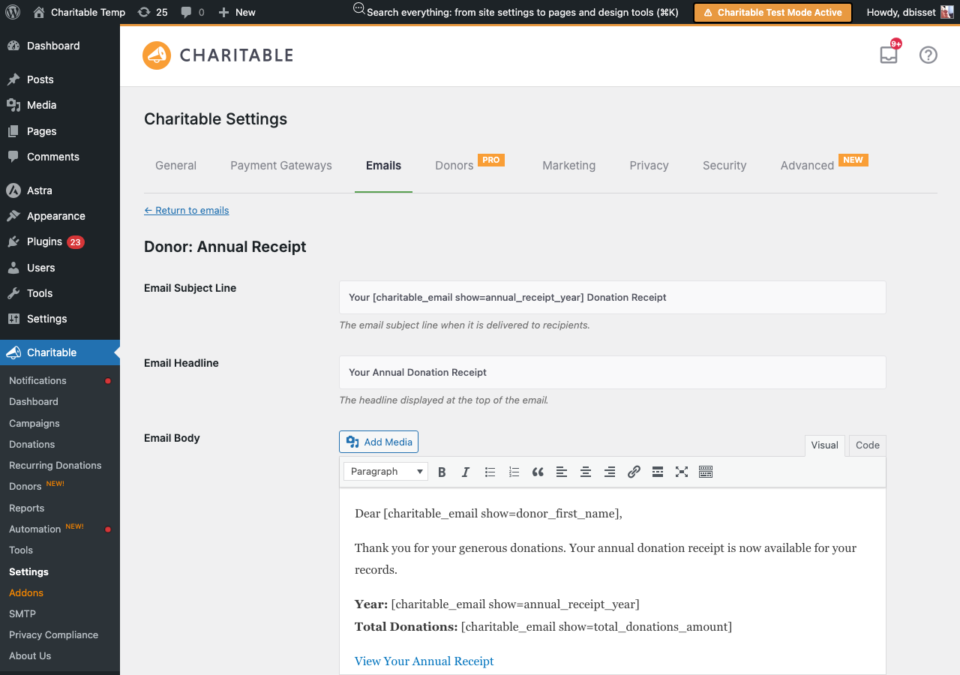
Sie können die Betreffzeile, die Überschrift und den E-Mail-Text anpassen. Die folgenden Vorlagen-Tags sind verfügbar:
[charitable_email show=donor_first_name]der Vorname des Spenders[charitable_email show=donor_last_name]der Nachname des Spenders[charitable_email show=annual_receipt_year]das Geschäftsjahr[charitable_email show=annual_receipt_url]ein sicherer Link zum Beleg des Spenders (keine Anmeldung erforderlich)[charitable_email show=total_donations_amount]der Gesamtspendenbetrag für das Jahr[charitable_email show=organization_name]der Name Ihrer Organisation
Der Link zum Beleg verwendet ein sicheres HMAC-Token, das es Spendern ermöglicht, ihren Beleg anzuzeigen, ohne sich anzumelden. Tokens laufen standardmäßig nach 30 Tagen ab.
Hinweis: Die E-Mail für Jahresbelege muss aktiviert sein, bevor Sie den Massenversand-Assistenten verwenden können. Wenn Sie eine kritische Prüfung für „E-Mail für Jahresbelege“ fehlschlagen sehen, klicken Sie auf den Link, um direkt zu den E-Mail-Einstellungen zu gelangen und diese zu aktivieren.
Überprüfung des Spenderprotokolls
Jeder erfolgreiche Belegversand wird im Profil des einzelnen Spenders protokolliert. Um dies zu überprüfen, gehen Sie zu Charitable > Spender, öffnen Sie das Profil eines Spenders und klicken Sie auf die Registerkarte Protokolle.
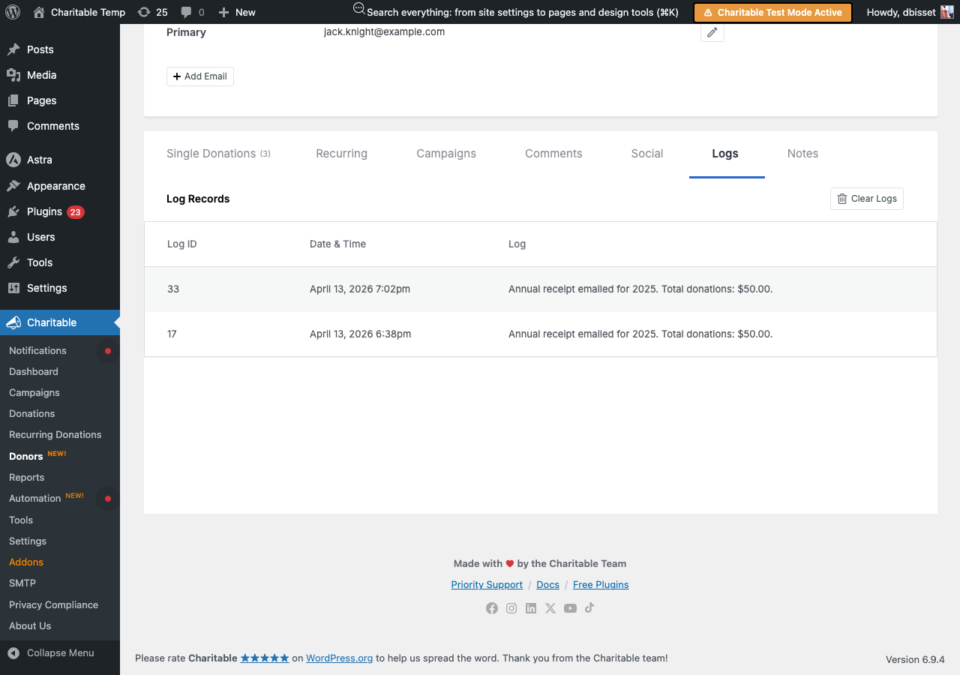
Jeder Eintrag zeigt das Datum, das Jahr und den gesamten Spendenbetrag für die gesendete Quittung an. Übersprungene und fehlgeschlagene Spender werden im Systemprotokoll (Tools > Protokolle) protokolliert, aber nicht im individuellen Profil des Spenders.
Versandhistorie und erneuter Versand
Nach Abschluss eines Sendevorgangs erscheint unter dem Assistenten eine Tabelle Sendungsverlauf, die das Jahr, die Anzahl der gesendeten Spender und das Datum des letzten Sendevorgangs anzeigt.
Um Quittungen für ein Jahr erneut zu senden:
- Klicken Sie in der Tabelle „Sendungsverlauf“ neben dem Jahr auf Löschen. Dadurch wird das Duplizierungs-Protokoll entfernt, sodass alle Spender wieder berechtigt sind. Die Überwachung in Tools > Protokolle ist davon nicht betroffen.
- Führen Sie den Assistenten für dieses Jahr erneut aus.
Alternativ können Sie im Schritt 2 das Kontrollkästchen Spender einschließen, denen bereits eine Quittung für dieses Jahr gesendet wurde aktivieren, um den erneuten Versand ohne Löschen des Verlaufs durchzuführen.
FAQs zu Jahresquittungen
Die Spendergesamtsummen der Kampagne stimmen nicht mit der Anzahl der Sendungen überein. Wie kann ich das beheben?
Die Spendergesamtsummen der Kampagne in den Ausschlusslisten zeigen die Gesamtzahlen aller Jahre an. Die Anzahl der Sendungen spiegelt nur Spender mit abgeschlossenen Spenden im ausgewählten Geschäftsjahr wider. Eine Kampagne kann insgesamt 50 Spender haben, aber nur 10, die im Jahr 2025 gespendet haben.
Was passiert, wenn meine E-Mails nicht zugestellt werden?
Wenn E-Mails mit der Meldung „E-Mail konnte nicht gesendet werden“ fehlschlagen, überprüfen Sie die E-Mail-Konfiguration Ihres Servers. Für eine zuverlässige Zustellung installieren Sie ein SMTP-Plugin wie WP Mail SMTP. Das Systemprüfungsfeld warnt Sie, wenn kein SMTP-Plugin erkannt wird.
Wie behebe ich E-Mails, bei denen der Versand pausiert ist?
Wenn Ihr E-Mail-Anbieter ein tägliches Sendelimit hat, pausiert der Stapelverarbeiter automatisch, wenn er sich diesem Limit nähert, und setzt am nächsten Tag fort. Dies ist ein normales Verhalten für Anbieter wie Gmail (500/Tag) oder Brevo Free Tier (300/Tag). Erwägen Sie ein Upgrade Ihres E-Mail-Anbieters für Sendungen mit höherem Volumen.
Wie sehe ich das vollständige Versandprotokoll?
Gehen Sie zu Charitable > Tools > Protokolle und filtern Sie nach der Quelle Jahresquittungen. Jeder gesendete, übersprungene und fehlgeschlagene Spender wird mit dem Grund protokolliert.
Was soll ich tun, wenn Spender Quittungen mit einem Betrag von 0,00 € erhalten haben?
Dies kann passieren, wenn die Spenden des Spenders an Kampagnen gingen, die jetzt ausgeschlossen sind, oder wenn die Einstellungen für das Geschäftsjahr nicht mit den Spendendaten übereinstimmen. Überprüfen Sie Ihre Einstellung für das Ende des Geschäftsjahres oben auf der Einstellungsseite für Jahresquittungen und stellen Sie sicher, dass die relevanten Kampagnen nicht in der Ausschlussliste aufgeführt sind.